License Management
What is License?
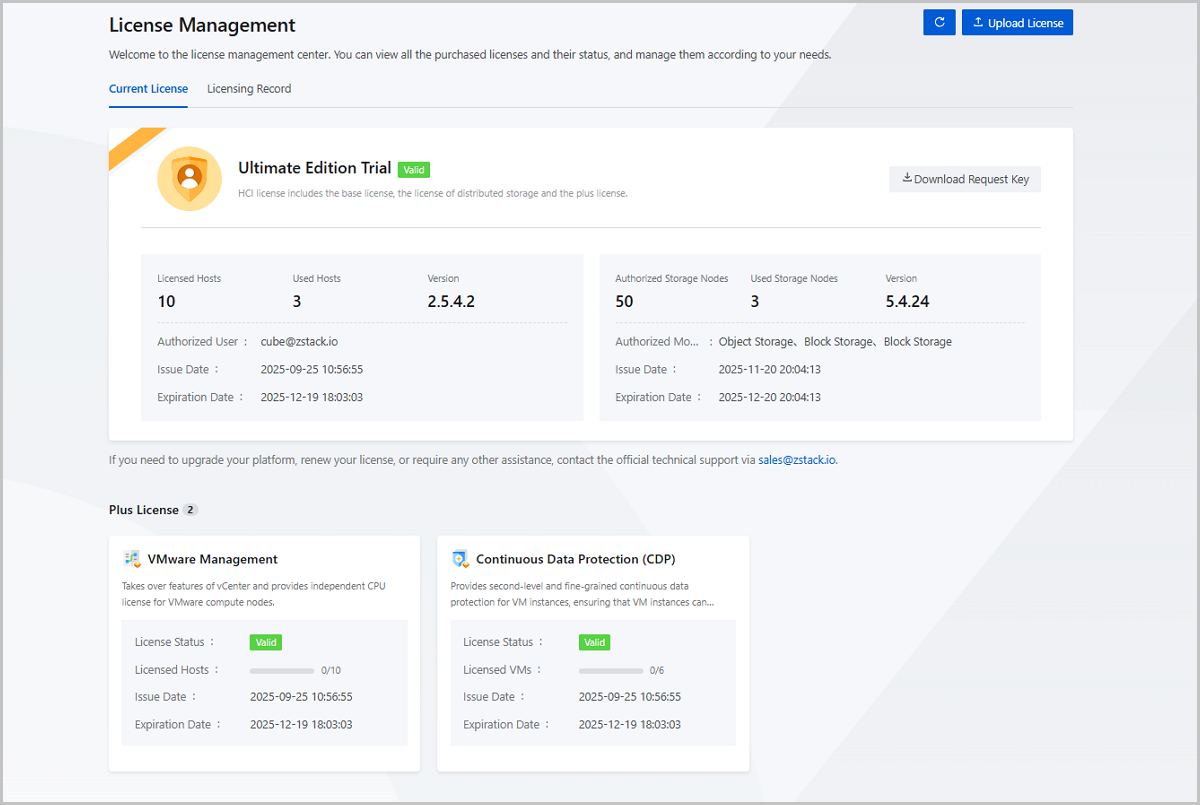
On the ZStack Cube Ultimate main menu, click the profile icon and choose License Management. Then, the License Management page is displayed. This page displays current software's licensing protocol, version, and license status, and allows you to centrally manage the hyper-converged license (base), distributed storage license (base), and module licenses (plus).
Licensing Mechanism
- Hyper-Converged License (Base)
- Provides the basic and essential features of the Cloud, which can meet the mainstream business requirements.
- Covered functionalities: Ultimate Trial and Ultimate Prepaid
- Distributed Storage License (Base)
- Provides distributed storage services, which can meet the mainstream storage requirements.
- Covered functionalities: Distributed Storage Enterprise Trial and Distributed Storage Enterprise Prepaid.
- The services enabled by this license depend on the specific
authorized modules you purchase, including Block Storage and Object
Storage.
 Note: The object storage can only be used in
conjunction with a block storage license.
Note: The object storage can only be used in
conjunction with a block storage license.
- Module License (Base)
- Provides add-on features or feature enhancements to meet the specific business requirements.
- Covered functionalities: VMware Management, Tenant Management, ARM64 Management, Backup Service, Continuous Data Protection (CDP) Service, Cryptography Security Compliance, Baremetal Management, Elastic Baremetal Management, Alibaba Cloud Hybrid Cloud Management, 5x8 (7x24) After-Sales Service, SR-IOV NIC Service, GPU Service, Billing Management, CloudFormation, Auto-Scaling Service, SDN Network, Container Management-CPU, and Container Management-vCPU.
- A hyper-converged license is required to install module licenses.
| Licensing Mechanism | Functionality Covered | Description |
|---|---|---|
| Hyper-Converged License (Base) | Ultimate Trial |
Provides a full set of computing, storage, and network
virtualization features, and enhanced features such as GPU,
CloudFormation, and auto-scaling. This helps to meet the
various and flexible business requirements.
|
| Ultimate Prepaid |
Provides a full set of computing, storage, and network
virtualization features, and enhanced features such as GPU,
CloudFormation, and auto-scaling. This helps to meet the
various and flexible business requirements.
|
|
| Distributed Storage License (Base) | Enterprise Trial | Provides a full set of
distributed storage services for the platform.
|
| Enterprise Prepaid | Provides a full set of
distributed storage services for the platform.
|
|
| Plus License | VMware Management |
Manages all the features of vCenter and provides an
independent CPU license for VMware compute nodes.
|
| Tenant Management |
Provides the full functionalities of Tenant Management, such as project management, organizational structure, users, permissions, and Cloud operations, during the licensed period.
|
|
| ARM64 Management |
Provides a specified number of ARM hosts within the licensed
period, and provides stable support for ARM64 servers.
|
|
| Backup Service |
Backs up VM data to backup servers online in various
scenarios, such as local backup, remote backup, and hybrid
cloud backup. This enhances the data reliability.
|
|
| Continuous Data Protection (CDP) Service |
Provides second-level and fine-grained continuous data
protection for VM instances, ensuring that VM instances can
quickly recover when a failure occurs.
|
|
| Cryptographic Security Compliance |
Provides applications with cloud security capabilities based
on commercial cryptography, meeting the requirements of
commercial cryptography application security assessments.
|
|
| Baremetal Management |
Provides a specified number of dedicated physical servers
within the licensed period to ensure the high performance
and stability of core applications.
|
|
| Elastic Baremetal Management |
Provides the license for managing specified number of
flexible physical servers during the licensed period,
improving the ease of use and flexibility in addition to
ensuring the high performance and stability of physical
servers.
|
|
| Alibaba Cloud Hybrid Cloud Management |
Provides all features of Alibaba Cloud Hybrid Cloud
Management, realizing the interconnection between the
control plane and the data plane.
|
|
| Container Management-CPU |
Provides independent CPU license for an enterprise-level
container service, enabling you to conveniently use
multiple-tenant management, multiple cluster management,
resource allocation, CI/CD, microservice governance, and
other container-related features.
|
|
| Container Management -vCPU |
Provides independent vCPU license for an enterprise-level
container service, enabling you to conveniently use
multiple-tenant management, multiple-cluster management,
resource allocation, CI/CD, microservice governance, and
other container-related features.
|
|
| 5x8 (7x24) After-Sales Service |
Provides 5x8 or 7x24 official after-sales technical support
within the specified period.
|
|
| SR-IOV NIC Service |
Allows you to generate VF NICs from physical NICs based on
the SR-IOV specification and allocate these VF NICs to VM
instances. This provides VM instances strong I/O performance
comparable to that of physical NICs.
|
|
| GPU Service | Allows you to passthrough a physical GPU
(pGPU) to VM instances or divide a pGPU into multiple virtual
GPUs (vGPUs) and distribute the vGPUs to VM instances. This
empowers VM instances with strong computing capabilities of
physical GPUs.
|
|
| Billing Management | Provides billing methods like that of the
public cloud, uses pricing lists to manage billing of resources
of various unit prices, and offers billing services to the admin
and tenants based on the pricing lists.
|
|
| CloudFormation | Uses stack templates to batch deploy and
configure resources and manage the lifecycle of the resources.
In addition, offers designers that allow efficient orchestration
of cloud resources.
|
|
| Auto-Scaling Service | Allows automatic scale-in or scale-out of VM
instances based on the load balancing result of application
workloads, thereby improving resource utilization, lowering
maintenance costs, and securing stable business operations.
|
|
| SDN Network | Supports hardware SDN integration and
provides advanced network service management capabilities based
on OVS-DPDK software SDN networks.
|
Note:
- For more details, contact us by sending emails to sales@zstack.io.
- If you need to upgrade or renew your license, require any other assistance, contact the official technical support via 400-962-2212.
Licensing Method
- Licensing by USB Key
- You can obtain the authorization by inserting only one USB key into the management node.
- If you are using a dual-MN environment, insert only one USB key.
- The Plus licenses authorized by an USB Key cannot be deleted.
- Licensing by Request Key
- You can obtain the authorization by uploading the license file to the management node.
- You can upload both the Base license and Plus license at the same time by using a tar.gz package.
- If you are using a dual-MN environment, we recommend that you upload the license file on the management node where the virtual IP address is located.
Install a License
The admin can install a license by using a USB key or a request key. These two methods are detailed in the following topics.
Install a License by Using a USB Key
This topic focuses on the method of getting a license by using a USB key, including installing a license by using a USB key, renewing a license by using a USB key, and viewing the status of a USB key.
Install a License by Using a USB Key
- Insert the USB key into the management node.
- On the main menu of ZStack Cube Ultimate, choose . Then, the License Management page is displayed.
- On the License Management page, click the
Refresh button to the left of Upload
License.
图 1. Refresh License 
- Then, you can see the whole licensing information.
图 2. Whole Licensing Information 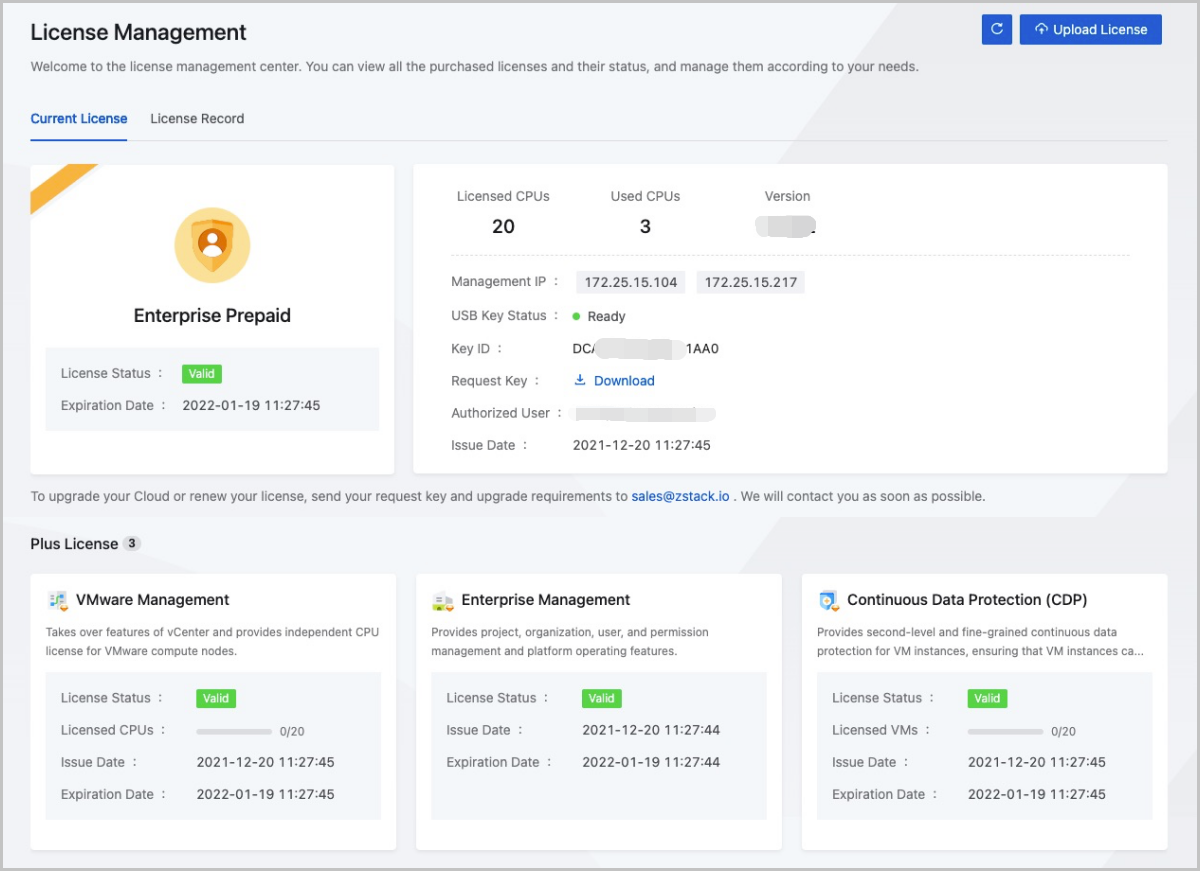
Note:
- If you have got a license by using a request key, you can view Plus License of both the request key and USB key after inserting the USB key. If the Plus License is the same, the latest uploaded one will be taken as a reference.
- If you get a license by using the USB key, every time you enter the License Management interface of the Cloud, there will be about two seconds of information reading, and the relevant information of the USB key will appear after two seconds.
- If you are using a dual-MN environment, note that:
- You can obtain the authorization by inserting only one USB key into the management node.
- If the node with the USB key inserted is faulty, we recommend that you remove the USB key and insert it into another healthy node to ensure the business continuity.
- If you update from a single management node environment to a dual-MN environment, you do not need to get the additional license.
Renew a License by Using a USB Key
- Insert the USB key into the management node.
- On the main menu of ZStack Cube Ultimate, choose . Then, the License Management page is displayed.
- On the License Management page, click the Copy
button to the right of the Key ID.
图 3. Copy Key ID 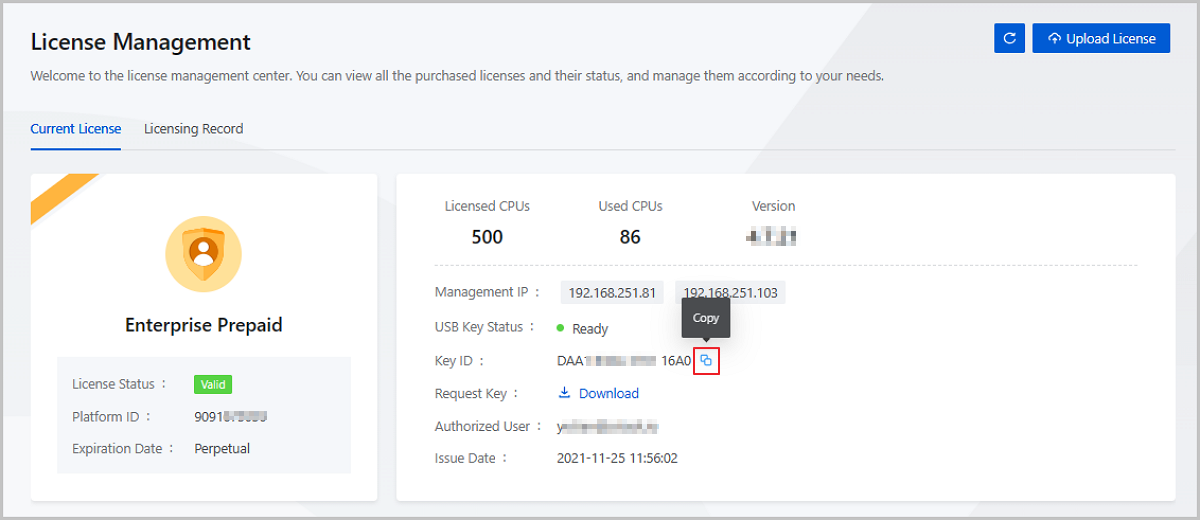
- Apply for a license by using the USB Key ID to get the licensing file.
- Go back to the License Management page, Click
Upload License to upload the licensing file.
图 4. Upload License 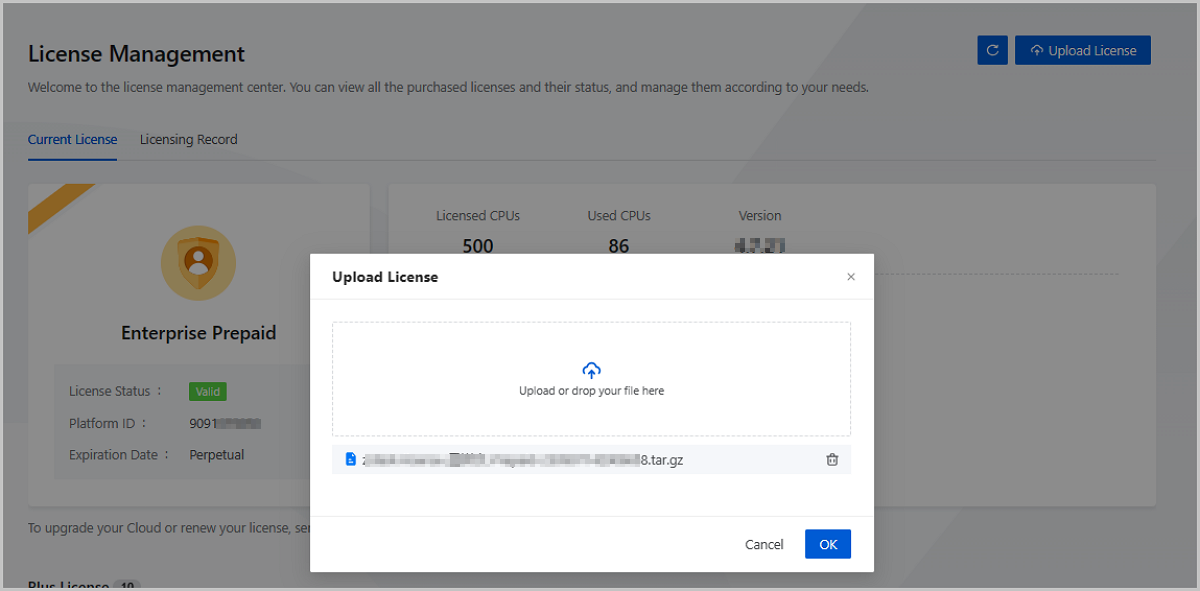
- Check whether the licensing information is correct.
Note:
- If you do not insert a USB key into the management node, you can not upload a license by using the USB key.
- If the USB key ID dose not match the applied license, you can not upload the license by using the USB key.
- If you apply a new license by using a USB key, you need to fill in previous all applied information and then add new Plus License information when the USB key does not match the request key.
View USB Key Status
On the main menu of ZStack Cube Ultimate, choose . Then, the License Management page is displayed. You can view the current status of the USB key of the Cloud.
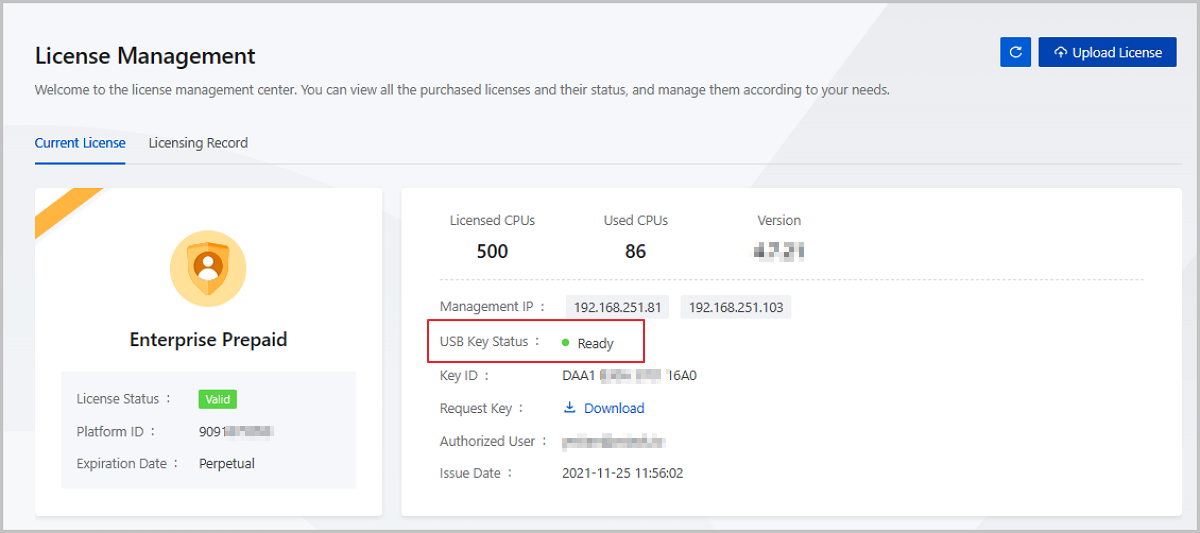
USB Key Status
| Status | Description |
|---|---|
| Ready | The USB key is Ready when there is only one USB key inserted into the management node and it works properly. |
| Missing | After unplugging the USB key, the USB key is
Missing.Note: When unplugging the USB key, the Cloud will
check whether the current license is expired.
|
| Abnormal | For a dual-MN environment, you might face a
possibility of USB key failure if you:
Note: The USB key in an abnormal state does not affect the
license. |
| Fault |
Note: When the USB key status is Faulty, you can not use the
license after the buffer license is expired. |
Install a License by Using a Request Key
This topic focuses on the method of getting a license by using a request key, including installing a license by using a request key and renewing a license by using a request key.
Install a License on the UI
- On the main menu of ZStack Cube Ultimate, choose . Then, the License Management page is displayed.
- On the License Management page, click Upload License in the upper right corner. On the displayed Upload License window, upload the obtained license.
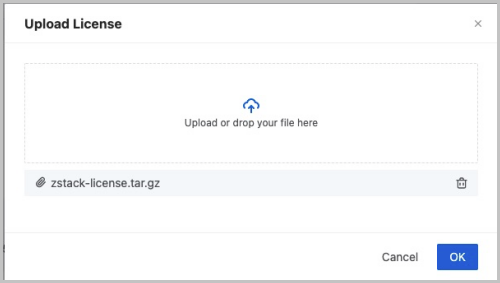 Note:
Note:
- You can upload both the Base license and Plus license at the same time by using a tar.gz package or a .txt file.
- If you are using a dual-MN environment, we recommend that you download the request key and upload the license file on the management node where the virtual IP address is located. Then, the licensing information on both nodes can be updated.
- Only the admin has the permission to load or delete licenses. Note that the Base license cannot be deleted.
Install a License by Using Command Line Tool
- Import the license by using a command line tool after getting the new
license.
[root@localhost ~]# zstack-ctl install_license -f zstack-license.tar.gz - Refresh the license.Reload the license by using the following commands:
[root@localhost ~]# zstack-cli

  ZStack command line tool
  Type "help" for more information
  Type Tab key for auto-completion
  Type "quit" or "exit" or Ctrl-d to exit

>>>LogInByAccount accountName=admin password=password
{
    "inventory": {
        "accountUuid": "36c27e8ff05c4780bf6d2fa65700f22e",
        "createDate": "May 25, 2016 8:12:54 PM",
        "expiredDate": "May 25, 2016 10:12:54 PM",
        "userUuid": "36c27e8ff05c4780bf6d2fa65700f22e",
        "uuid": "d505bde1bcce46cb9c79774440654f42"
    },
    "success": true
}

>>>ReloadLicense
Renew a License by Using a Request Key
- On the main menu of ZStack Cube Ultimate, choose . Then, the License Management page is displayed.
- On the License Management page, click the
Download button next to Request
Key.
图 2. Download Request Key 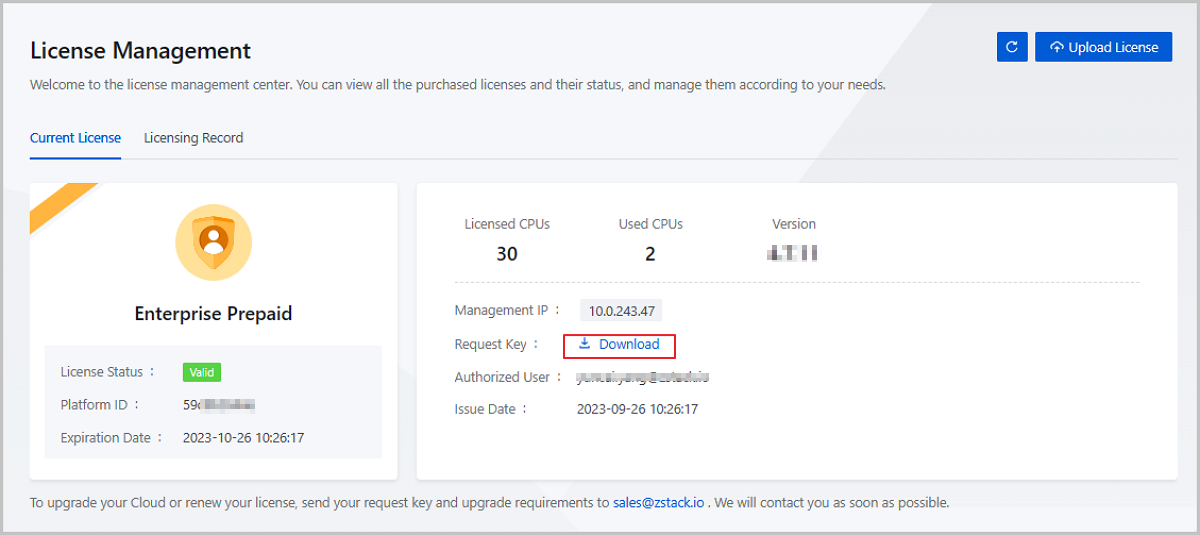
- Apply for a license by using a request key to get the licensing file.
- Go back to the License Management page, upload the licensing file.
- Check whether the licensing information is correct.
Manage a License
On the main menu of ZStack Cube Ultimate, choose . Then, the License Management page is displayed.
| Action | Description |
|---|---|
| Upload License | Upload a license.Note:
|
| Copy Key ID | Copy the key ID required to generate a license. You can update the license by using a key ID. |
| Download Request Key | Download the request key required to generate a license. You can update the license by using a request key. |
| Delete Plus License | Delete a Plus license you added to the
Cloud.Note: The Plus licenses obtained by using a USB key cannot
be deleted. |
License Status
| Status | Description |
|---|---|
| Valid | The Base license is in the valid status. |
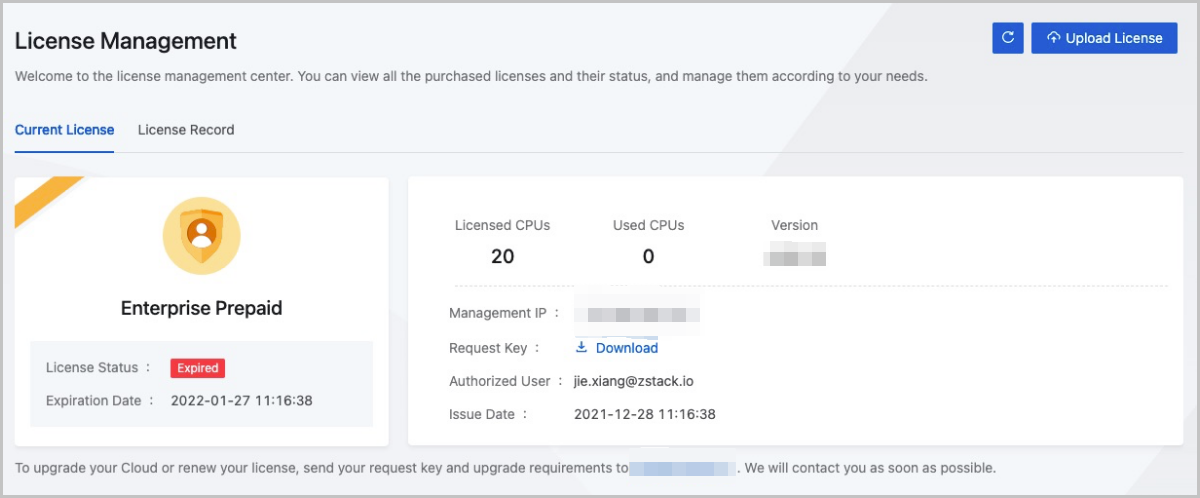
| Expired | The Base license or a Plus license expired. If a Plus license expires, the corresponding features are unavailable. |
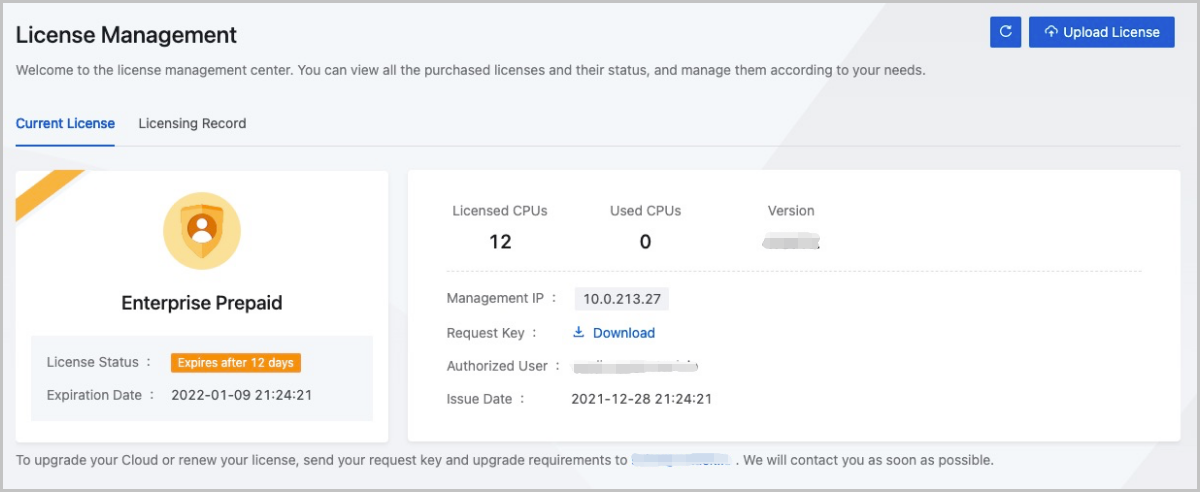
License Exception Reminder
| Exception | Details |
|---|---|
| License to Expire | When the remaining license period is less
than 15 days, a banner prompt will appear after you log in to
the Cloud.Note:
|
| License Expired | When the Base license expired, you will be
redirected to the License Management page
after login. In order not to affect your use of the Cloud, we
recommend that you contact us as soon as possible for
authorization update.Note:
|
| Licensed Quota Exceeds | When you update your license, you may find
that the used resources exceed the authorized quota. In this
case, most features of the Cloud become unavailable. To ensure
your business continuity, we recommend that you update your
license to expand the capacity. The limitations and operations
that you can perform are as follows:
Note:
|
Licensing Record
On the main menu of ZStack Cube Ultimate, choose . Then, the Licensing Record page is displayed.
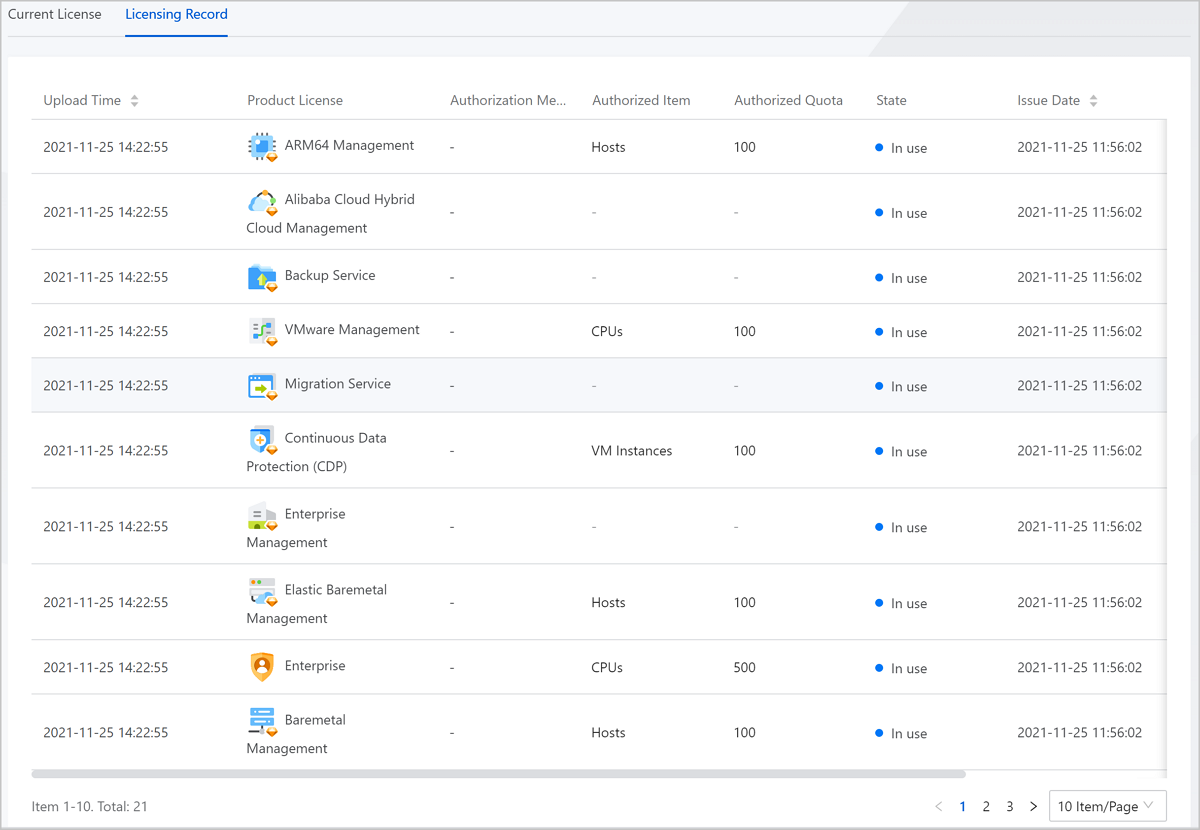
The admin can view the licensing records of the Cloud on the UI, including the upload time, license type, authorized items, authorization method, authorized quota, state, time when the license was issued, and time when the license expires.