
ZStack Cloud 4.4.24
Overview of new features in ZStack Cloud 4.4.24
- One-click Inspection
- VM Instances Support Memory Snapshots
- Elastic Baremetal Management Enhancement
- NIC bond can be configured from the UI for elastic baremetal instances
- Shared volumes can be attached to elastic baremetal instances
- Agent version of elastic baremetal instances can be detected automatically
- Real-time progress can be displayed for local deployment of elastic baremetal instances
- Hardware information can be obtained for baremetal nodes via bulk action
- Continuous Data Protection (CDP) Enhancement
- CDP backup is enhanced
- Heavy I/O scenario is enhanced
- Data display in case of timeline latency is optimized
- Enhancement of Important Alarm and Log Display
- Important resource alarms are displayed as a global alert banner
- Auto-scheduling logs are newly included in operation logs
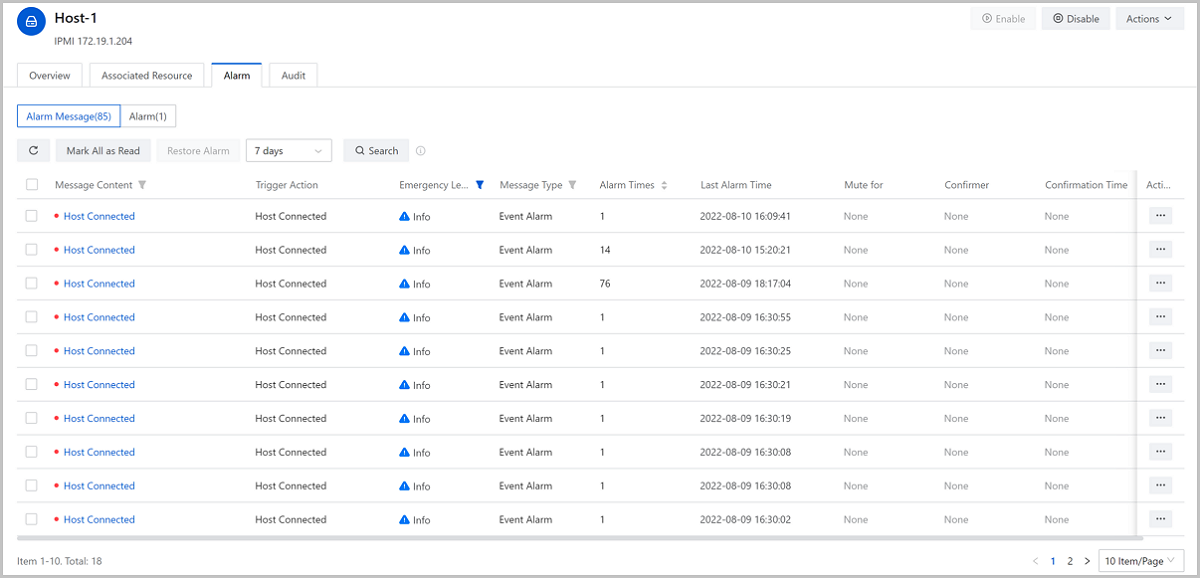
- Alarm messages are displayed on the details page of core resources
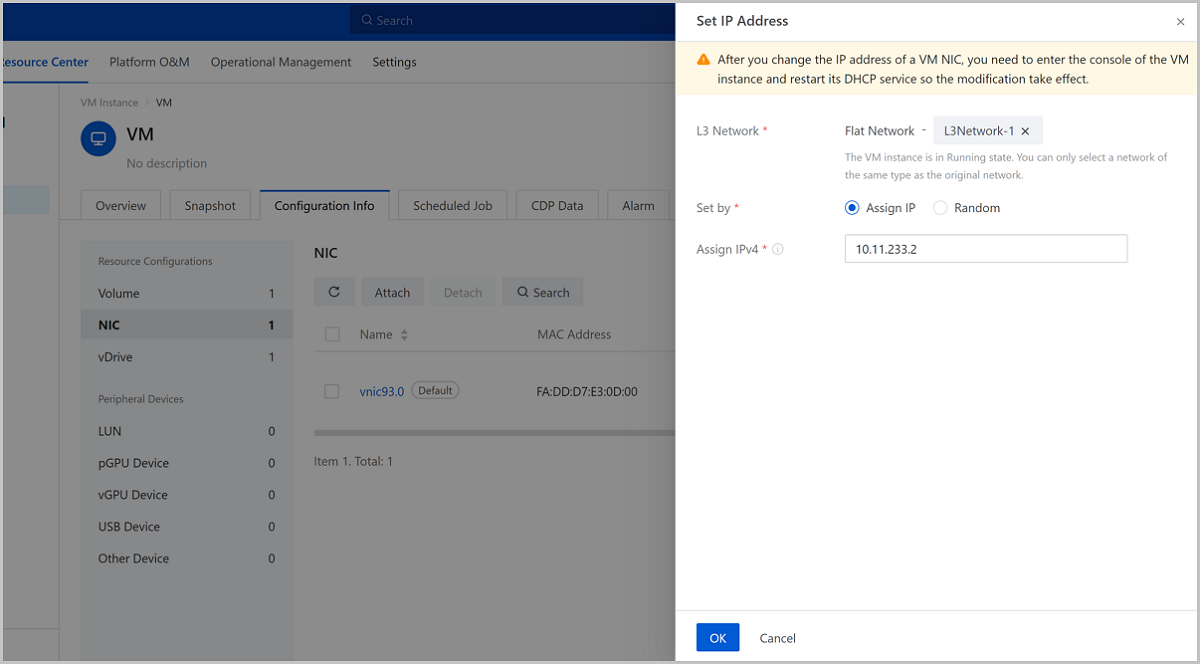
- VM Instances Support Online Change of IP Addresses
- VPC vRouter Enhancement
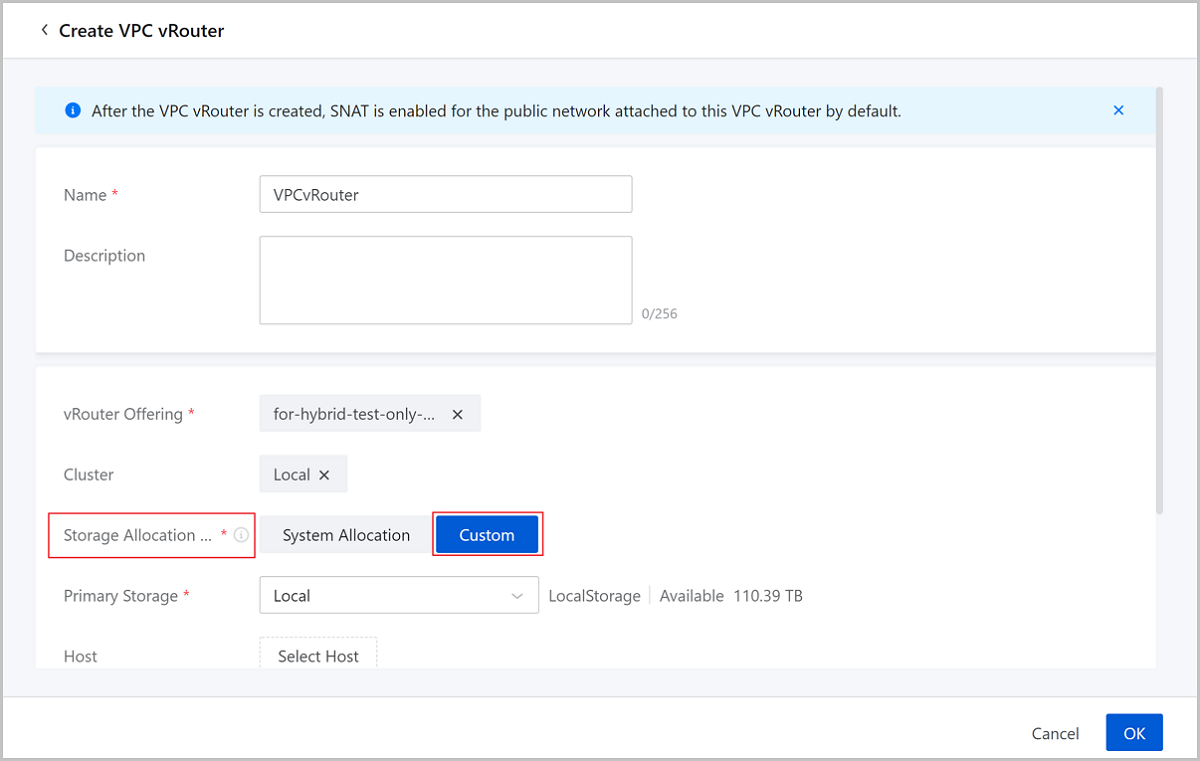
- Primary storages can be manually specified when creating VPC vRouters
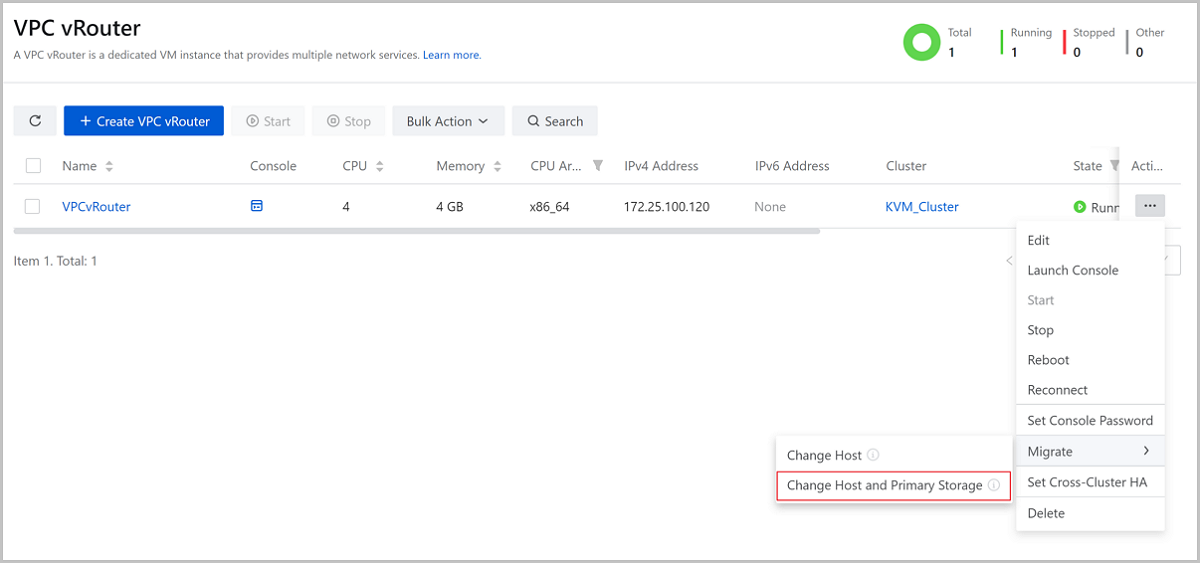
- Hot migration across primary storages is supported for VPC vRouters
- One Cluster Supports both LocalStorage and Ceph Primary Storages
- VM Creation Optimization for Volumes
- Root disk offering can be selected when creating VM instances from qcow2/raw images
- Data volumes can be attached in batches when creating VM instances
- Linux VM Instances Support Time Synchronization
- Support for NVIDIA A-Series GPU Virtualization
- Other Features and Improvements
One-click Inspection
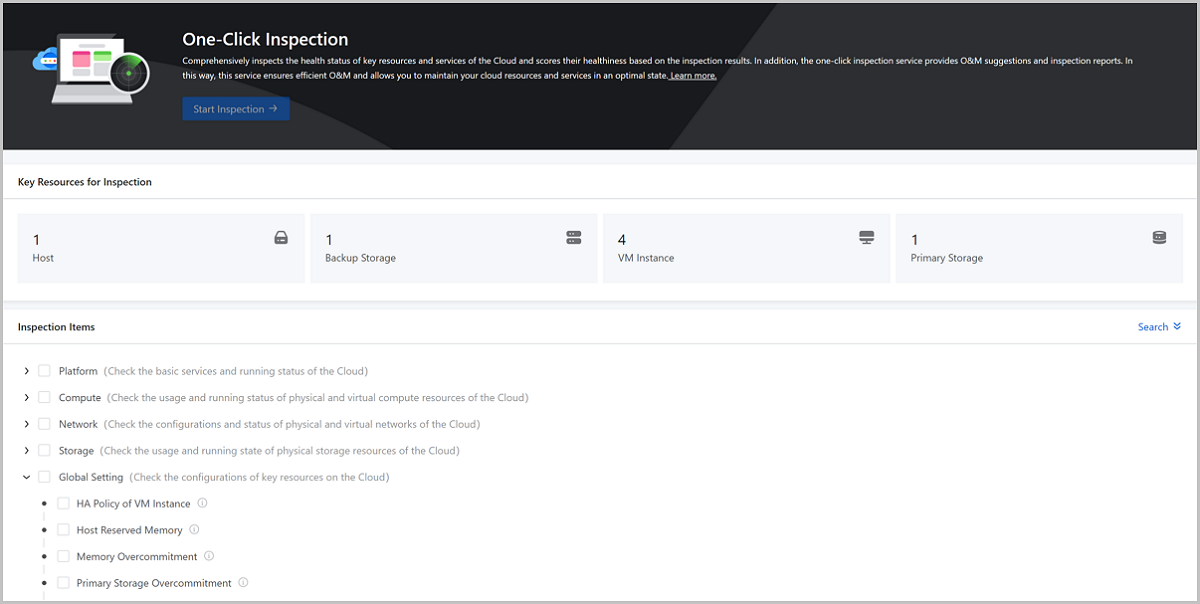
The One-click Inspection feature is now available in ZStack Cloud 4.4.24. This feature can comprehensively inspect the health status of key resources and services of the Cloud and score their healthiness based on inspection results. It also provides O&M suggestions and inspection reports to ensure high O&M efficiency.
The One-click Inspection feature provides five inspection categories, including platform, compute, network, storage, and global setting. With dozens of inspection items in total, this feature covers all key resources and services of the Cloud, and you are allowed to select inspection items based on your business scenarios.
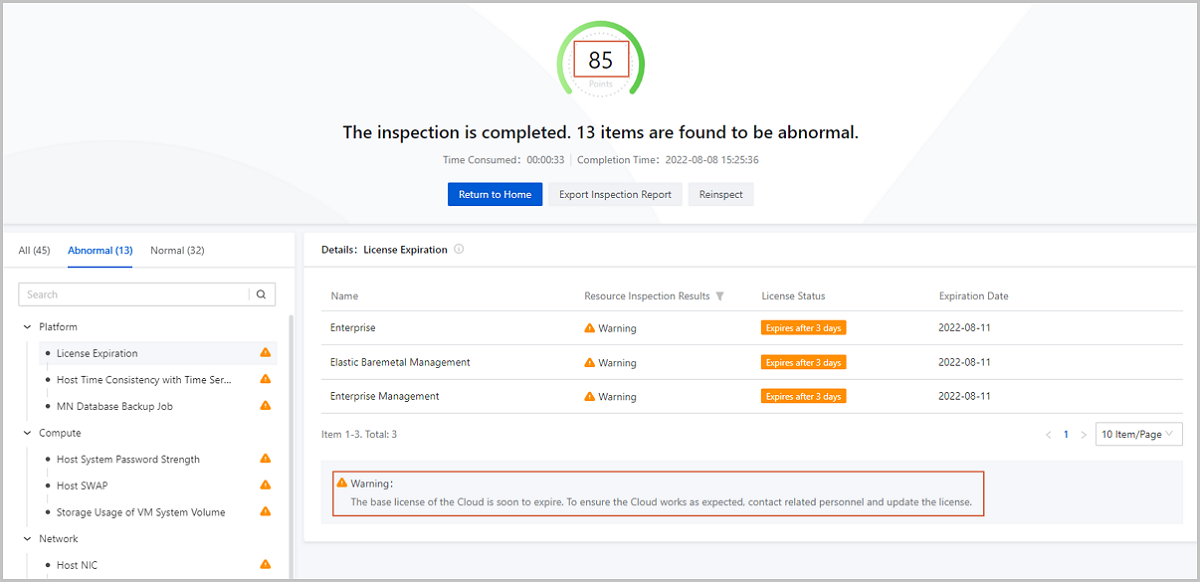
The health score, inspection results, and suggestions are given right after the inspection finishes.
One-click Inspection is equipped with an in-built and multi-layered healthiness scoring mechanism for the Cloud resources and services. It quantifies the health status of inspection items, and allows you to grasp the overall running status of the Cloud in a visualized way. Inspection results can be classified into four types, namely normal, warning, fault, and failed. For inspection results such as warning and fault, suggestions will be offered for further investigation and troubleshooting.
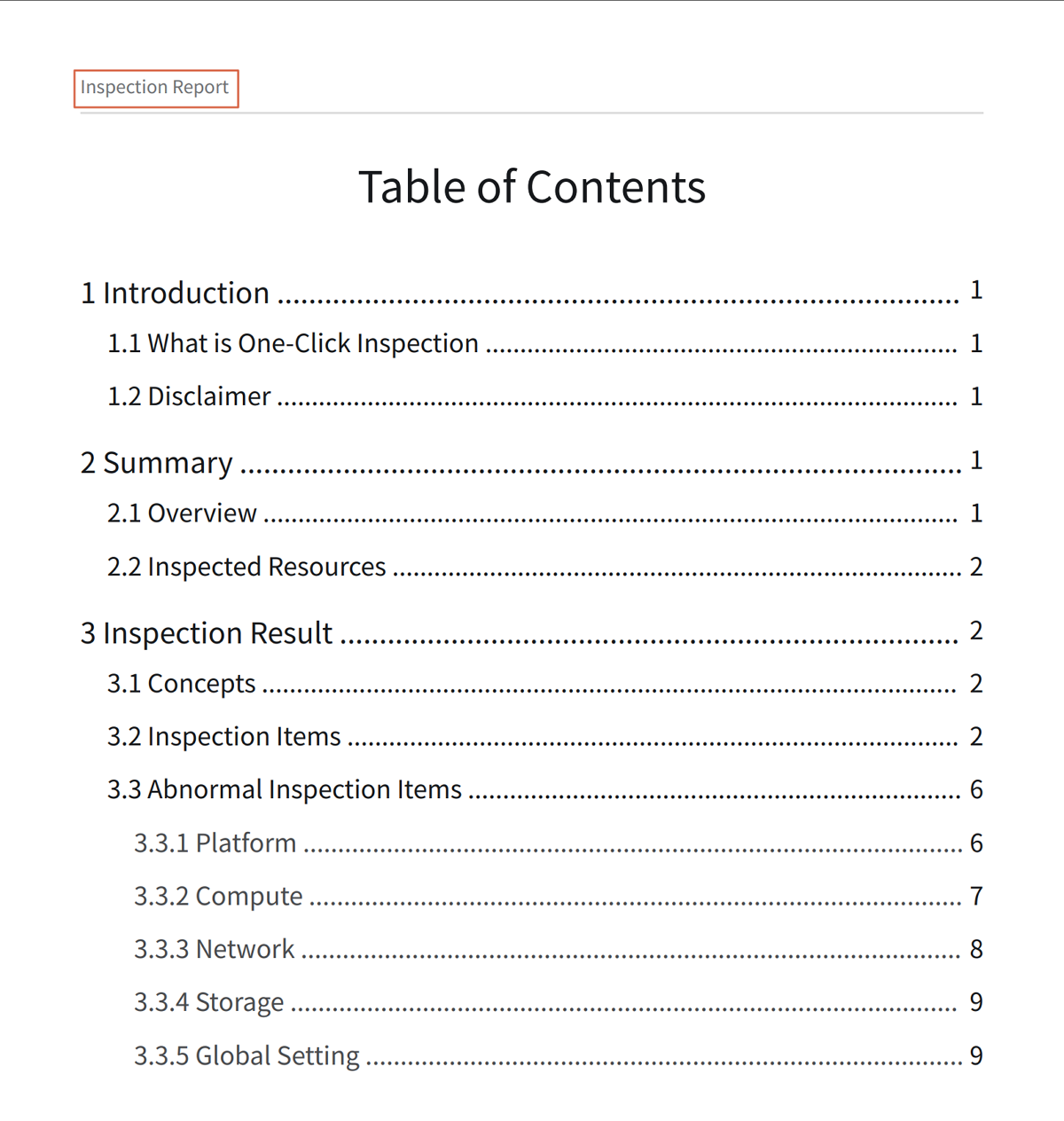
One-click Inspection allows you to export PDF-formatted inspection reports, consisting of introduction, summary, and inspection result. For items found to be abnormal, inspection details and corresponding O&M suggestions will be provided accordingly.
VM Instances Support Memory Snapshots
In versions earlier than ZStack Cloud 4.4.24, snapshots could only be created for root volumes and data volumes of VM instances, as a way to facilitate quick rollback during breakdowns.
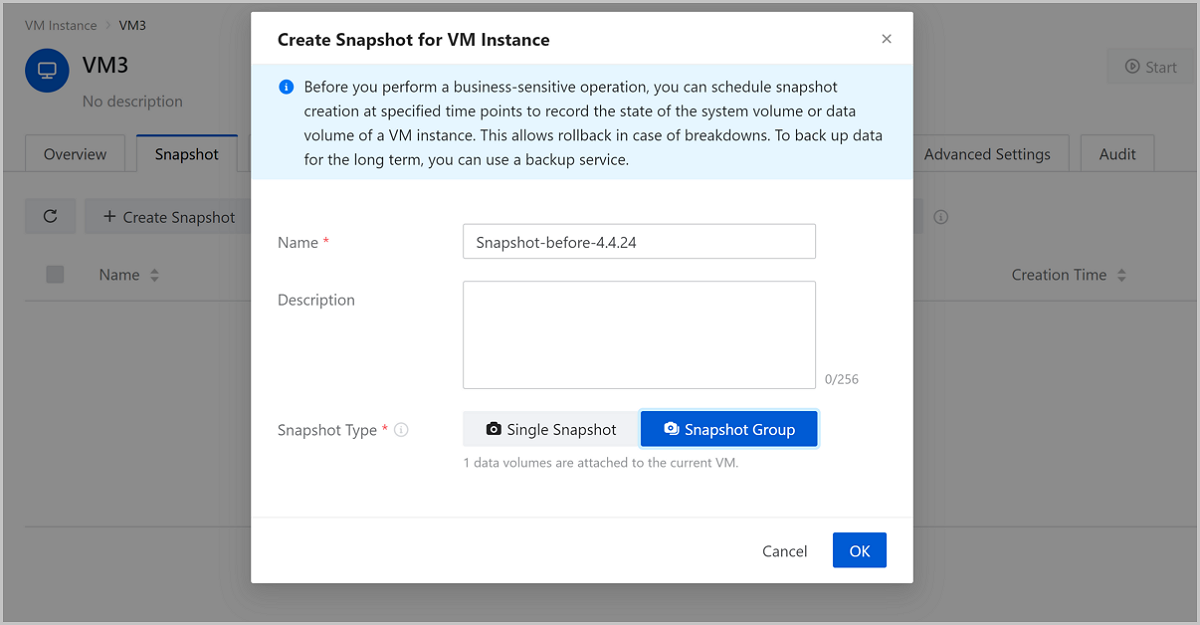
In ZStack Cloud 4.4.24, you can create snapshots for the memory of VM instances to record their memory state and information. This enhances the snapshot feature and further ensures the data integrity. In addition, you can revert a memory snapshot as a snapshot group.

Elastic Baremetal Management Enhancement
In ZStack Cloud 4.4.24, the improvements for Elastic Baremetal Management are as follows.
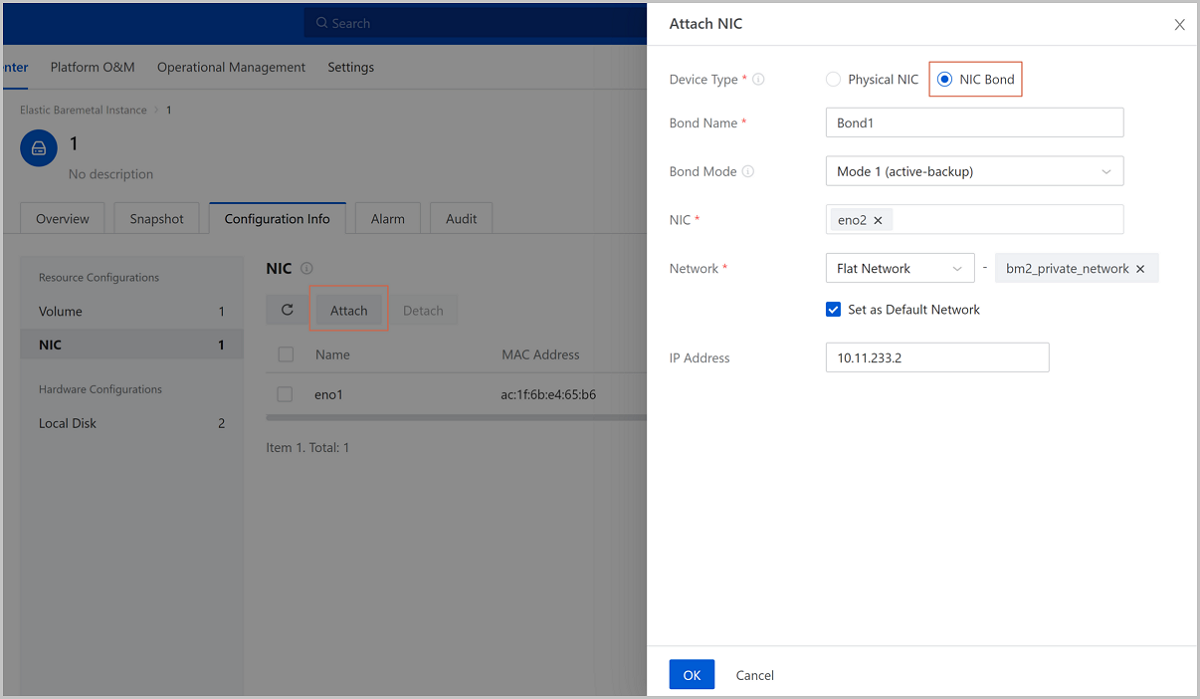
NIC bond can be configured from the UI for elastic baremetal instances
From ZStack Cloud 4.4.24, you can attach a NIC bond for an elastic baremetal instance from the UI with both active-backup and LACP modes supported. NIC bonds will significantly enhance the reliability of service network and improve network performance.
Shared volumes can be attached to elastic baremetal instances
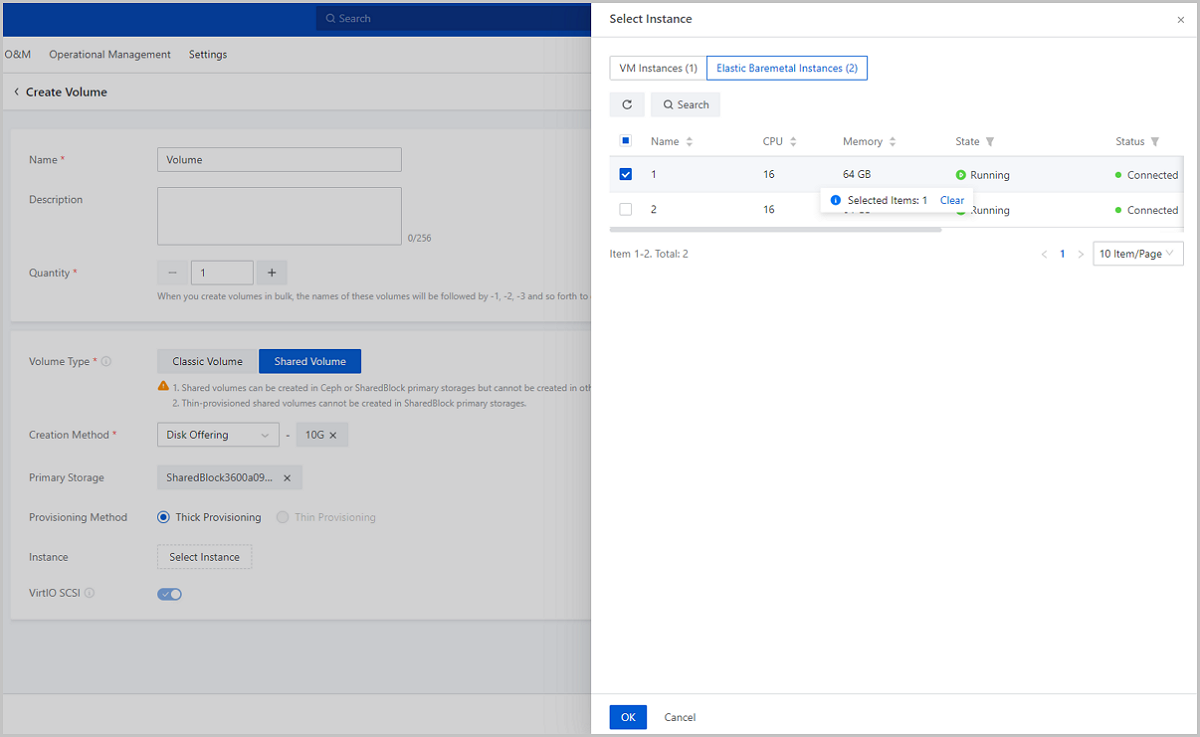
In versions earlier, you can attach classic volumes to elastic baremetal instances already, while ZStack Cloud 4.4.24 allows you to attach shared volumes to achieve high availability in core business of databases, failover clusters, and other scenarios.
Compared with classic volumes, shared volumes have characteristics of high concurrency, high reliability, and multiple mount points. With the stable and powerful computing power of dedicated hosts, the high availability and stability of elastic baremetal instances can be significantly enhanced for business when shared volumes are attached.
Currently, the creation of shared volumes is supported for SharedBlock and Ceph storage scenarios. You can attach shared volumes to both elastic baremetal instances and VM instances, so the storage space can be shared by both instances at the same time.
Agent version of elastic baremetal instances can be detected automatically
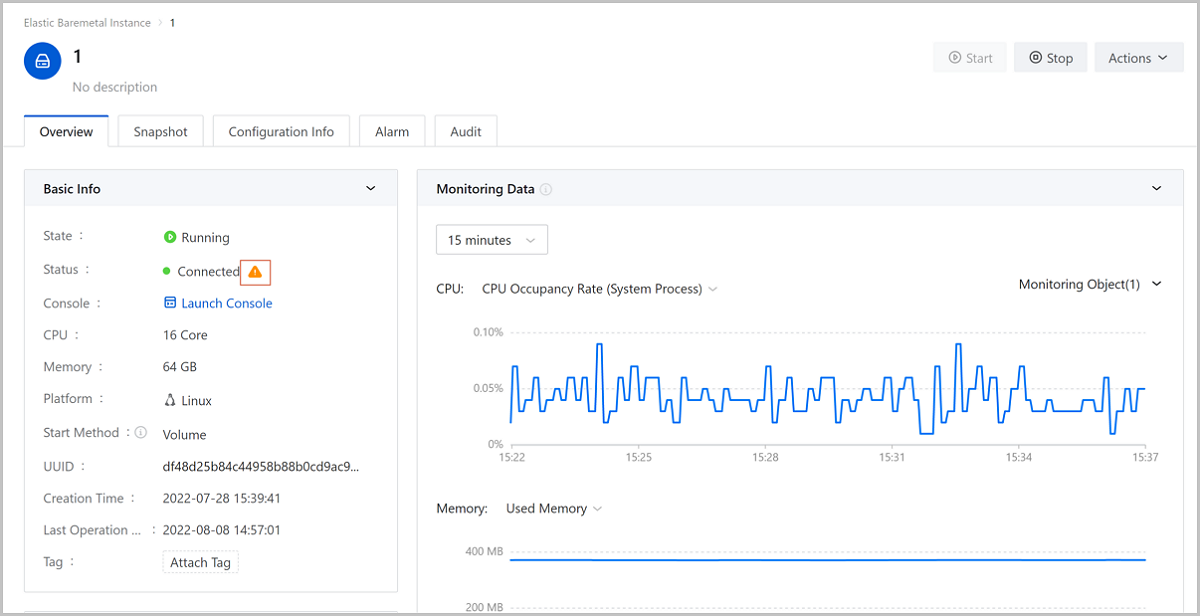
If an agent has been installed for an elastic baremetal instance, its version can be detected automatically. Once the agent version is detected to be too old, the UI will give a warning sign promptly and provide corresponding upgrade methods.
Real-time progress can be displayed for local deployment of elastic baremetal instances
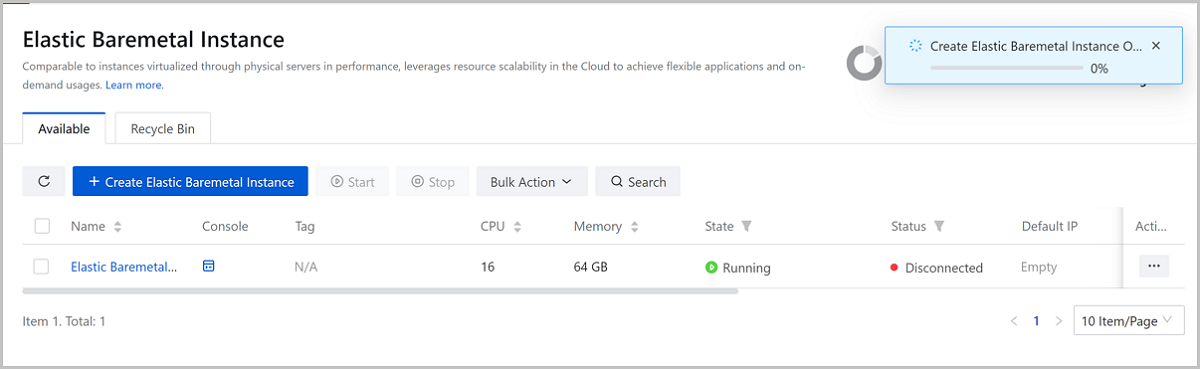
When elastic baremetal instances are deployed through a local disk, a progress bar will be displayed to help you track the deployment progress in real-time.
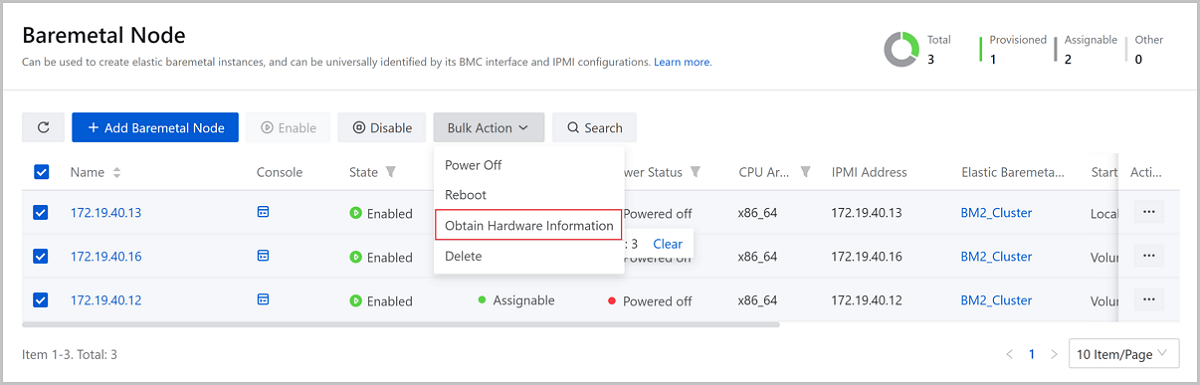
Hardware information can be obtained for baremetal nodes via bulk action
After adding baremetal nodes to the Cloud in batches, you can obtain all hardware information of baremetal nodes via Bulk Action, which improves the deployment and O&M efficiency.
Continuous Data Protection (CDP) Enhancement
In ZStack Cloud 4.4.24, the enhancements for Continuous Data Protection (CDP) are as follows.
CDP backup is enhanced
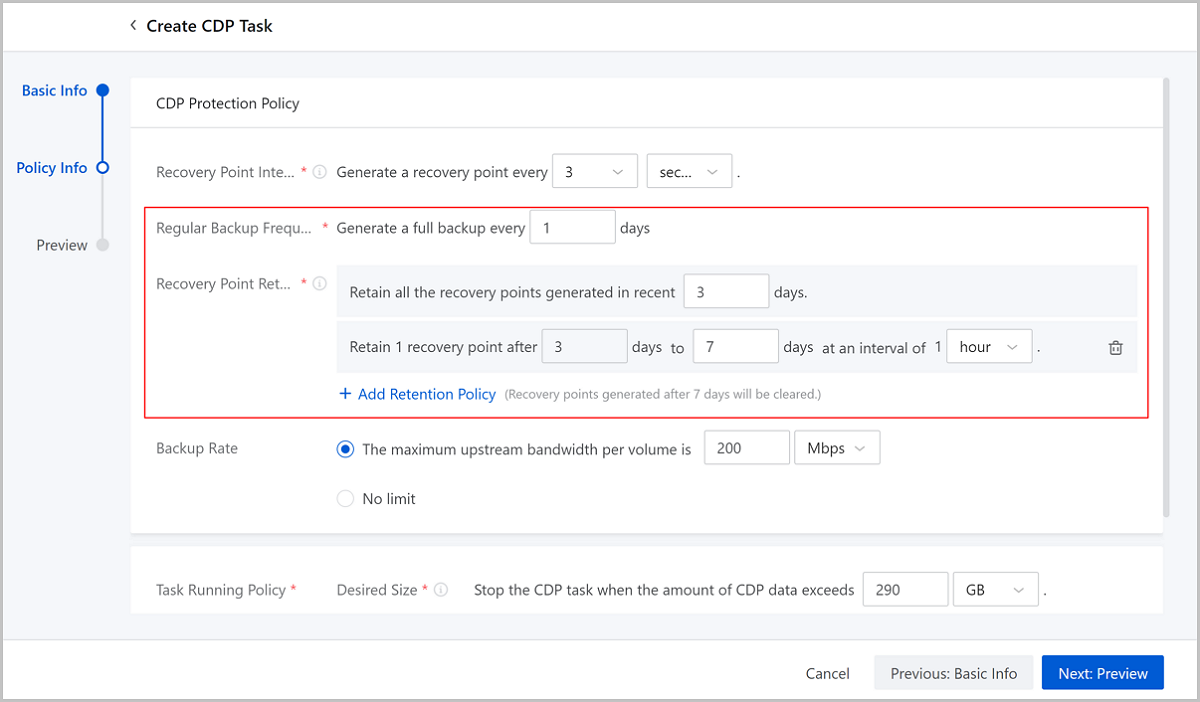
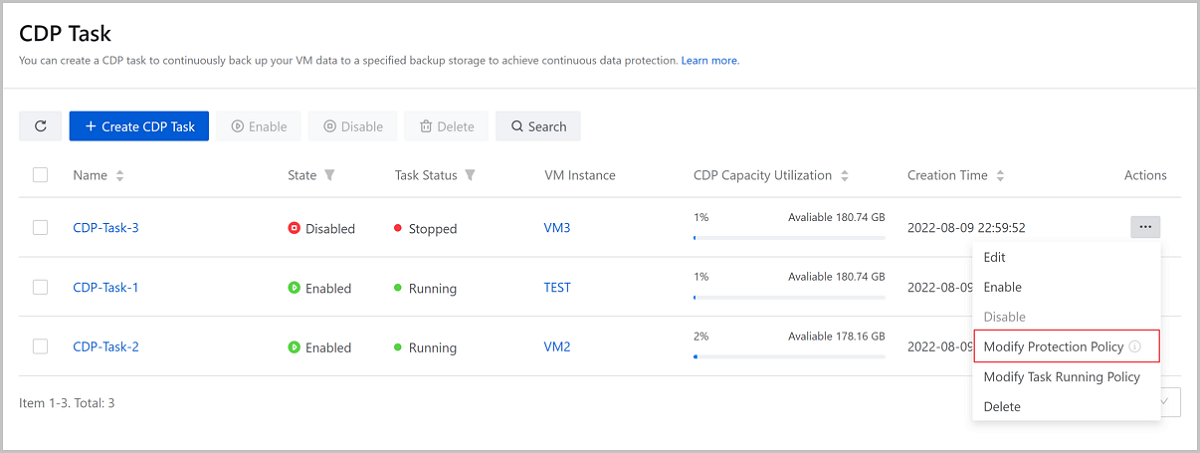
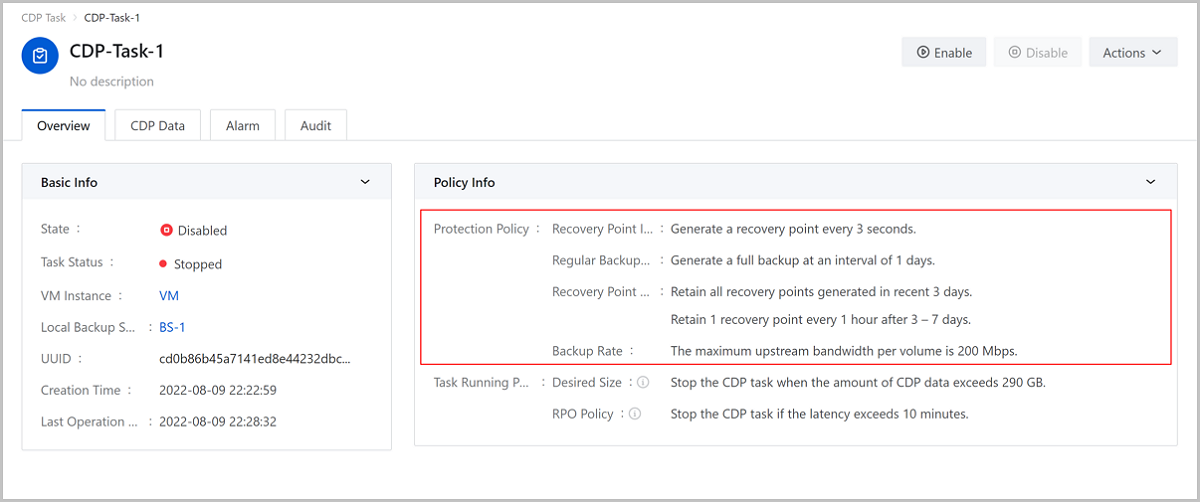
ZStack Cloud 4.4.24 provides support to customize regular backup frequency and recovery point retention policy (hourly/daily retention) for CDP tasks, further helping you to reasonably manage backup space. The UI allows you to make these settings from CDP task creation page, CDP task main list, and CDP task details page.
Heavy I/O scenario is enhanced
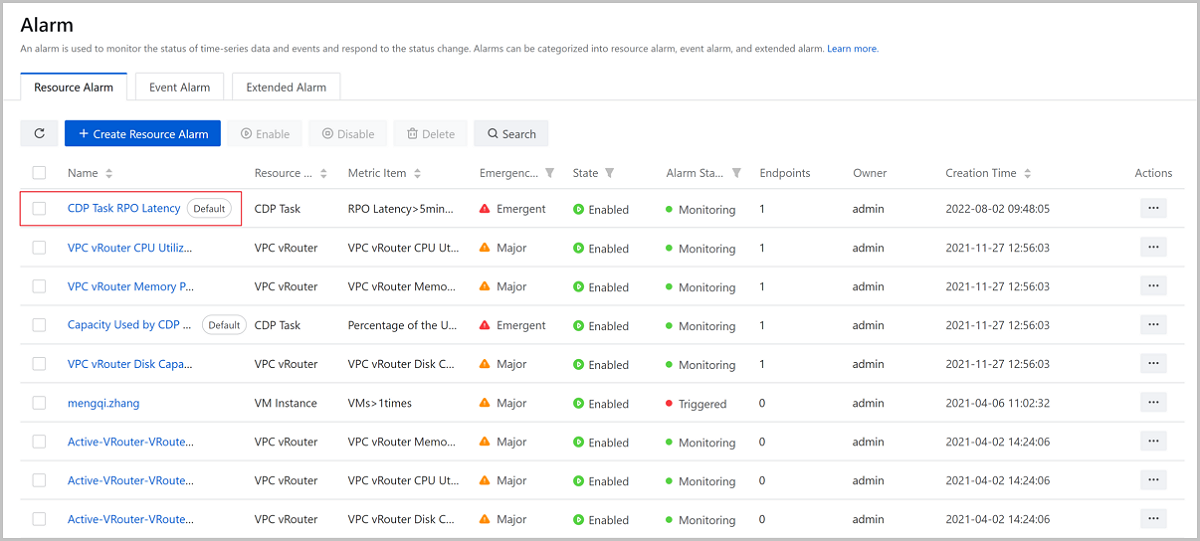
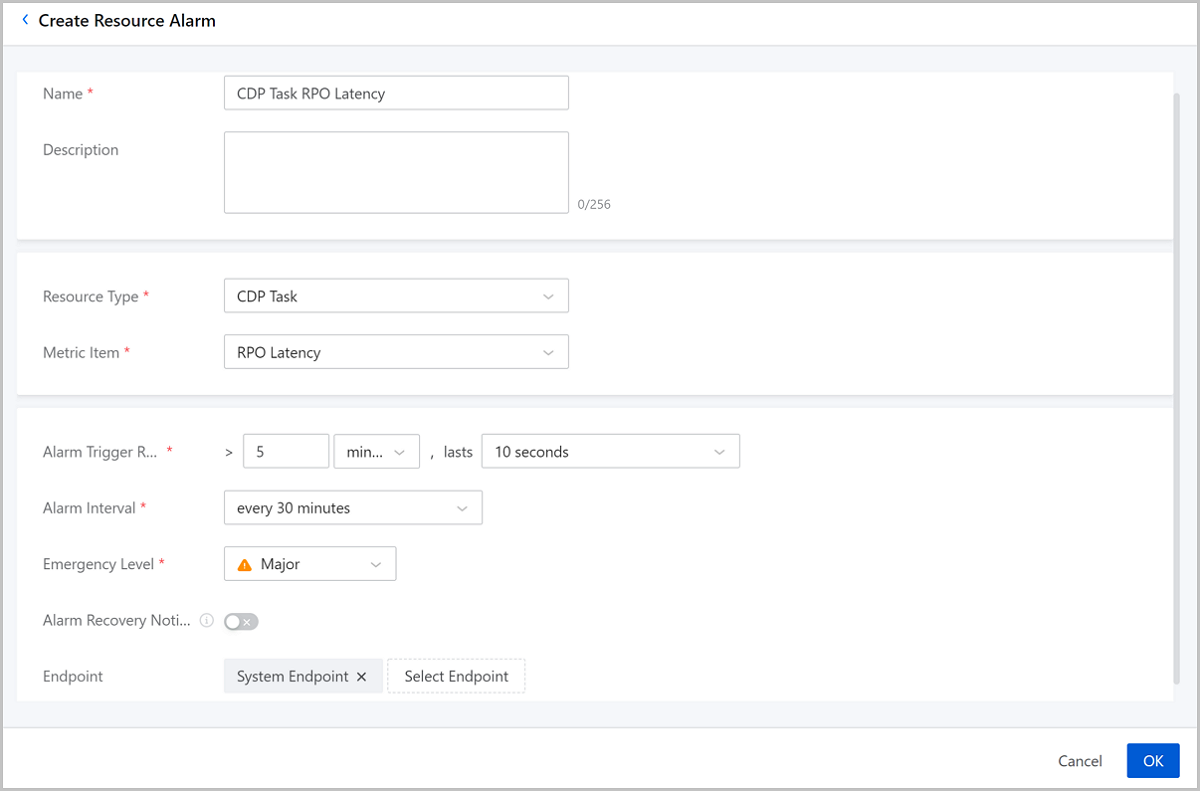
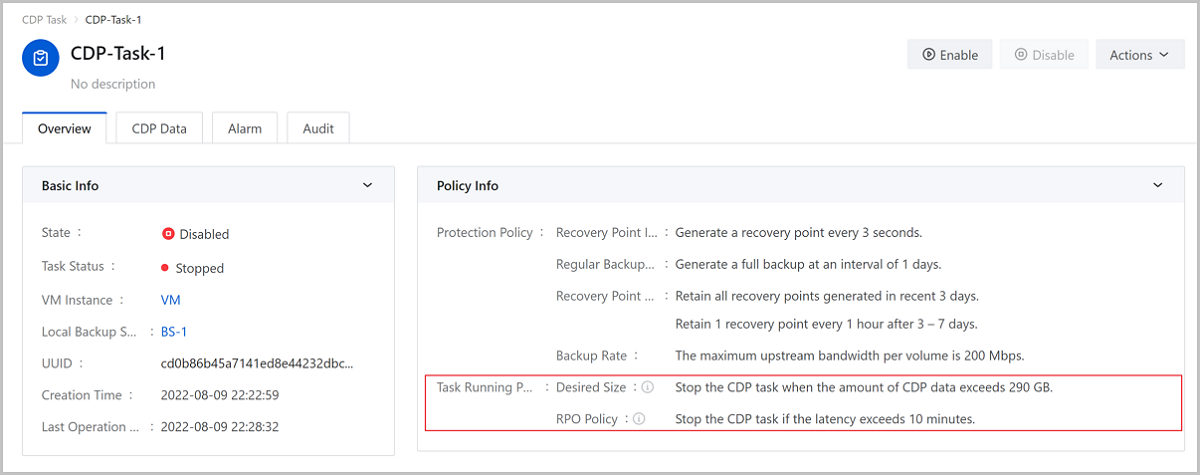
ZStack Cloud 4.4.24 starts to provide the CDP Task RPO Latency default alarm and allows you to create a RPO Latency resource alarm for CDP tasks. This helps to monitor the CDP data latency status under heavy I/O scenarios in real-time, so that O&M engineers can respond and take necessary actions timely.
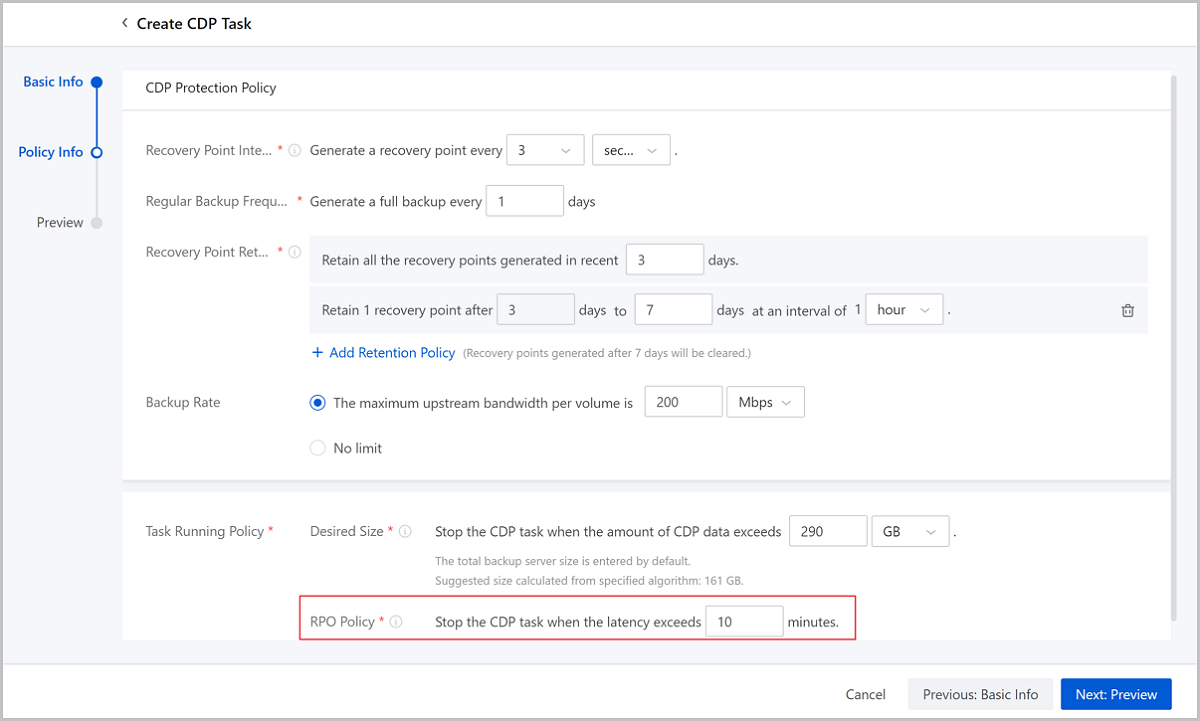
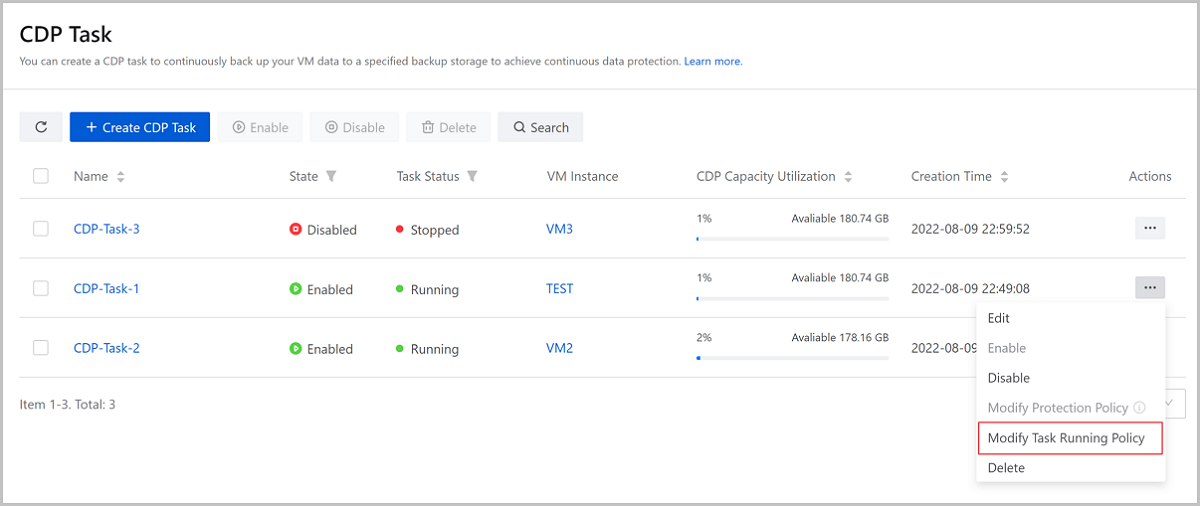
ZStack Cloud 4.4.24 also supports RPO policy, which is used to set CDP task running policy after the data replication latency in heavy I/O scenarios. This helps to relieve the data transfer pressure on backup servers in those heavy I/O scenarios. The UI allows you to make these settings from the CDP task creation page, CDP task main list, and CDP task details page.
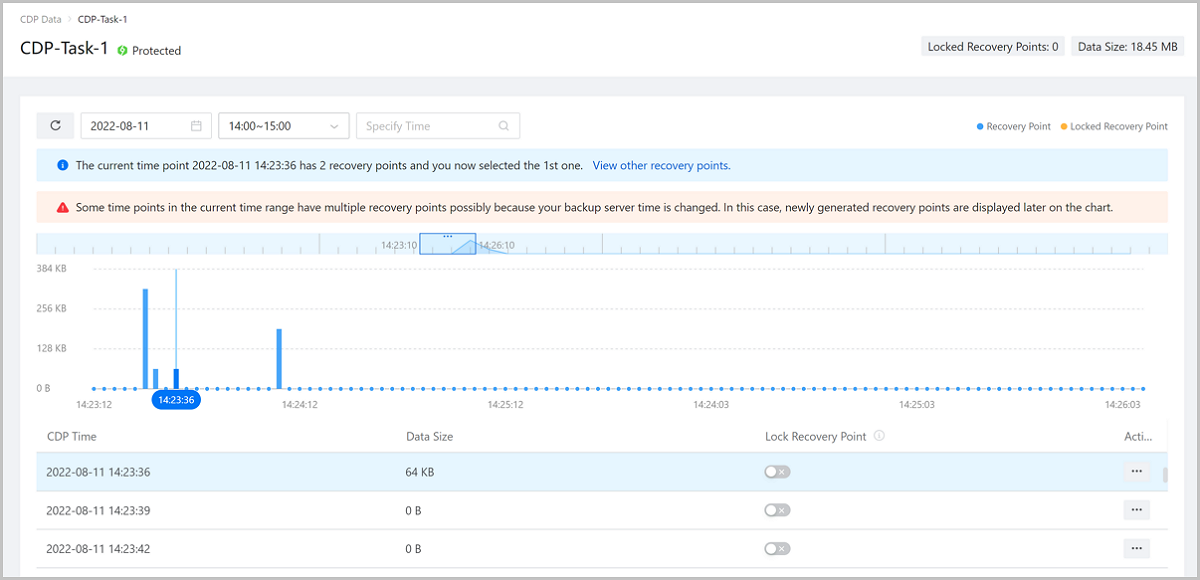
Data display in case of timeline latency is optimized
In ZStack Cloud 4.4.24, the data display in timeline latency scenarios has been further optimized. When the backup server time is adjusted, the UI can clearly display the recovery points for the same period of time, which enables you to make quick judgments and locate the time rapidly.
Enhancement of Important Alarm and Log Display
Important resource alarms are displayed as a global alert banner
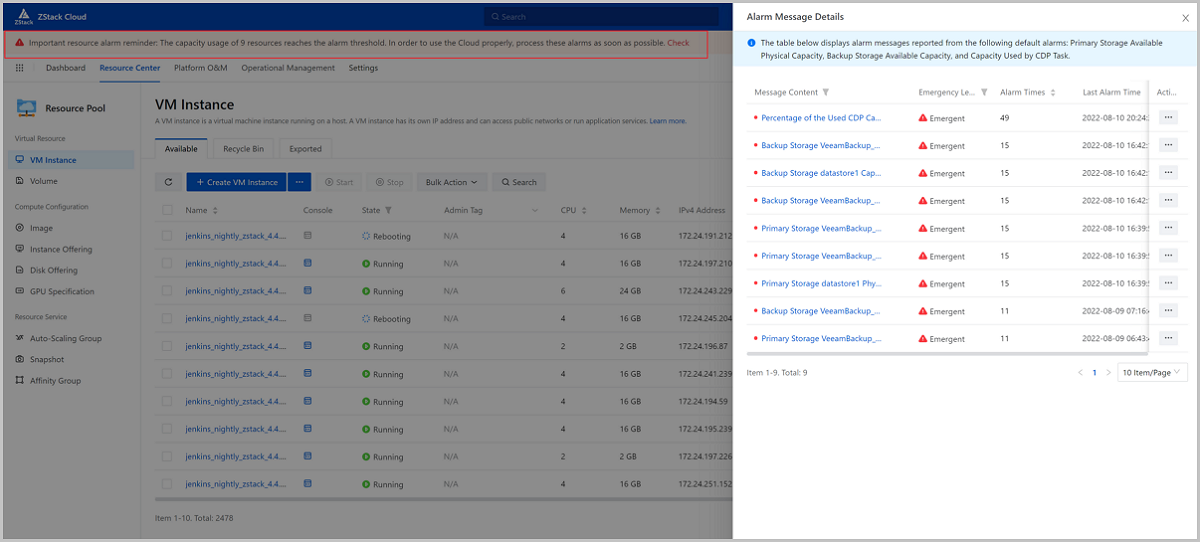
To get more of your attention to important alarms, in ZStack Cloud 4.4.24 you may commonly see a global alert banner started with Important resource alarm reminder, which provides continuous global alerts for alarm messages reported from the following default alarms: Primary Storage Available Physical Capacity, Backup Storage Available Capacity, and Capacity Used by CDP Task.
Auto-scheduling logs are newly included in operation logs
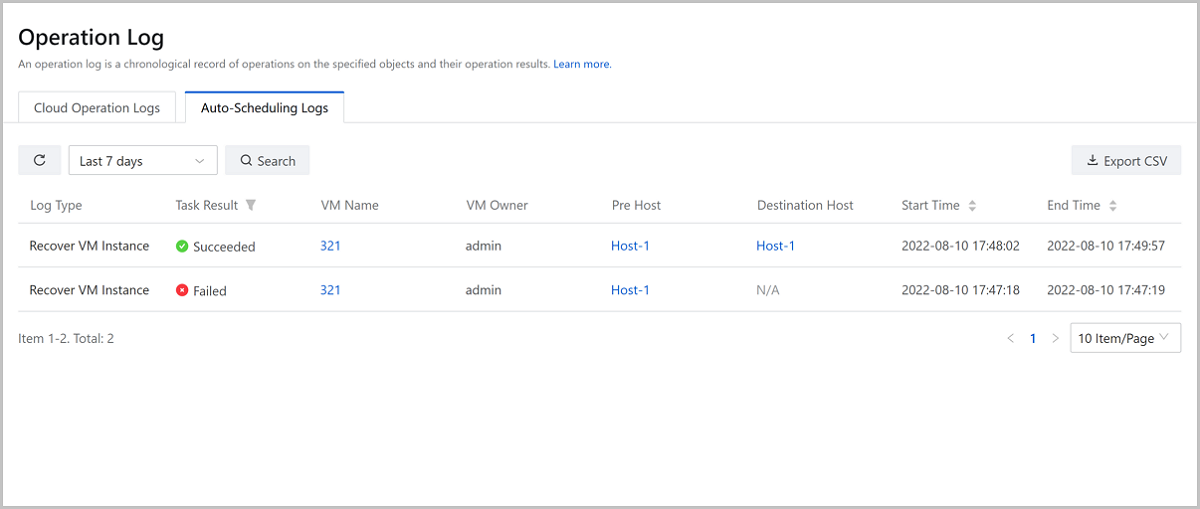
In ZStack Cloud 4.4.24, the operation log includes the new list Auto-Scheduling Logs, displaying the VM auto-scheduling logs triggered by the management node, such as host maintenance and VM recovery from HA. These auto-scheduling logs allow you to timely check the operating status of VM instances that are running significant business applications.
Alarm messages are displayed on the details page of core resources
In ZStack Cloud 4.4.24, the details page of core resources (such as VM instance, host, primary storage, and so on) of the Cloud includes the Alarm Message to visually display all alarm messages of these resources. You can get a quick overview of the current situation and handle it based on your needs.
VM Instances Support Online Change of IP Addresses
In versions earlier, the IP address of a VM instance can only be changed offline. From ZStack Cloud 4.4.24, you can change the IP address of a VM instance online, which helps to ensure your business continuity.
VPC vRouter Enhancement
ZStack Cloud 4.4.24 made the following enhancements for VPC vRouters.
Primary storages can be manually specified when creating VPC vRouters
From ZStack Cloud 4.4.24, you can specify the storage allocation policy (System Allocation and Custom) when you create a VPC vRouter. The System Allocation option indicates that the system assigns primary storages according to a pre-set policy, while the Custom option indicates that you can manually select a primary storage based on your needs.
Hot migration across primary storages is supported for VPC vRouters
In versions earlier, the host for VPC vRouters can be changed online already. ZStack Cloud 4.4.24 allows you to change both the host and primary storage for VPC vRouters online across different types of primary storages, including LocalStorage↔SharedBlock, LocalStorage↔NFS, and SharedBlock↔NFS.
One Cluster Supports both LocalStorage and Ceph Primary Storages
In versions earlier, one cluster supports the following primary storage combinations: LocalStorage+SharedBlock, LocalStorage+NFS, LocalStorage+SMP, and Ceph+SharedBlock. In ZStack Cloud 4.4.24, a single cluster also supports the combination of LocalStorage+Ceph, further enriching storage scenarios and enhancing your business flexibility.

VM Creation Optimization for Volumes
In ZStack Cloud 4.4.24, you can specify the root volume capacity when you create a VM instance from a qcow2/raw image, and you can also batch attach data volumes during VM creation.
Root disk offering can be selected when creating VM instances from qcow2/raw images
In versions earlier, the root volume capacity could be specified only when an ISO image was selected to create VM instances. Except for the ISO image, ZStack Cloud 4.4.24 also allows you to specify the root volume capacity when you select a qcow2/raw image to create a VM instance. Thus, you can specify the root volume capacity based on the selected image size during VM creation, and you do not have to wait and expand the system after the VM instance is created.
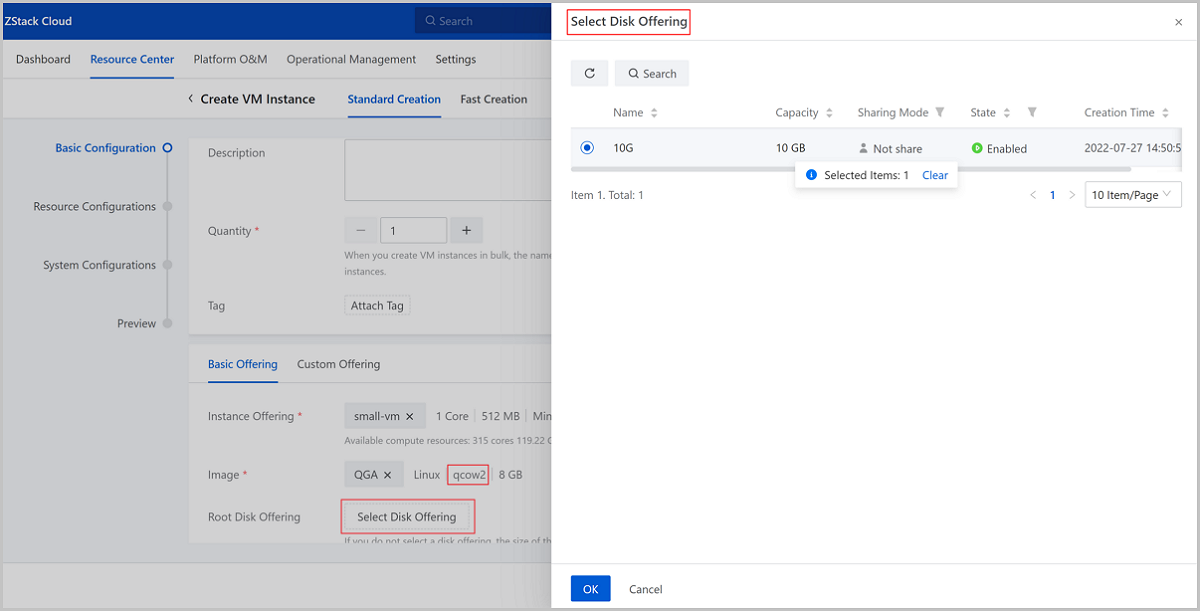
Data volumes can be attached in batches when creating VM instances
You can attach data volumes in batches when creating VM instances. By default, up to 24 data volumes can be attached, and you can modify the maximum number in Global Setting.
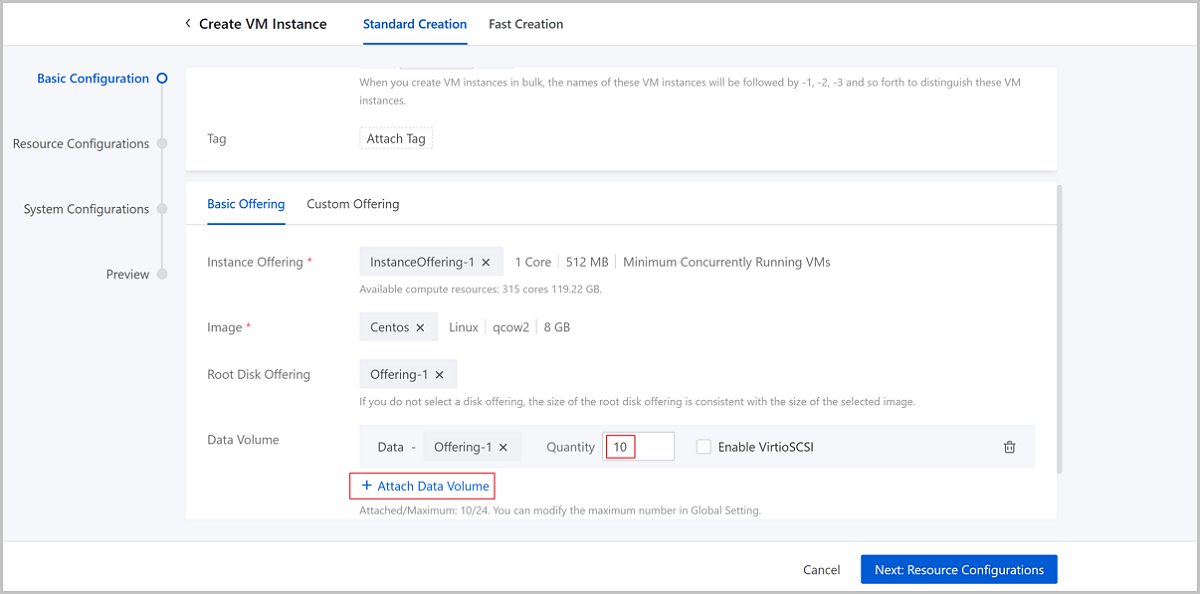
Linux-based VM Instances Support Time Synchronization
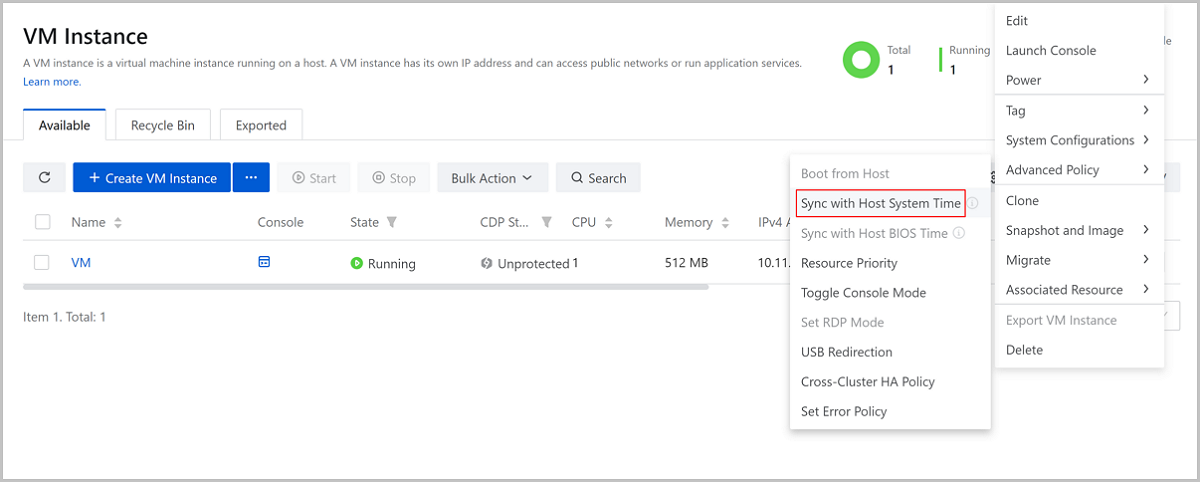
ZStack Cloud supports time synchronization for VM instances. If you enable time synchronization for a VM instance, the VM time is auto-synced with the system time (including the time zone) of its host on a regular basis.
- Network: Different from the NTP time synchronization, the current time synchronization mechanism does not depend on a specific external network. It only involves the communication between the host and the VM instances.
- Time zone: The time zone of a VM instance is auto-synced with the time zone of its host on a regular basis to ensure the VM instance and its host share the same time zone.
- Synchronization interval: By default, the interval is 60 seconds. You can modify
the synchronization interval via the CLI command line. Valid values: 60 seconds
(1 minute), 600 seconds (10 minutes), 1800 seconds (30 minutes), 3600 seconds (1
hour), 7200 seconds (2 hours), 21600 seconds (6 hours), 43200 seconds (12
hours), and 86400 seconds (1
day).
# Modify the synchronization interval through the CLI command line. [root@localhost ~]# UpdateResourceConfig vm=<vm_uuid> category=vm name=vm.clock.sync.interval.in.seconds value=<intervalInSeconds> # vm_uuid is the UUID of the VM instance. # intervalInSeconds is the synchronization interval. Unit: second. - Synchronization strategy: the strategy of instant time synchronization is adopted. No matter how the time of a VM instance goes out of sync (ahead or behind its host time), when the synchronization mechanism is triggered, the time of the VM instance will be immediately consistent with its host.
Starting from ZStack Cloud 4.4.24, time sync is available with Linux-based VM instances. Plus the feature support with Windows-based VM instances in earlier versions, the time sync feature now supports all mainstream OSs, which further improves the timeliness of your business.
Support for NVIDIA A-Series GPU Virtualization
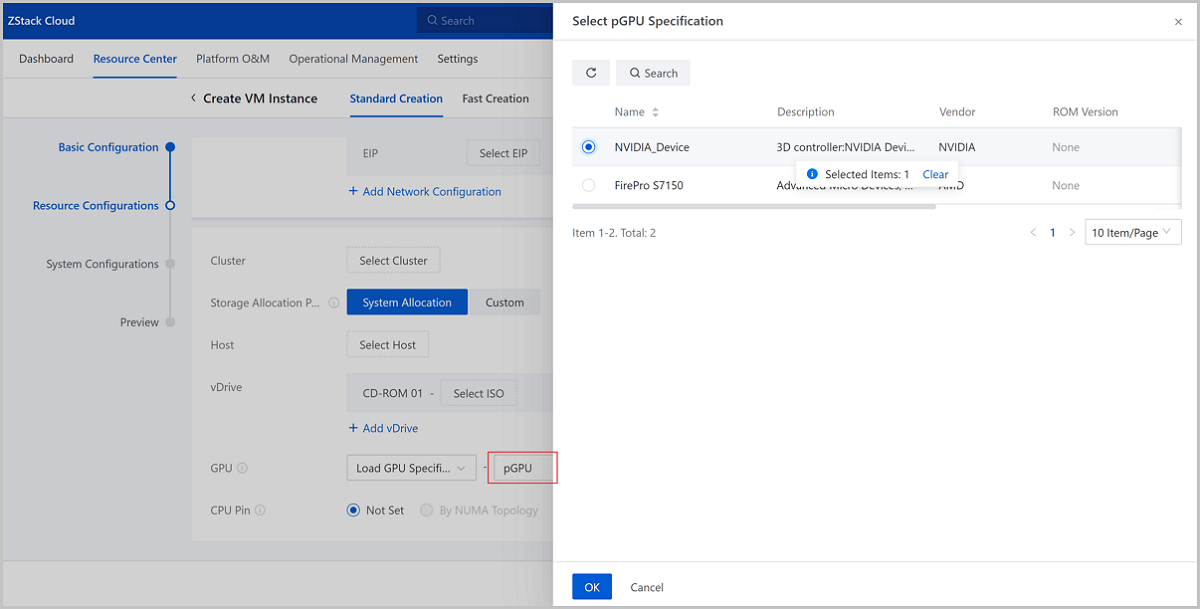
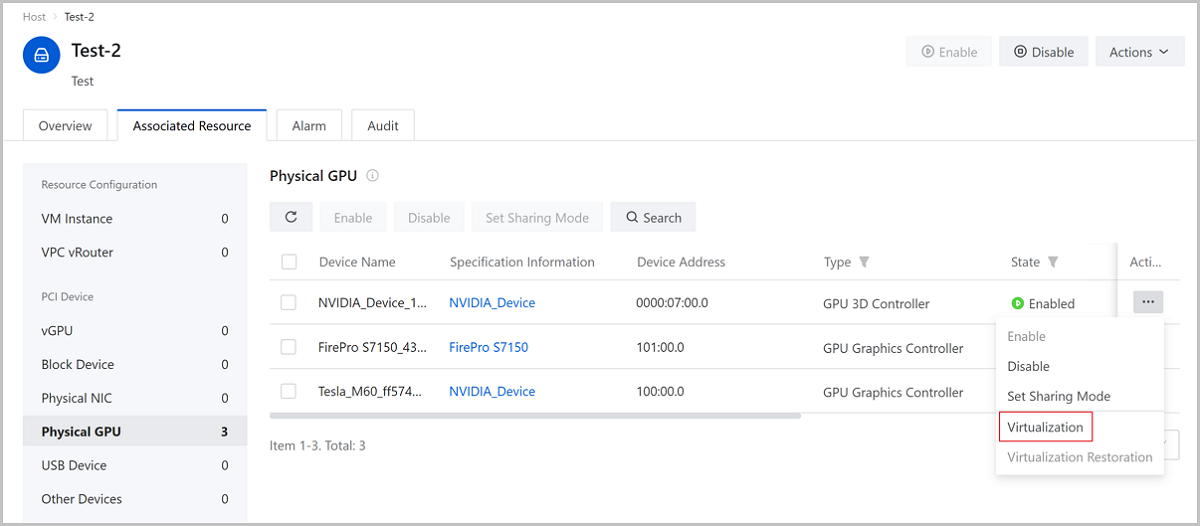
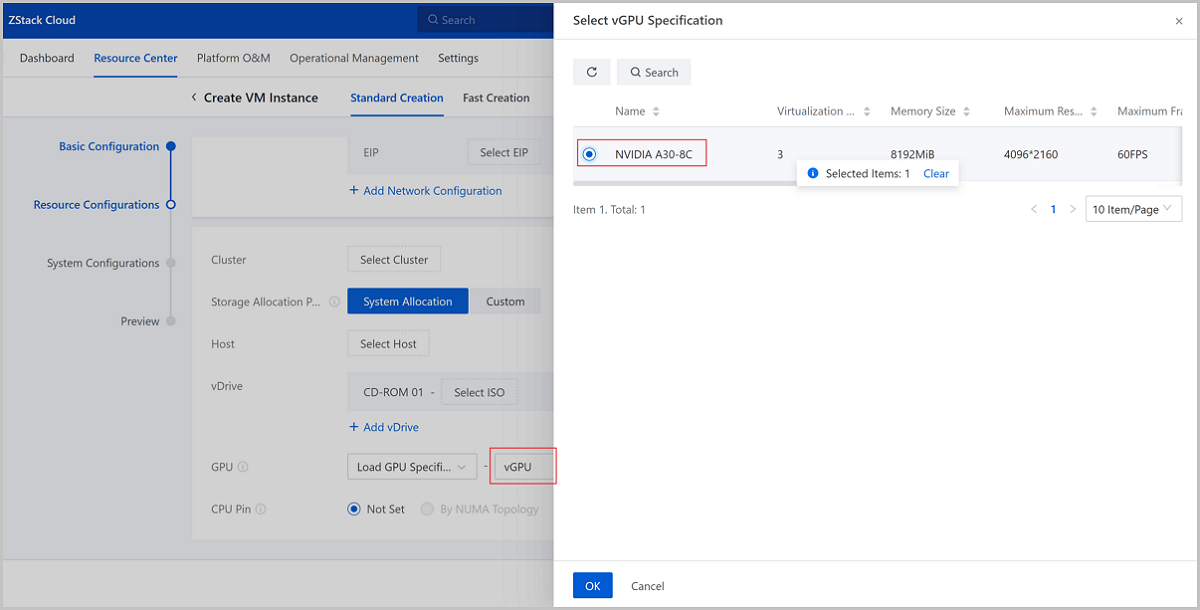
In versions earlier, the Cloud already supports pass-through and virtualization for several mainstream series of NVIDIA GPUs. ZStack Cloud 4.4.24 starts to support NVIDIA A-series GPUs too, enhancing the Cloud's ability to adapt to more GPUs of the NVIDIA graphics family.
Take NVIDIA A-series GPUs for example, the Cloud supports pass-through of physical GPUs to VM instances (by specification or device), or you can generate virtual GPUs (vGPUs) from physical GPUs based on the GPU virtualization technology and allocate these vGPUs to VM instances (by specification or device). Please note that before you use NVIDIA A-Series GPU virtualization, make sure that the Kernel version for host OS is upgraded to 4.18 and the GCC version is upgraded to 8.3.1.
Other Features and Improvements
- Allows you to enter spaces when you set the name and description for resources
- Ensures the name consistency of an exported VM instance and the source VM instance for easy identification
- Allows you to view the Host Allocation Strategy when the Custom Offering is selected during VM instance creation
- Provides the GuestTools option in the VM instance custom list
- Allows you to check the capacity usage of each LUN for SharedBlock primary storages
- Allows tenants to check the pass-through USB device information from the VM details page
- Displays a risk alert when you disable the Identity Authentication for Sensitive Operations switch from the Global Setting