ZStack Cloud 4.7.11
Highlights
- Enhancements of VM GuestTools: Realizes VM IPv6 info syncs and supports more operating systems.
- Optimization of VM Deletion Mechanism: Provides a new global setting, VM Anti-Accidental-Deletion Mode, and a better experience when you delete/expunge VM instances in bulk.
- Fine-Grained Monitoring Based on Network Categorization: Allows you to mark physical NIC ports with network types and view flow monitoring of different network types.
- Optimization of Backup Job: Displays backup mode and backup capacity, allows you to cancel ongoing backup jobs, and supports enabling/disabling the backups of resources in backup jobs.
Overview
- Enhancements of VM GuestTools.
- Realizes IPv6 synchronization and reading through GuestTools.
- Supports more operating systems.
- Optimization of VM deletion mechanism.
- A new global setting: VM Anti-Accidental-Deletion Mode.
- A safer double confirmation before the VM deletion to reduce the mis-operation risk.
- A better user experience when you delete VM instances in bulk.
- Optimizes network configuration interaction when creating VMs.
- Fine-grained monitoring based on network categorization.
- Allows you to mark physical NIC ports with network types.
- Flow monitoring on networks of different types.
- Supports displaying LUN source.
- Supports batch exporting images.
- A quantity restriction on scheduled snapshot jobs of each VM/Volume.
- Optimization of monitoring screen.
- Screens out alarms by resource type.
- Supports modifying and syncing alarm template rules.
- New VM monitoring indicators on performance analysis page.
- Optimizations of backup job.
- Supports displaying backup mode and backup capacity.
- Supports canceling ongoing backup job.
- Supports enabling/disabling the backup of resources in backup jobs.
- Supports displaying dependent incremental backup data.
- Adds usage statistics card in local backup data.
- Optimizes resource sorting in local backup data.
- Host/Volume/Image list customization.
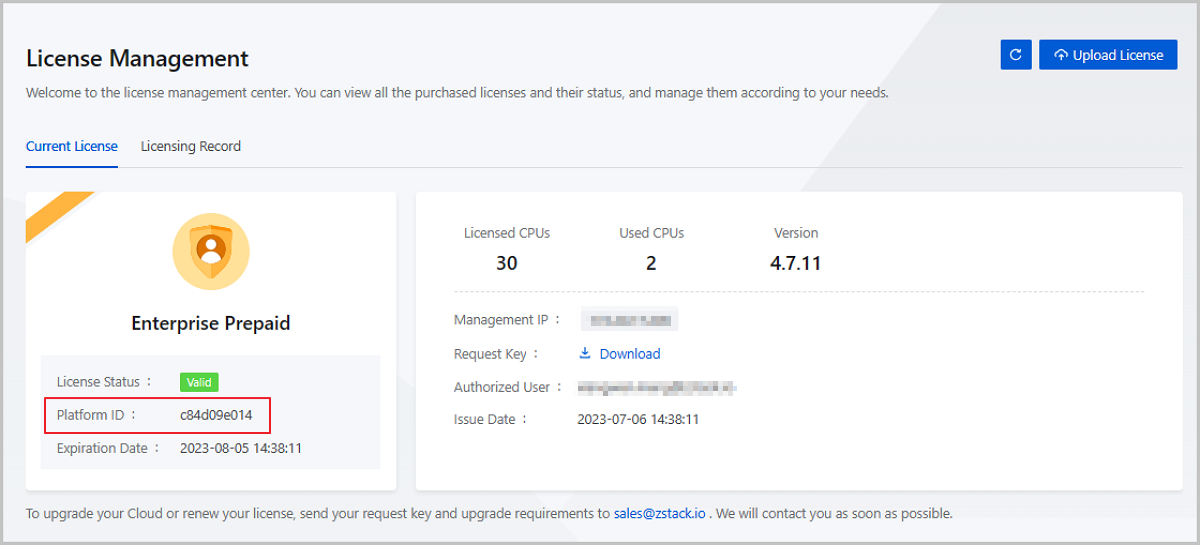
- Adds platform ID in license management.
VM Instance
Enhancements of VM GuestTools
ZStack Cloud 4.7.11 makes the following enhancements on the VM GuestTools:
Realizes IPv6 Synchronization and Reading through GuestTools
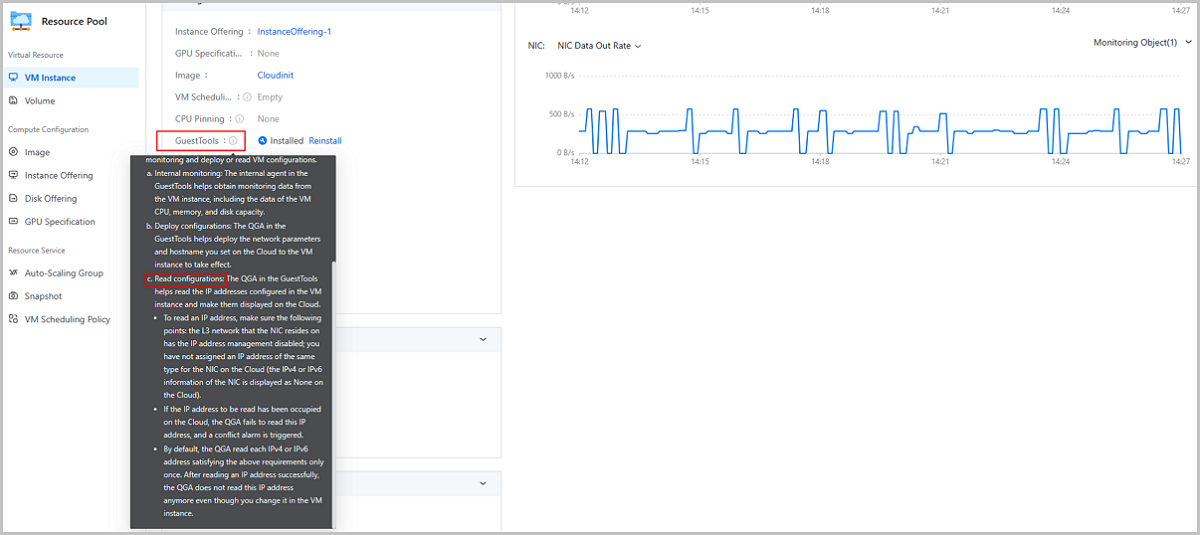
In the earlier version, ZStack Cloud has realized IP address synchronizations and reading through the QGA in the VM GuestTools. However, this feature applies to IPv4 addresses only before 4.7.11.
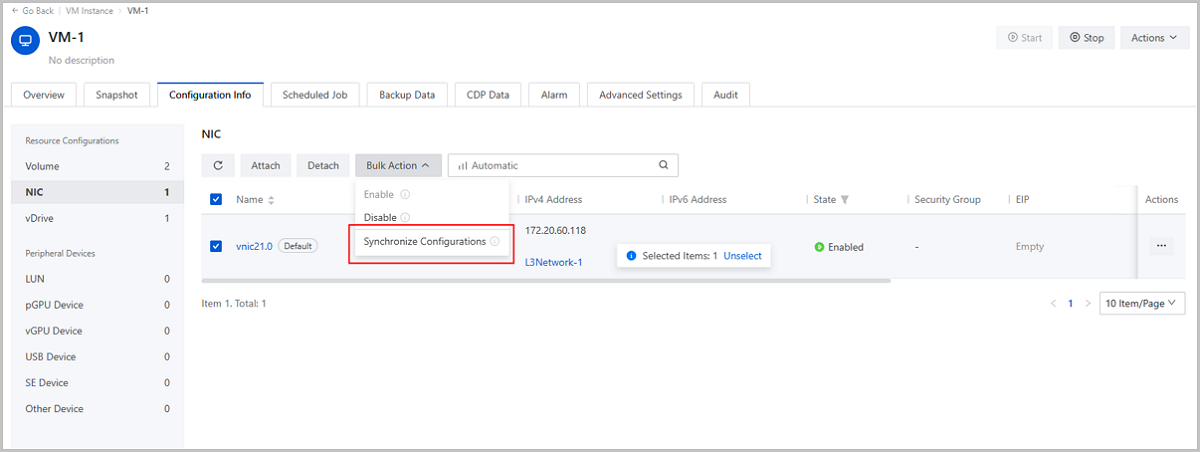
Starting from ZStack Cloud 4.7.11, in addition to IPv4 addresses, the GuestTools realizes IPv6 syncs and reading. After assigning an IPv6 address to a VM NIC that uses a network without the DHCP service on the Cloud, you can click Synchronize Configurations on the NIC action list to sync the IPv6 to the NIC and take effect.
- The IP address management is disabled for the L3 network that the VM NIC resides on.
- You have not assigned an IPv6 address for the VM NIC on the Cloud.
The Cloud reads each IPv6 address satisfying the requirements only once. If you enter the VM instance to modify an IPv6 that has been read, an alarm will be triggered.
Supports More Operating Systems
Up to ZStack Cloud 4.7.11, the extension features realized through the QGA in VM GuestTools has been compatible with several mainstream Linux/Windows operating systems, including the NIC configuration sync and reading, online hostname modification, and VM internal monitoring without the DHCP service.
The following are operating systems that realize their compatibility with these features in ZStack Cloud 4.7.11: CentOS 6.5/6.8/6.9/7.3/7.5, Ubuntu 14.04/16.04/16.10, Redhat Enterprise Linux Server 7.4/7.6, Debian 9.9/10.0, Fedora 30/31, and Windows Server 2008 R2.
Optimization of VM Deletion Mechanism
ZStack Cloud 4.7.11 optimizes the VM deletion mechanism, helping reduce your risk of deleting resources wrongly and better ensure your business stability and data security. The following are optimization contents:
A New Global Setting: VM Anti-Accidental-Deletion Mode
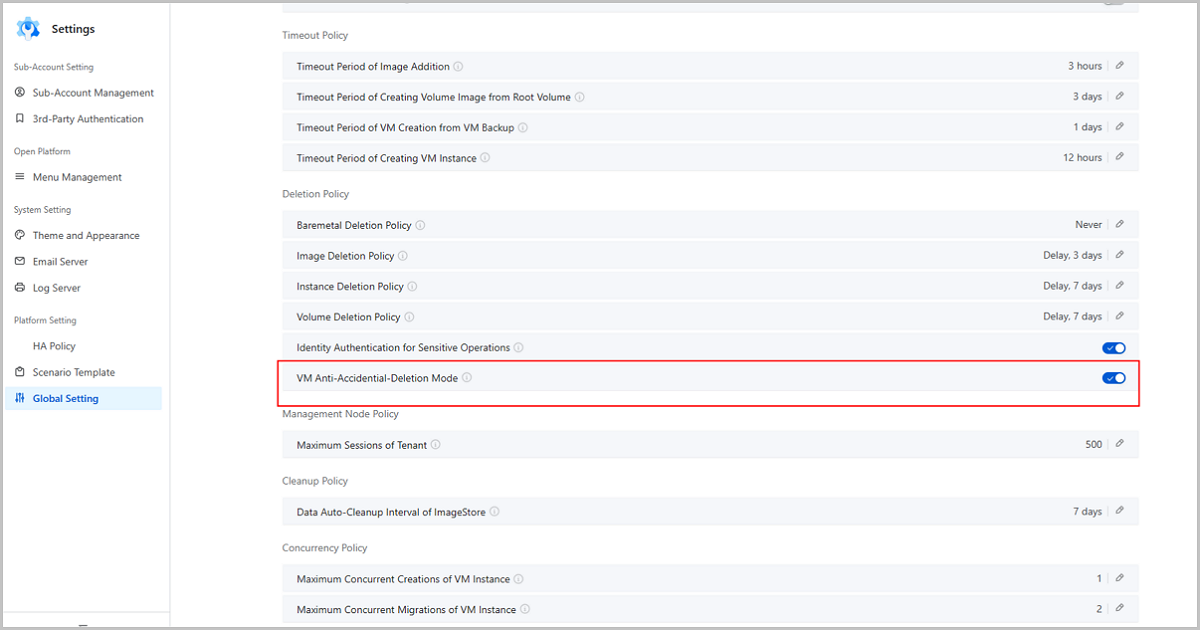
ZStack Cloud 4.7.11 provides a new global switch: VM Anti-Accidental-Deletion Mode. You can turn on/off this switch in .
If you turn on this switch, only VM instances in Stopped or Unknown status can be deleted. This effectively reduces the business interruption risk brought by an accidental deletion of a running VM instance. If you turn off this switch, any VM instances can be deleted no matter their status.
A Safer Double Confirmation before Deletion to Reduce Mis-Operation Risk
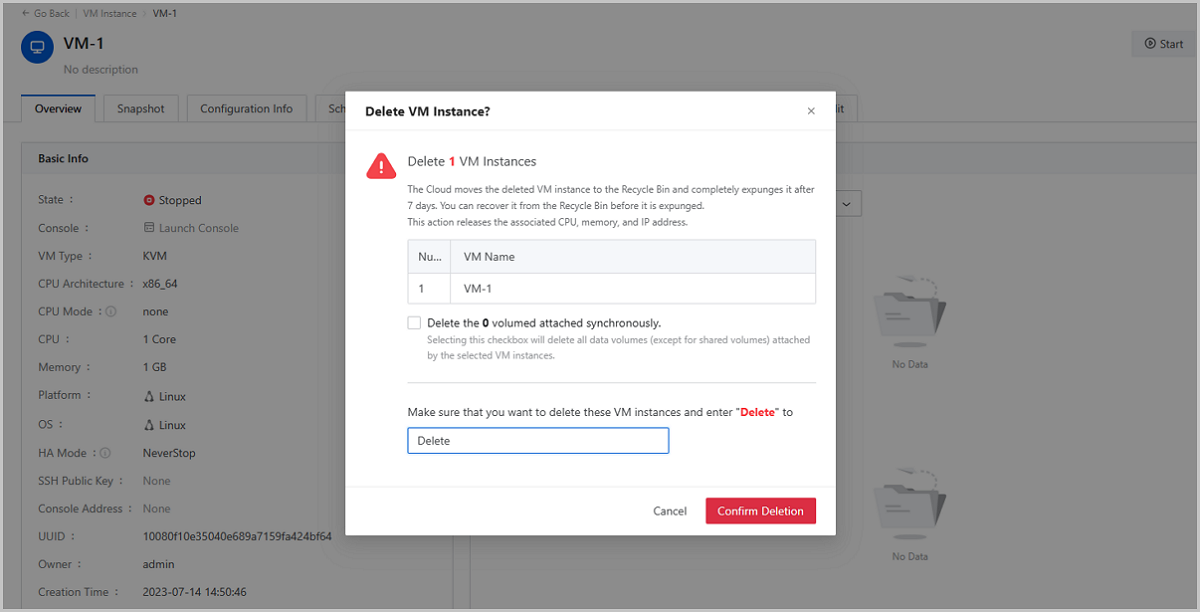
Starting from ZStack Cloud 4.7.11, you need to carefully read the risk notes and manually enter the text "Delete" to acknowledge these risks before you can make a VM instance deleted or expunged.
A Better User Experience When you Delete/Expunge VM Instances in Bulk
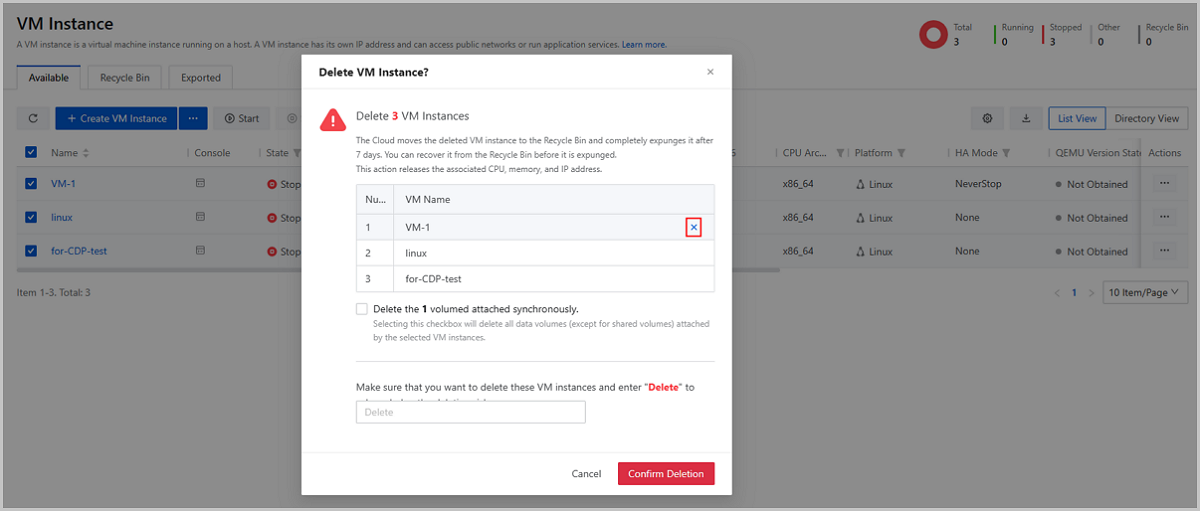
ZStack Cloud 4.7.11 provides a better user experience when you delete/expunge VM instances in bulk: After you select multiple VM instances and click Delete or Expunge, the VM information is displayed clearly in the pop-up confirmation window. You can recheck the selected VM list here and uncheck those misselected directly. The list supports a scrolling view in case you choose a large number of VM instances at once.
Optimizes Network Configuration Interaction When Creating VMs
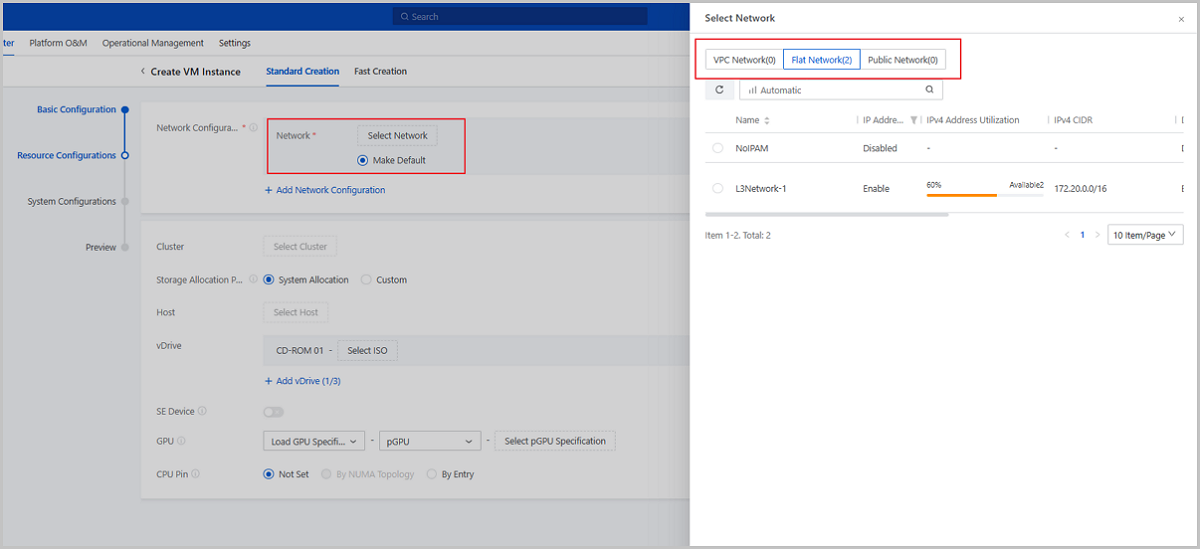
ZStack Cloud 4.7.11 simplifies the interaction steps of selecting a network configuration when creating VM instances, which reduces operational fatigue and improves user experience.
Cloud Network
Fine-Grained Monitoring Based on Network Categorization
ZStack Cloud 4.7.11 allows you to categorize physical networks according to your network planning. After the categorizing, you can view the flow monitoring of networks of each type, so as to master network workloads more accurately and flexibly.
Allows You to Mark Physical NIC Ports with Network Type
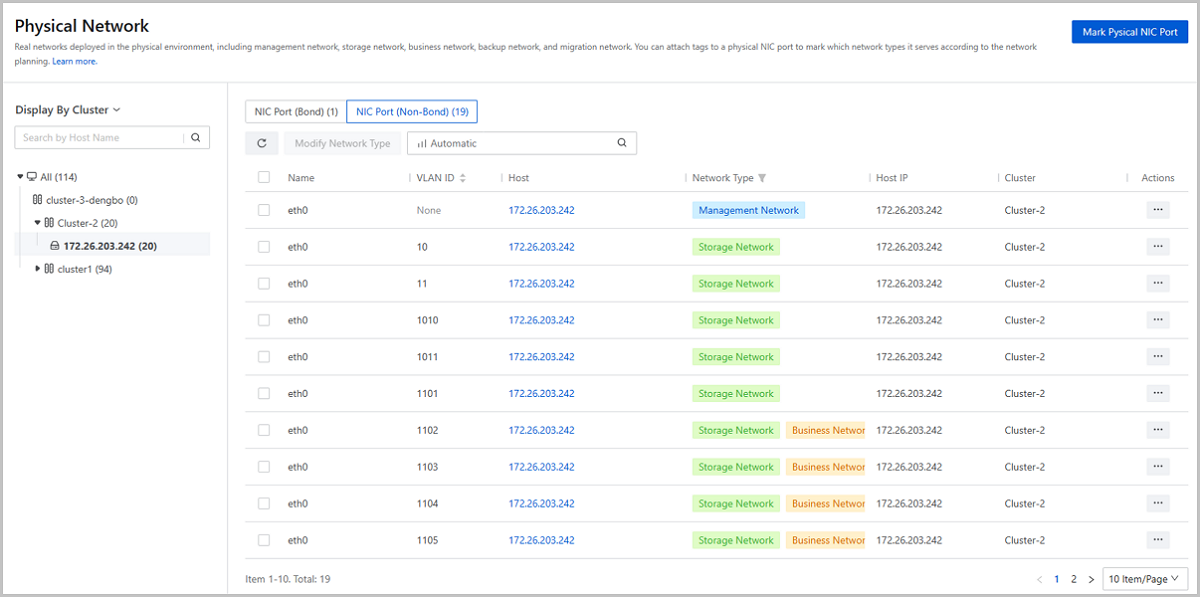
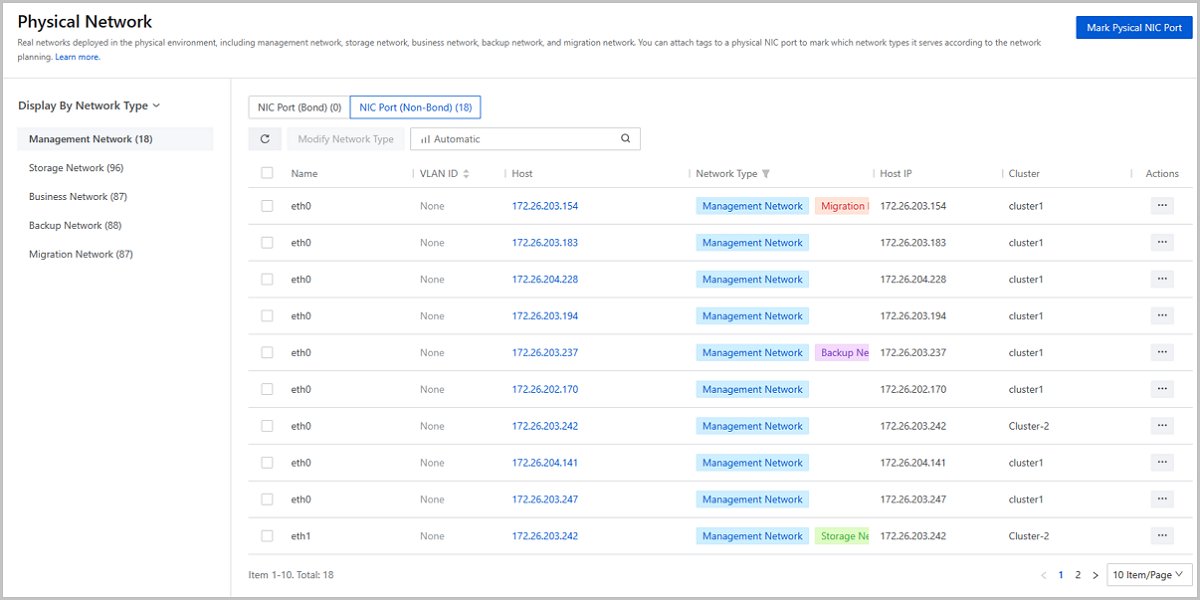
ZStack Cloud 4.7.11 adds a new page Physical Network. On the main menu of ZStack Cloud, choose . Then, the Physical Network page is displayed.
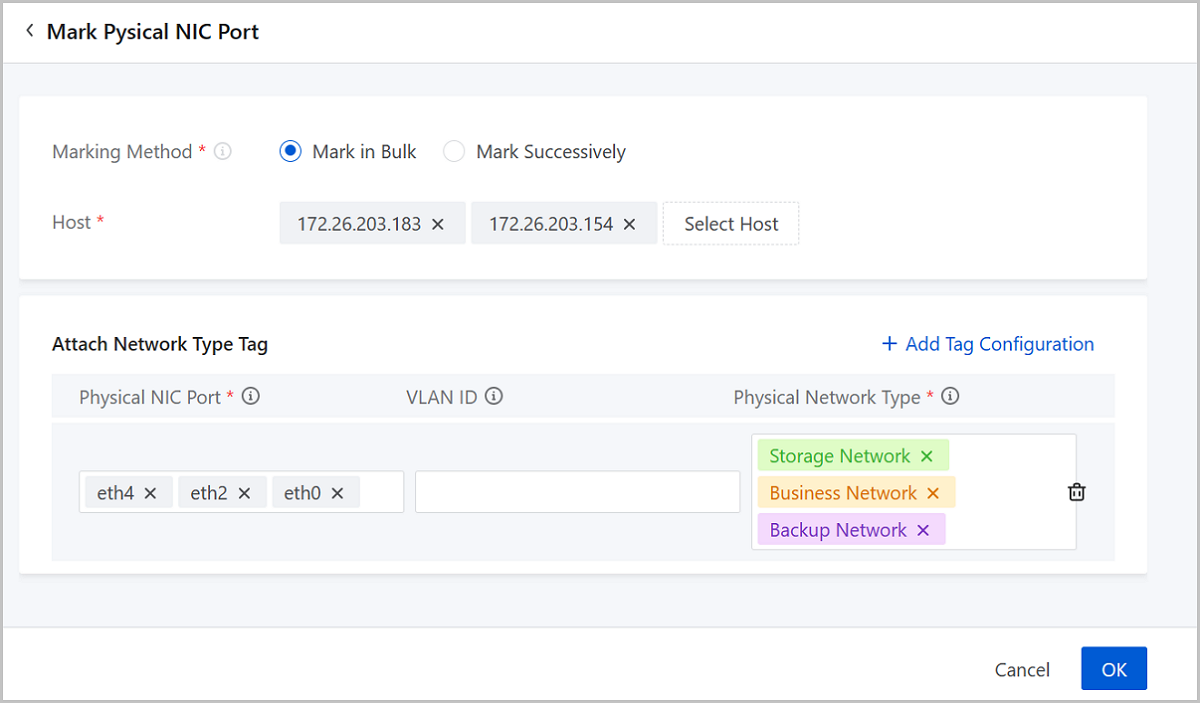
On the Physical Network page, you can attach network-type tags to a physical NIC port to mark the type of the network it resides on. Currently, five network-type tags are supported: Management Network, Storage Network, Business Network, Backup Network, and Migration Network. The management network tags are attached to corresponding ports automatically by the system and other tags are attached by yourself.
Physical NIC ports with tags are displayed on the Physical Network page. You can view them by Cluster or by network type.
Flow Monitoring on Network of Different Types
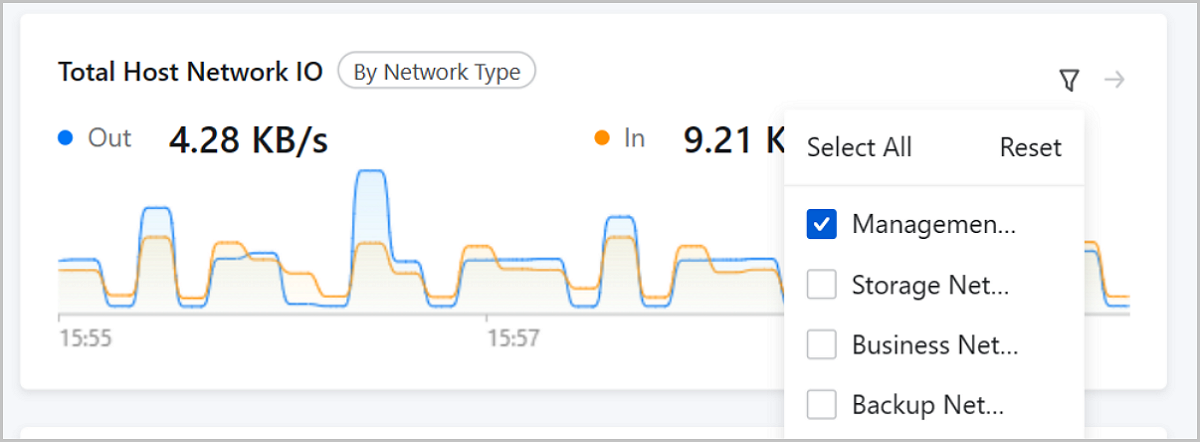
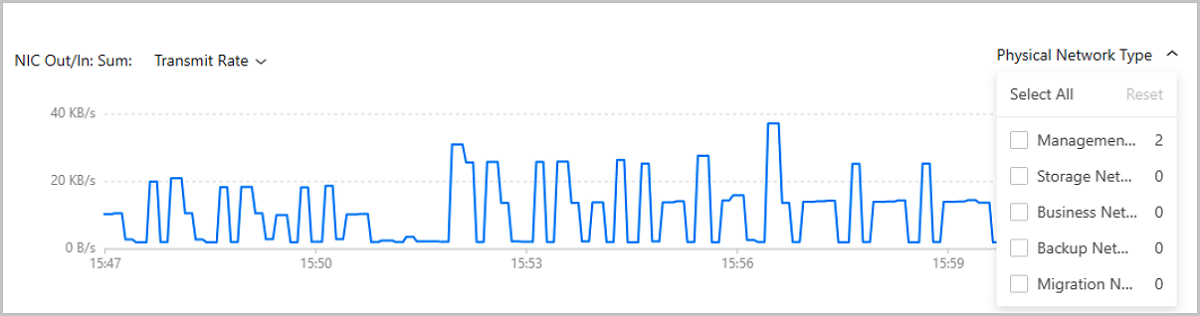
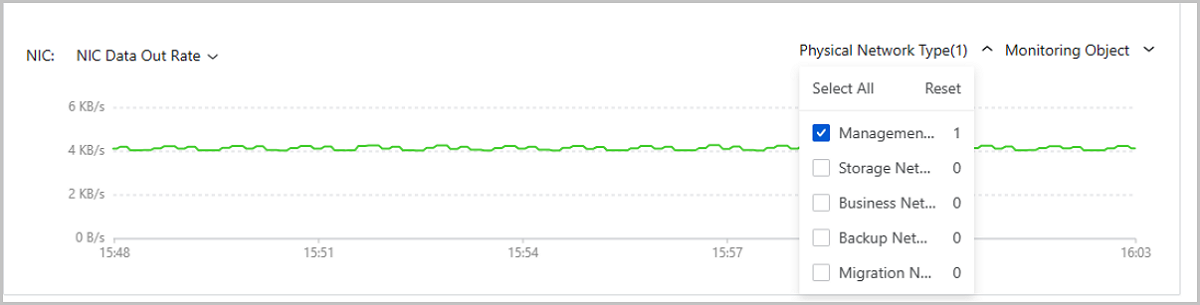
After the network categorization, you can view the flow monitoring of different network types on Dashboard, on the cluster details page, or on the host details page.
Dashboard: Dashboard provides a Total Host Network IO chart. The chart displays the out/in speed sum of all physical NIC ports in the current zone by default. You can specify one or more network types to view the data only of the corresponding NIC ports.
Cluster Details Page: The cluster details page provides a NIC Out/In Sum chart. The chart displays the out/in speed sum of all physical NIC ports in the current cluster by default. You can specify one or more network types to view the data only of the corresponding NIC ports.
Host Details Page: The host details page provides a NIC chart. The chart monitors the out/in situation of all physical NIC ports on this host. You can specify one or more network types to view the data only of the corresponding NIC ports.
Cloud Storage
Supports Displaying LUN Source
ZStack Cloud 4.7.11 supports displaying the corresponding relations between primary storage and LUN. You can view the LUN source on the LUN tab in the details page of a SharedBlock primary storage.
Image and Snapshot
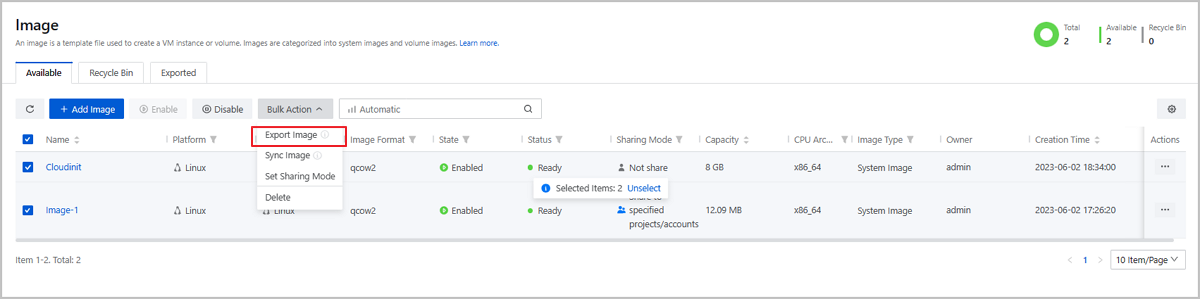
Supports Batch Exporting Images
ZStack Cloud 4.7.11 adds support for exporting images in bulk, which is convenient for large scale operation scenarios.
A Quantity Restriction on Scheduled Snapshot Jobs of Each VM/Volume
Starting from ZStack Cloud 4.7.11, you can create only one scheduled snapshot job for each VM instance or volume. In addition, if a data volume is bound with a scheduled snapshot job and attached to a VM instance, you cannot create a scheduled snapshot group job for the VM instance.
This quantity restriction effectively avoids a large storage capacity occupied by snapshots and reduces your costs on the snapshot management.
Monitoring and O&M
Optimization of Monitoring Screen
ZStack Cloud 4.7.11 optimizes the monitoring screen, allows you to customize the time range and method for the monitoring. Two monitoring methods are supported: external monitoring and internal monitoring. You can make the screen display the monitoring data as needed by flexibly setting these two items.

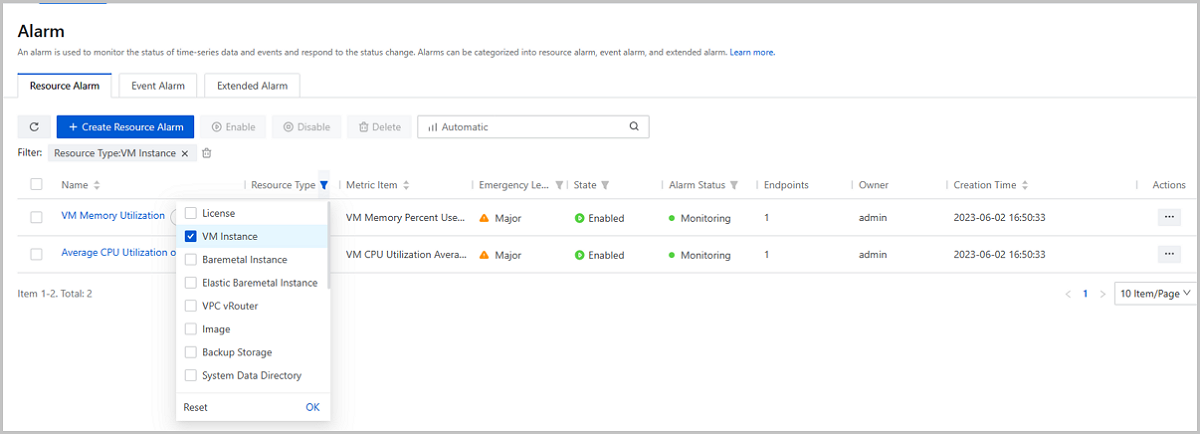
Screens Out Alarms by Resource Type
Starting from ZStack Cloud 4.7.11, you can specify a resource type on the resource alarm list to quickly screen out alarms related to this resource.
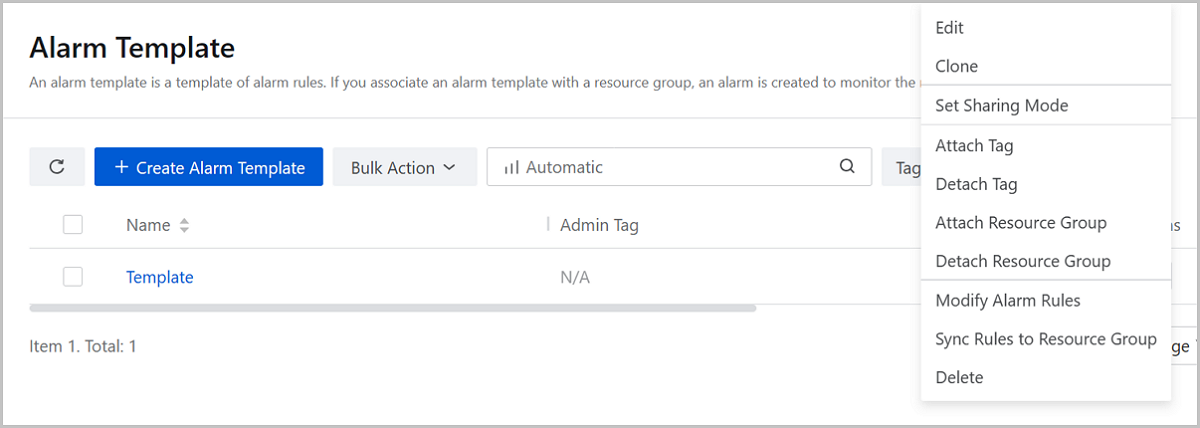
Supports Modifying and Syncing Alarm Template Rules
ZStack Cloud 4.7.11 supports two new actions on alarm templates: Modify Alarm Rules and Sync Rules to Resource Group. These two actions allow you to modify the rules of an alarm template after the creation and make the associated resource groups apply the latest rules after the modification.
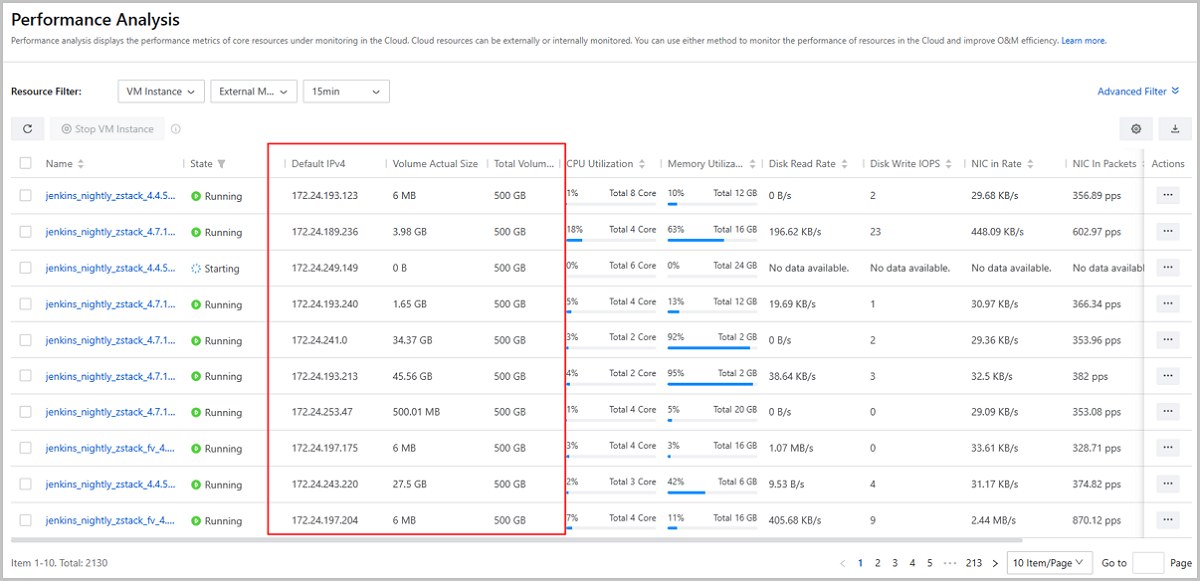
New VM Monitoring Indicators on Performance Analysis Page
Starting from ZStack Cloud 4.7.11, three new VM monitoring indicators are added on the Performance Analysis Page: Default IPv4, Volume Actual Size, and Total Volume Capacity. The new indicators help the VM information and workloads to be displayed in a more comprehensive and detailed way.
Backup Service
Optimizations of Backup Job
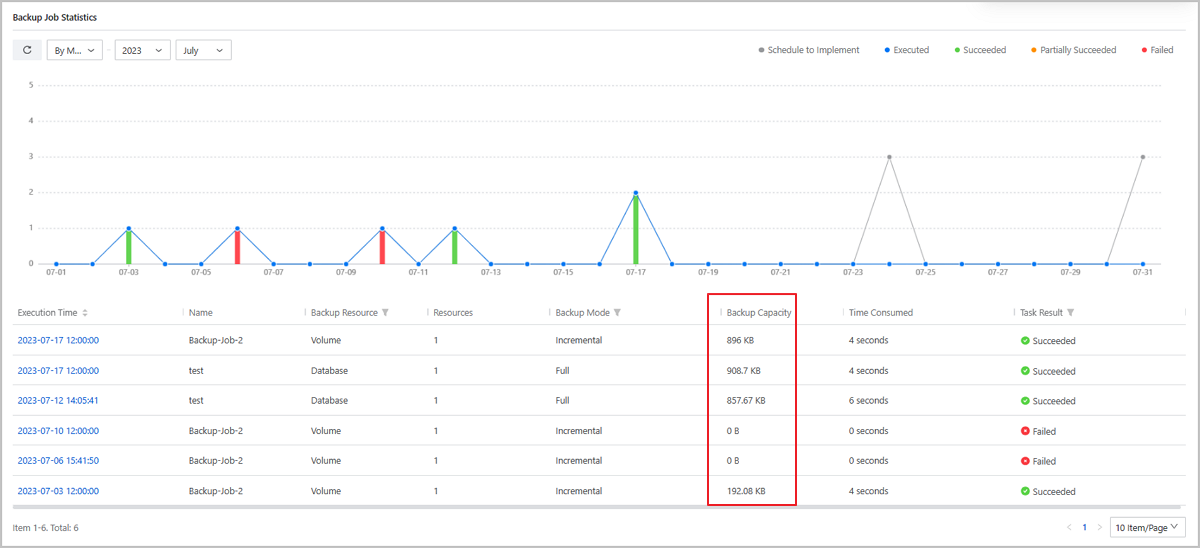
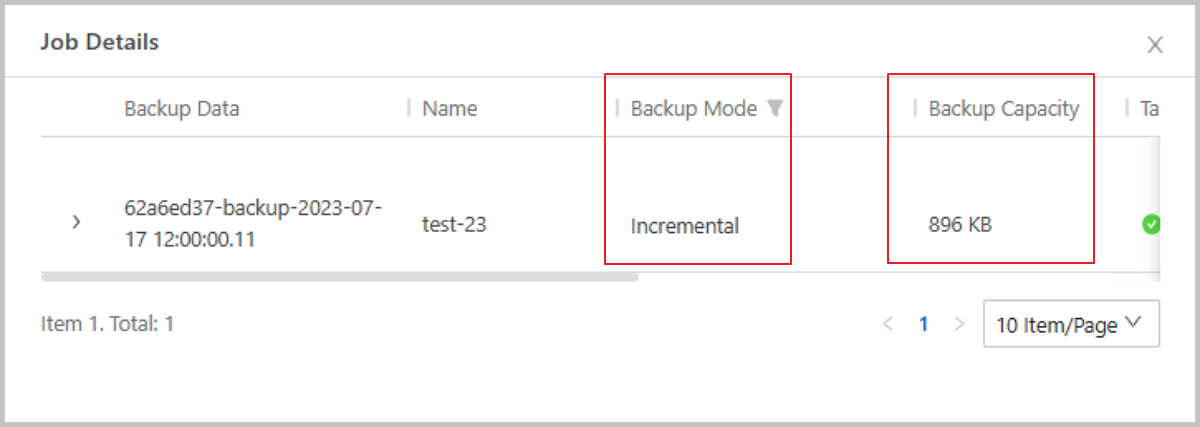
Supports Displaying Backup Mode and Backup Capacity
Starting from ZStack Cloud 4.7.11, backup job statistics adds display of backup capacity and backup job details adds display of backup mode and backup capacity. You can intuitively view the backup mode and the total amount of backup data generated after the backup job is completed, improving O&M efficiency.
Supports Canceling Ongoing Backup Job
Starting from ZStack Cloud 4.7.11, the Cloud adds a new Auto-Scheduling Task tab to the current task page, which is used to display ongoing backup jobs triggered by backup policies or executed manually. You can click the Cancel Task button to cancel the execution of a backup job.

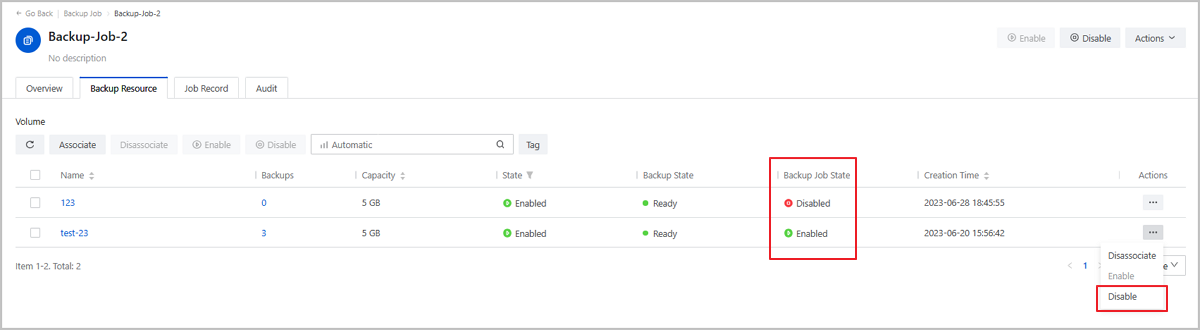
Supports Enabling/Disabling the Backup of resources in backup jobs
- Disable: Disable the scheduled VM/volume backup job that has not been performed. When you disable a VM/volume backup job that is still in progress, the backup job will continue to run until the current VM/volume backup job is completed.
- Enable: After you enable a backup job, the disabled VM/volume backup job that has not been performed will be added to the next backup plan. If you do not enable a disabled VM/volume backup job, the consequent backup jobs will not backup this disabled resource.
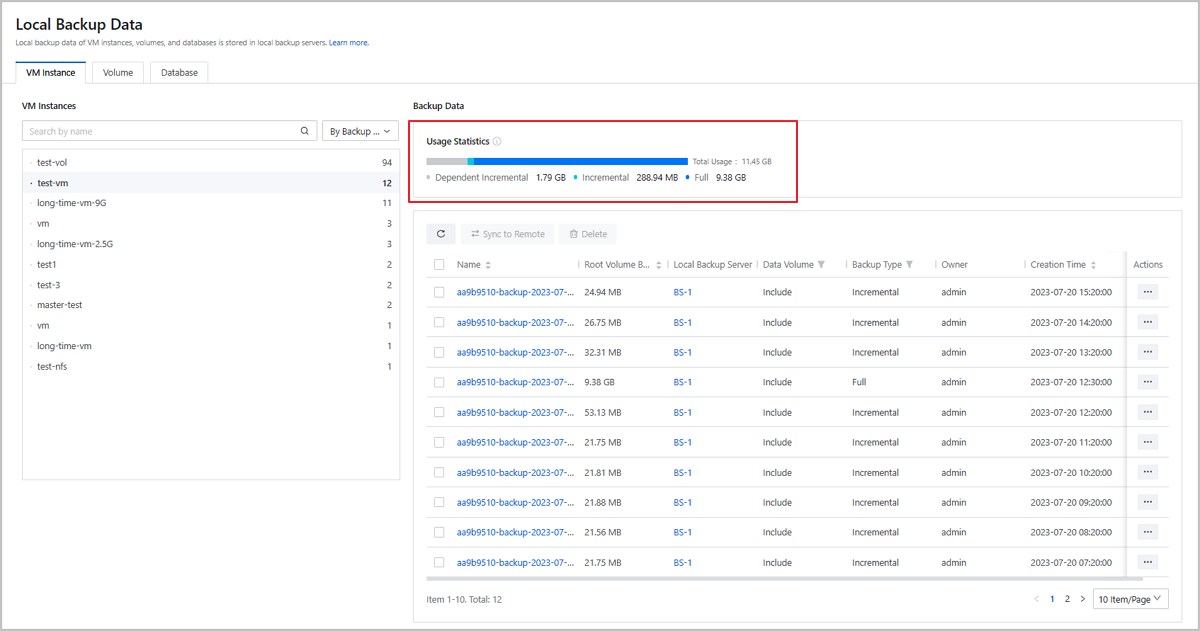
Supports Displaying Dependent Incremental Backup Data
Adds Usage Statistics Card in Local Backup Data
Starting from ZStack Cloud 4.7.11, the Cloud adds a usage statistics card on the Local Backup Data page to show the resource backup occupation, which is convenient for users to quickly grasp the backup capacity usage information.
Optimizes Resource Sorting in Local Backup Data
Starting from ZStack Cloud 4.7.11, when you sort the resources by root volume backup size, the backup size displayed in the list contains the dependent incremental backup data, so as to ensure that the sum of the backup data usage matches the actual data volume occupied in the backup server.
User Experience Optimization
Host/Volume/Image List Customization
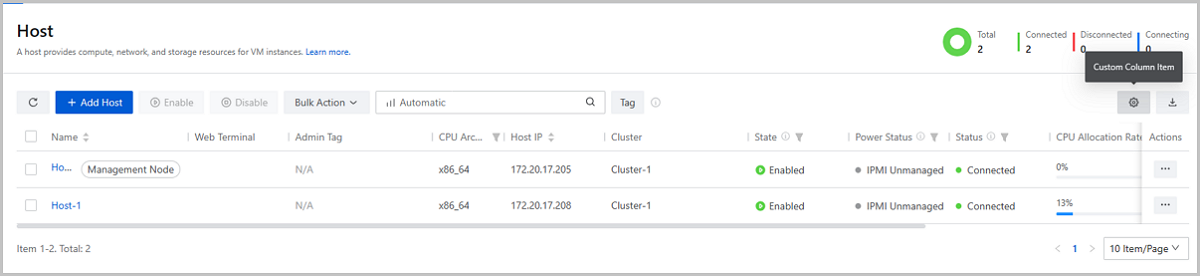
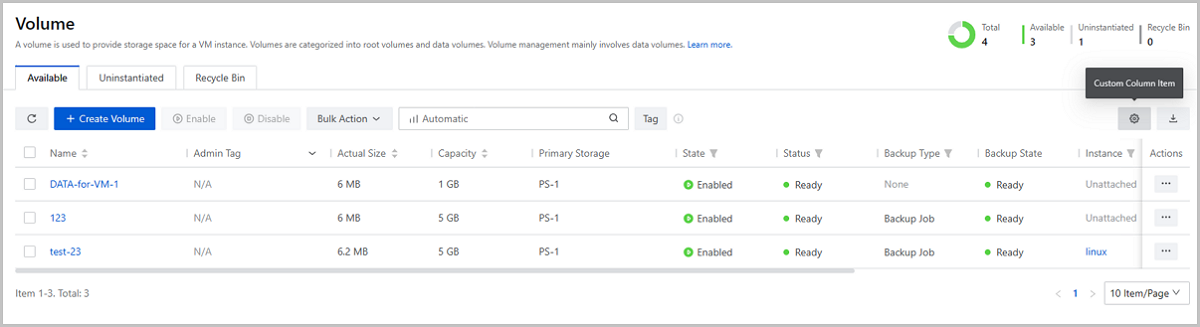
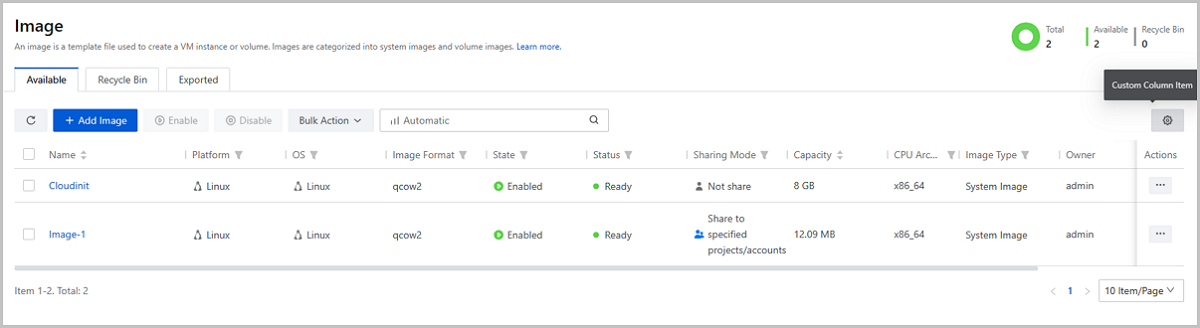
Starting from ZStack Cloud 4.7.11, you can make the host/volume/image lists display the most useful information to you by adding/deleting columns flexibly to/from the list as needed.
License Management
Adds Platform ID in License Management
Starting from ZStack Cloud 4.7.11, the Cloud adds a platform ID on the License Management page as a product unique code for users to query.