
File Storage
Overview
File Storage: The file storage function helps to store and manage the file data.
Related Definitions
- File Share: File share is the sharing of file directories through file protocols, allowing clients to map directories to their local file systems through mount operations, enabling file sharing and collaboration.
- File Gateway: The file gateway group provides users with file storage access protocols such as SMB and NFS.
- File User: The file user is the account that uses the file storage service, containing authorization information such as the username and password required for file protocol access.
- File Directory: The file directory provides users with management functions for first-level subdirectories within the file system, such as creating directories, deleting directories, searching for directories, and more.
- File System: The file system is the core resource for file storage, responsible for storing metadata information and file data.
File Share
Create an NFS Share
On the main menu of ZStack ZStone, choose . Then, the NFS Share page is displayed. Click Create NFS Share.
- Share Name: Set the name for the NFS share.
Naming rules: 1-80 characters long. A name can only contain letters (a-z, A-Z), digits, hyphens (-), underscores (_), and periods (.).
- NFS Version: Select the protocol version of the NFS share. Options include v3 and v4.
- File Gateway Group: Select a file gateway group.
- Client: Fill in client information. You can add clients by the IP or the subnet mask. One NFS share supports adding up to 100 clients.
- Directory Path: Enter the directory path by manual input
or directory browsing.
 Note:
Note:
- Directory paths must be 1-255 characters long. Each single-level directory can only contain letters (a-z, A-Z), digits, periods (.), underscores (_), and hyphens (-). Single-level directories cannot start with a period (.). The path must begin with a forward slash (/) and must not end with a forward slash (/).
- Ensure the directory path is not used by other NFS shares.
Manage an NFS Share
On the main menu of ZStack ZStone, choose . Then, the NFS Share page is displayed.
| Action | Description |
|---|---|
| Create NFS Share | Create NFS shares. |
| Delete | Delete NFS shares.Note: Deleting file shares will
cause the access to clients to be denied. Proceed with
caution. |
Create an SMB Share
On the main menu of ZStack ZStone, choose . Then, the SMB Share page is displayed. Click Create SMB Share.
- Name: Set the name for the SMB share.
Naming rules: 1-80 characters long. A name can only contain letters (a-z, A-Z), digits (0-9), underscores (_), hyphens (-) or periods (.).
- Type: By default, the Local option is selected.
- File Gateway Group: Select a file gateway group.
- User: Select users. One SMB share supports adding up to 100 users.
- Directory Path: Enter the directory path by manual input
or directory browsing.Note:
- Directory paths must be 1-255 characters long. Each single-level directory can only contain letters (a-z, A-Z), digits, periods (.), underscores (_), and hyphens (-). Single-level directories cannot start with a period (.). The path must begin with a forward slash (/) and must not end with a forward slash (/).
- Ensure the directory path is not used by other SMB shares.
Manage an SMB Share
On the main menu of ZStack ZStone, choose . Then, the SMB Share page is displayed.
| Action | Description |
|---|---|
| Create NFS Share | Create SMB shares. |
| Delete | Delete SMB shares.Note: Deleting file shares will
cause the access to clients to be denied. Proceed with
caution. |
File Gateway
Create a File Gateway Group
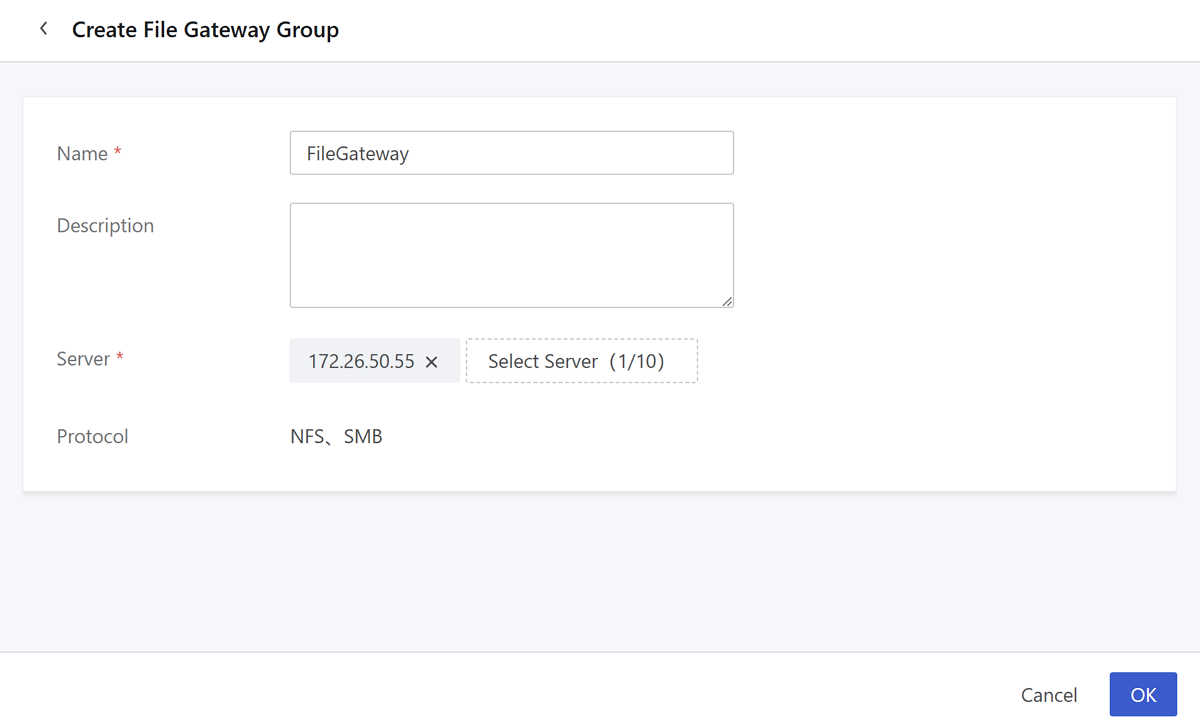
On the main menu of ZStack ZStone, choose . Then, the File Gateway page is displayed. Click Create File Gateway Group..
- Name: Set the name for the file gateway group.
Naming rules: 1-128 characters long. A name can only contain letters (a-z, A-Z), digits, underscores (_), or hyphens (-).
- Description: Optional. You can add related note in this field.
- Server: Select a server to work as the file gateway.Note:
- You must select servers with File Storage Gateway role in Healthy state.
- You cannot select servers already configured as file gateways.
- Each file gateway group supports adding a maximum of 10 servers.
- Protocol: Refers to the access protocol of file gateway groups. We provide two default protocols: NFS and SMB.
Manage a File Gateway Group
On the main menu of ZStack ZStone, choose . Then, the File Gateway page is displayed.
| Action | Description |
|---|---|
| Create File Gateway Group | Create file gateway groups. |
| Add Node | Add new server nodes to the existing file gateway
groups.
|
| Remove Node | Remove server nodes from the existing file
gateway group.
|
| Delete | Delete the selected file gateway
groups.Note: Deleting file gateway groups will lead to inability
to access the file storage service. Proceed with
caution. |
File User
Create a Local User
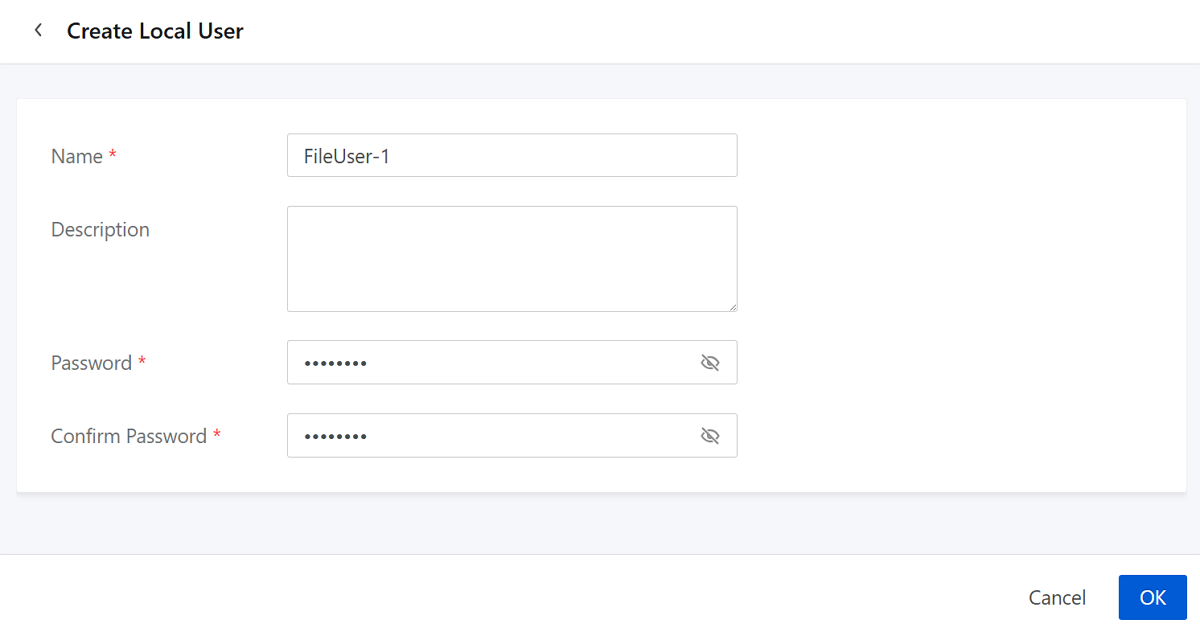
On the main menu of ZStack ZStone, choose . On the File User page, click Create Local User.
- Name: Set the name for the local user.
Naming rules: 1-32 characters long. A name can only contain letters (a-z, A-Z), digits, underscores (_), hyphens (-), or periods (.). Yet, the name cannot consist solely of numbers and cannot start with a hyphen or period.
- Description: Optional. You can add related note in this field.
- Password: Set the password for the local user.
- Confirm Password: Re-enter the password to confirm it.
Manage a Local User
On the main menu of ZStack ZStone, choose . Then, the File User page is displayed.
| Action | Description |
|---|---|
| Create Local User | Create local users. |
| Edit Description | Edit the description of local users. |
| Change Password | Change the password of local users. |
| Delete | Delete local users. After deletion, the user information will be emptied. |
File Directory
Create a Directory
On the main menu of ZStack ZStone, choose . On the File Directory page, click Create Directory.
- Parent Directory: Refers to the root directory of the file system. The file system name is used as the root directory by default.
- Directory Name: Enter a name for the second-level
subdirectory you want to create under the parent directory.
Naming rules: 1-255 characters long. A name can only contain letters (a-z, A-Z), digits, periods (.), underscores (_), or hyphens (-). The name cannot start with a period.
Manage a Directory
On the main menu of ZStack ZStone, choose . Then, the File Directory page is displayed.
| Action | Description |
|---|---|
| Create Directory | Create directories. |
| Delete | Delete the selected directories.Note: After
deletion, all data within the directory will be emptied. Proceed
with caution. |
File System
Initialize a File System
On the main menu of ZStack ZStone, choose . On the File System page, click Initialize File System.
- Name: Set the name for the file system.
Naming rules: 1-255 characters long. A name can only contain letters (a-z, A-Z), digits, periods (.), underscores (_), or hyphens (-). The name cannot start with a period.
- Metadata Pool: Select the metadata pool to add.
- Data Pool: Select the data pool to add.
Manage a File System
On the main menu of ZStack ZStone, choose . Then, the File System page is displayed.
| Action | Description |
|---|---|
| Initialize File System | Initialize the file system based on metadata pools and data
pools.Note: Only one file system can exist in a
cluster. |
| Delete | Delete the file system.Note: Deleting the file system is
high-risk. After deletion, the file share, file directory, and
file user will be emptied. Proceed with caution. |