
Disk Offering
What is Disk Offering?
A disk offering defines the capacity and other configuration settings of volumes.
A disk offering can be used to create root volumes and data volumes.
Create a Disk Offering
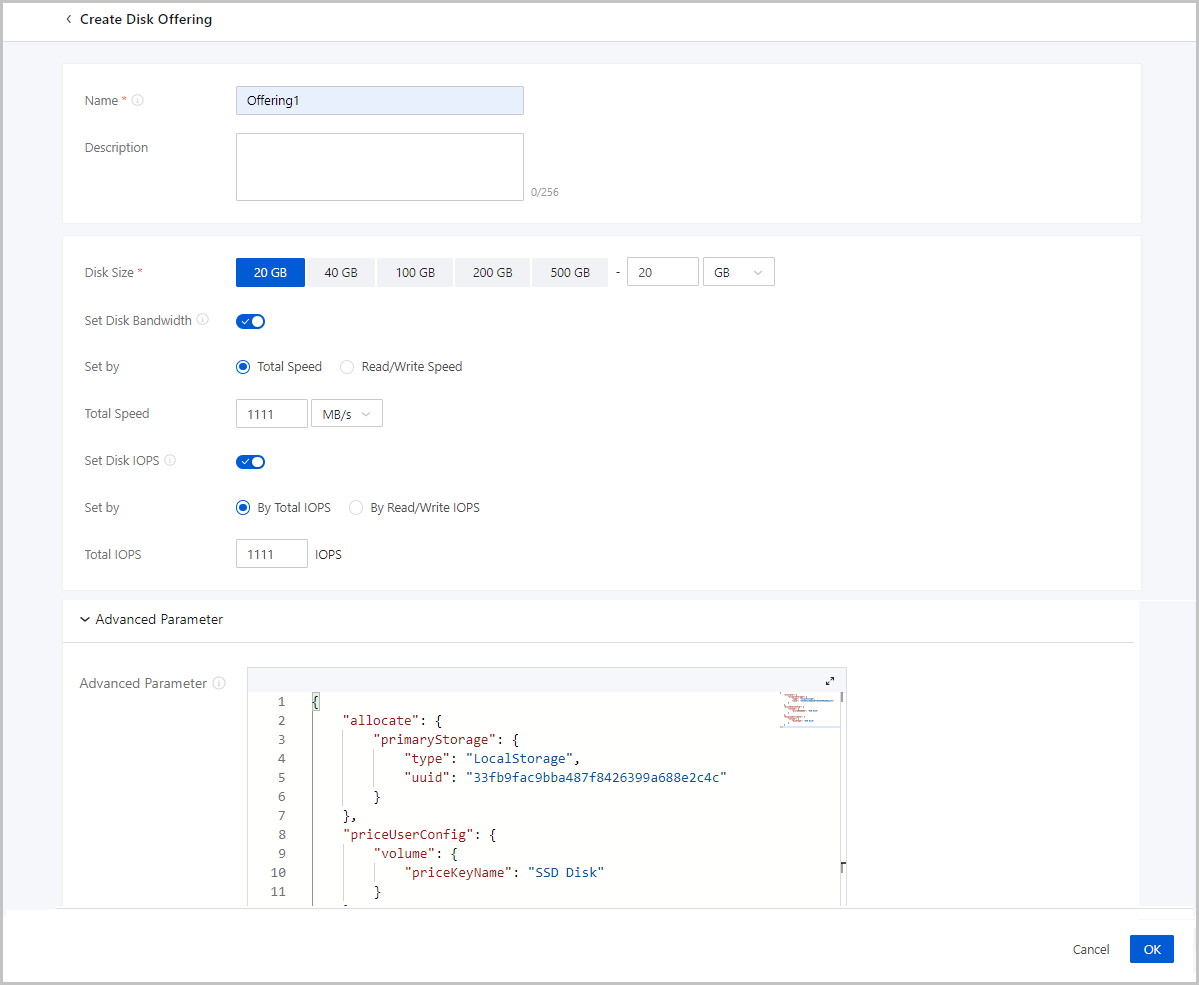
On the main menu of ZStack Cube Ultimate, choose . On the Disk Offering page, click Create Disk Offering. Then, the Create Disk Offering page is displayed.
On the displayed page, set the following parameters:
- Name: Enter a name for the disk offering.
The name must be 1 to 128 characters in length and can contain Chinese characters, letters, digits, spaces, hyphens (-), underscores (_), periods (.), parenthesis (), colons (:), and plus signs (+) and cannot begin or end with spaces.
- Description: Optional. Enter a description for the disk offering.
- Disk Size: Set the capacity of a volume.
- Set Disk Bandwidth: Optional. Set an upper limit for the I/O
bandwidth of a volume.If you do not set this parameter, the I/O bandwidth of a volume is not limited. Unit: MB/s, GB/s, and TB/s. You can set the I/O bandwidth by using either of the following methods:
- Total Speed: Set an upper limit for the total read and write speed of a volume.
- Read/Write Speed: Set an upper limit for the read or write
speed of a volume.
- Read Speed: Optional. Set an upper limit for the read speed of a volume.
- Write Speed: Optional. Set an upper limit for the write speed of a volume.
- Set Disk IOPS: Optional. Set an upper limit for reads/writes per
second (IOPS) of a volume.If not set, the IOPS of a volume is not limited. You can set the IOPS by using either of the following methods:
- Total IOPS: Set an upper limit for the total IOPS of a volume.
- Read/Write IOPS: Set an upper limit for the read or write
IOPS of a volume.
- Read IOPS: Optional. Set an upper limit for the read IOPS of a volume.
- Write IOPS: Optional. Set an upper limit for the write IOPS of a volume.
- Advanced Parameter: Optional. Configure a JSON file to customize
the disk performance.The following is a sample JSON configuration file:
The preceding configuration settings can be divided into the following three parts:{ "allocate": { "primaryStorage": { "type": "Enter a primary storage type. Valid values: Ceph, LocalStorage, NFS, and SharedBlock.", "uuid": "Enter the UUID of a primary storage.", "poolNames": [ "Enter the name of a Ceph pool. Delete this parameter if you do not specify a Ceph primary storage." ] } }, "priceUserConfig": { "volume": { "priceKeyName": "Set a billing name for a data volume. The advanced parameter setting of the billing type in the pricing list must be consistent with this setting. Otherwise, this billing entries cannot be generated." } }, "displayAttribute": { "volume": { "diskType": "Set the display type of a data volume. You can view this parameter setting on the volume details page." } } }- Configure the primary storage for a data
volume:
"allocate": { "primaryStorage": { "type": "Enter a primary storage type. Valid values: Ceph, LocalStorage, NFS, and SharedBlock.", "uuid": "Enter the UUID of a primary storage.", "poolNames": [ "Enter the name of a Ceph pool. Delete this parameter if you do not specify a Ceph primary storage." ] } }type: Enter a primary storage type. Valid values: Ceph, LocalStorage, NFS, and SharedBlock. If you specify a Ceph primary storage, you can specify a Ceph pool.uuid: Enter the UUID of a primary storage.poolNames: Enter the name of a Ceph pool. Delete this parameter if you do not specify a Ceph primary storage.
 Note: If you do not specify a primary storage, delete the corresponding
codes.
Note: If you do not specify a primary storage, delete the corresponding
codes. - Configure the billing type for a data
volume:
"priceUserConfig": { "volume": { "priceKeyName": "Set a display name of the billing type for the data volume. The advanced parameter setting in the pricing list must be consistent with this setting. Otherwise, this billing type cannot be generated." } }priceKeyName: Set a billing name for the data volume. The advanced parameter setting in the pricing list must be consistent with this setting. Otherwise, this billing entries cannot be generated.
Note: If you do not need billing, delete the corresponding codes. - Configure the display attributes of a data
volume:
"displayAttribute": { "volume": { "diskType": "Set the display name of the data volume. You can view this parameter setting on the volume details page." } }volume: Set the display name of the data volume. You can view this parameter setting on the volume details page. You can set multiple attributes in the key-value pair format.
Note: If you do not need special display, delete the corresponding
codes.
- Configure the primary storage for a data
volume:
Manage a Disk Offering
On the main menu of ZStack Cube Ultimate, choose . Then, the Disk Offering page appears.
The following table lists the actions that you can perform on a disk offering.
| Action | Description |
|---|---|
| Create Disk Offering | Create a disk offering. |
| Edit Disk Offering | Modify the name and description of a disk offering. |
| Enable Disk Offering | Enable a disabled disk offering. |
| Disable Disk Offering | Disable an enabled disk offering. A disabled disk offering cannot be used to create volumes. However, the volumes created from the disk offering before the disablement are not affected. |
| Set Sharing Mode |
Set the sharing mode of a resource. The
platform provides the following sharing modes:
Note:
|
| Delete Disk Offering | Delete a disk offering. |