
Cluster
What is Cluster?
A cluster is a logical group of hosts (compute nodes). In a real data center, a cluster usually maps to a rack.
- All hosts in the same cluster must be installed with the same operating system.
- All hosts in the same cluster must have the same network configuration.
- All hosts in the same cluster must be able to access the same primary storage.
- Before a cluster can provide VM services, the cluster must have a primary storage and an L2 network attached.
- The scale of a cluster, which is the maximum number of hosts that the cluster can contain, is not limited.
The relationship between a typical cluster and its associated resources is as follows:
Cluster | Zone
You can create more than one cluster in a zone, and allocate newly created hosts to different clusters as needed.
Cluster | Primary Storage and L2 Network
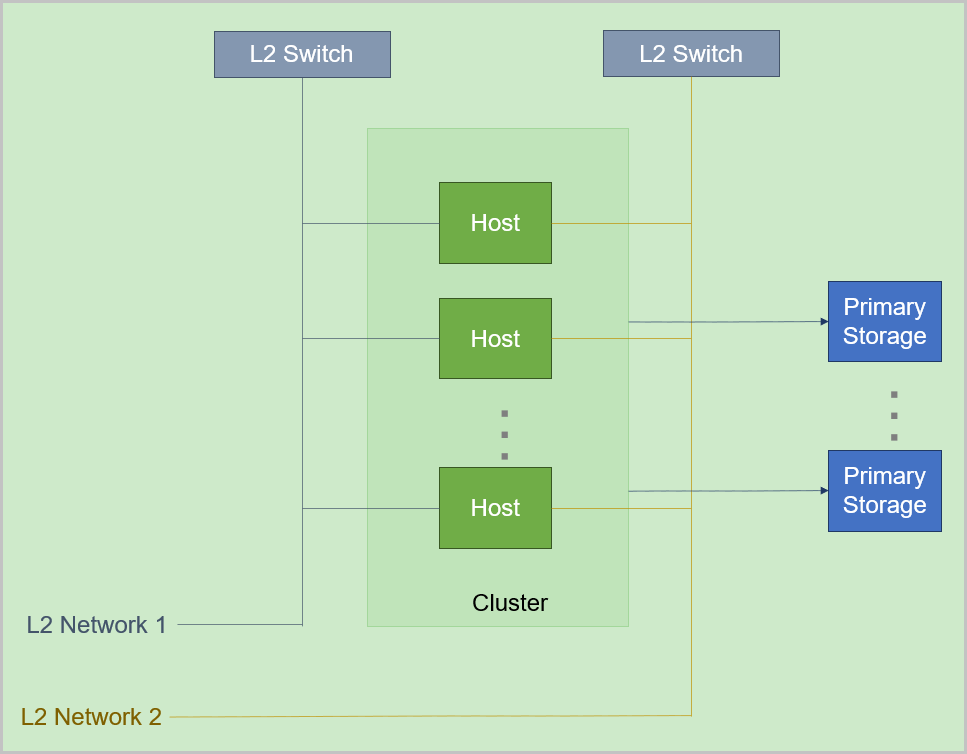
 Note:
Note:
- Cluster | Primary Storage
- A primary storage can be attached to one or more clusters.
- A cluster can have one or more primary storage attached.The following are primary storage of the same type that a cluster can have:
- A cluster can have one or more LocalStorage primary storage attached.
- A cluster can have one or more NFS primary storage attached.
- A cluster can have one or more SharedBlock primary storage attached.
- A cluster can have one SharedMountPoint (SMP) primary storage attached.
- A cluster can have only one Ceph primary storage attached.
- A cluster can have only one Vhost primary storage attached.
- A cluster can have only one CBD primary storage attached.
- A cluster can have only one AliyunNAS primary storage attached.
- A cluster can have only one AliyunEBS primary storage attached.
The following are combinations of primary storages that a cluster can have:- A cluster can have both a LocalStorage and an NFS primary storage attached.
- A cluster can have both a LocalStorage and an SMP primary storage attached.
- A cluster can have both multiple LocalStorage and multiple SharedBlock primary storage attached.
- A cluster can have both a Ceph and a maximum of three LocalStorage primary storage attached.
- A cluster can have both a Ceph and a SharedBlock primary storage attached.
- A cluster can have both a Ceph and more than one SharedBlock primary storage attached.
- A cluster can have both multiple NFS and multiple SharedBlock primary storage attached.
The following table lists the relationship between a primary storage and a cluster.Primary Storage Cluster LocalStorage A cluster can have one or more LocalStorage primary storage attached. NFS A cluster can have one or more NFS primary storage attached. SharedBlock A cluster can have one or more SharedBlock primary storage attached. SMP A cluster can have one SMP primary storage attached. Ceph A cluster can have only one Ceph primary storage attached. Vhost A cluster can have only one Vhost primary storage attached. CBD A cluster can have only one CBD primary storage attached. AliyunNAS A cluster can have only one AliyunNAS primary storage attached. AliyunEBS A cluster can have only one AliyunEBS primary storage attached. LocalStorage + NFS A cluster can have one LocalStorage and one NFS primary storage attached. LocalStorage + SMP A cluster can have one LocalStorage and one SMP primary storage attached. LocalStorage + SharedBlock A cluster can have multiple LocalStorage and multiple SharedBlock primary storage attached. Ceph + LocalStorage A cluster can have both a Ceph and a maximum of three LocalStorage primary storage attached. Ceph + SharedBlock - A cluster can have one Ceph and one SharedBlock primary storage attached.
- A cluster can have one Ceph and multiple SharedBlock primary storage attached.
NFS + SharedBlock A cluster can have both multiple NFS and multiple SharedBlock primary storage attached. - When you attach multiple LocalStorage primary storage to a cluster, partition the corresponding URLs on the hosts before you add hosts and primary storage, and make sure that each LocalStorage is deployed on an exclusive logical volume or physical disk.
- A primary storage can be accessed by all hosts in the cluster to which the primary storage belongs.
- If a primary storage cannot be accessed by hosts in the cluster due to network typology changes in the data center, you can detach the primary storage from the cluster.
- Cluster | L2 Network
- A cluster can have one or more L2 networks attached. Also, an L2 network can be attached to one or more clusters.
- A cluster can have a VXLAN pool attached. The VNIs in the VXLAN pool can be used to create different VXLAN networks.
- One NIC can be used to create only one NoVlan network.
- For VLAN networks, different VLAN IDs represent different L2 networks.
- If hosts in a cluster no longer exist in the layer 2 broadcast domain of an L2 network due to network typology changes in the data center, you can detach the L2 network from the cluster.
Cluster | Image Storage
No direct dependency exists between a cluster and an image storage. An image storage can provide services for multiple clusters.
| PS/BS | ImageStore | Ceph |
| LocalStorage | ○ | × |
| NFS | ○ | × |
| SMP | ○ | × |
| Ceph | ○ | ○ |
| SharedBlock | ○ | × |
| Vhost | ○ | × |
| CBD | ○ | × |
- When primary storage are LocalStorage, NFS, or SMP, the default type for image storage is ImageStore.
- When primary storage are NFS or SMP, you can manually mount the corresponding shared directories to the local directories of the corresponding image storage. In this regard, both primary storage and image storage can use the network shared storage.
- When primary storage is Ceph, you can use the primary storage in the same Ceph cluster as image storage. You can also use the ImageStore primary storage as image storage.
- When primary storage is SharedBlock, the default type for image storage is ImageStore.
- When primary storage is AliyunNAS, the default type for image storage is ImageStore.
- When primary storage is AliyunEBS, the default type for image storage is AliyunEBS.
Create a Cluster
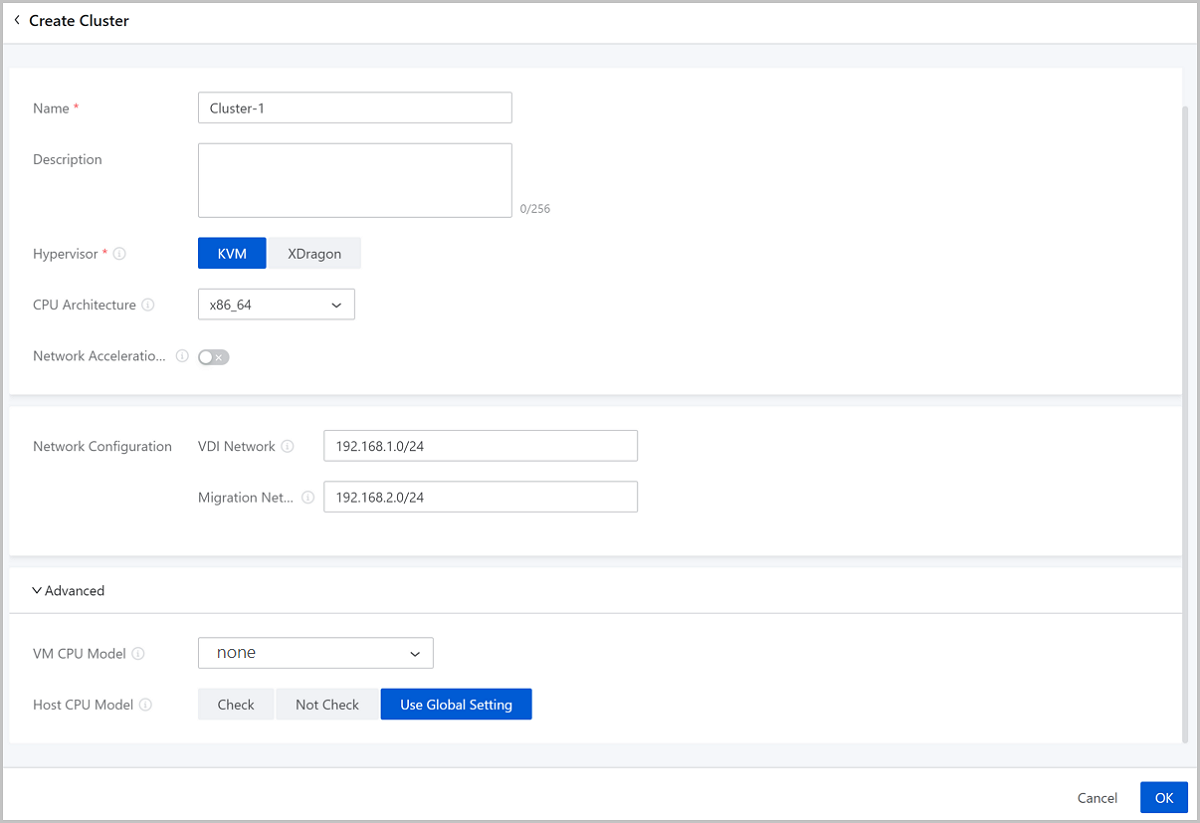
On the main menu of ZStack Cube Ultimate, choose . On the Cluster page, click Create Cluster. Then, the Create Cluster page is displayed.
- Zone: By default, the current zone is selected.
- Name: Enter a name for the cluster.
The name must be 1 to 128 characters in length and can contain Chinese characters, letters, digits, spaces, hyphens (-), underscores (_), periods (.), parenthesis (), colons (:), and plus signs (+) and cannot begin or end with spaces.
- Description: Optional. Enter a description for the cluster.
- Hypervisor: Select the hypervisor type of the cluster.
You can select KVM or XDragon.
- If you select KVM, make sure that the hosts to be added to the cluster apply the KVM virtualization technology.
- If you select XDragon, make sure that the hosts to be added to the cluster apply the X-Dragon architecture.
- CPU Architecture: Select a CPU architecture for hosts to
be added to the cluster. You can select x86_64, aarch64, mips64el and loongarch64.Note:
- If left blank, the system will specify the CPU architecture of the first host you add to the cluster.
- The CPU architecture cannot be changed after being set. Please select a proper one according to your cloud environment.
- Network Acceleration Support:
Choose whether to enable network acceleration for a cluster. By default, network
acceleration support is disabled.Note:
- If you enable network acceleration support for a cluster, make sure that the L2 network associated with the cluster uses the Smart NIC network acceleration mode and the hosts in the cluster must be attached with smart NICs of the specified model. Otherwise, network acceleration does not work as expected.
- Once you enable network acceleration support, the feature cannot be disabled.
- You can enable network acceleration support only when you create a cluster.
- The network acceleration support feature is supported by KVM clusters but not by XDragon clusters.
- Network Configuration: Configure a dedicated VDI network
or migration network for the cluster.
- VDI Network: Optional. Enter the CIDR of the VDI
network.
- If you deployed a dedicated network for VDI, add the network directly to the Cloud.
- Using a dedicated VDI network can avoid network congestions and improve transmission efficiencies.
- If not set, the VDI will use a management network by default.
- Migration Network: Optional. Enter the CIDR of
the migration network.
- If you deployed a dedicated network for VM migration, add the network directly to the Cloud.
- Using a dedicated migration network can avoid network congestions and improve transmission efficiencies.
- If not set, VM migrations will use a management network by default.
- VDI Network: Optional. Enter the CIDR of the VDI
network.
- Advanced: Make advanced configurations if you selected
the KVM type in the previous steps.
- VM CPU Model: Optional. Specify a CPU model for
VM instances in the cluster.
Cluster CPU Architecture VM CPU Model in Cluster VM CPU Mode in Global Setting Description Note x86_64 Inherit Global Setting (by default) - The CPU model of VM instances in the cluster is consistent with that configured in the global setting.
none (by default) The CPU model of VM instances on the Cloud is simulated via QEMU. In this mode, the VM instances inherit necessary host CPU features to a small degree. You can select this mode if you need to migrate your VM instances. - If you select host-passthrough, VM instances will allow for virtualization. However, if you migrate a VM instance to a host whose CPU model is different from the current host, the migration may fail. In addition, the CPU utilization of the VM instance measured within the instance may differ from the CPU utilization measured from the host.
- Hygon_Customized is virtualized CPU model designed only for compating OS of eariler versions.
- If you specifically set the CPU model of an individual VM instance, the VM CPU model configured for the cluster will not take effect on that VM instance.
- If you specifically set the CPU model for a cluster, the VM CPU model configured in the global setting will not take effect on VM instances in the cluster.
- If you modify the CPU model, you need to restart a VM instance to make the modification take effect.
host-model The CPU model of VM instances on the Cloud is similar to or same as that of the host, such as Haswell Intel CPU. In this mode, VM instances inherit many host CPU features. You can select this mode if you need to migrate VM instances. host-passthrough The CPU model and CPU features of VM instances on the Cloud are the same as the CPU model and CPU features of hosts. For example, both VM instances and hosts support the extended page table extension, huge page, and virtualization features. Compared with the none, host-model, and Custom modes, VM instances in this mode have the most CPU features. You can select this mode if your business requires many features. Custom (a specified CPU model) The VM instances on the Cloud share the specified CPU model. Different CPU models may have different CPU features. Note that if your host CPU is Hygon and the OS of your VM instance is an earlier version such as Windows Server 2012 R2 and Windows Server 2008 R2, you can select Hygon_Customized. none N/A The CPU model of VM instances in the cluster is simulated via QEMU. In this mode, the VM instances inherit necessary host CPU features to a small degree. You can select this mode if you need to migrate your VM instances. host-model N/A The CPU model of VM instances in the cluster is similar to or same as that of the host, such as Haswell Intel CPU. In this mode, VM instances inherit many host CPU features. You can select this mode if you need to migrate VM instances. host-passthrough N/A The CPU model and CPU features of VM instances in the cluster are all the same as the CPU model and CPU features of hosts in the cluster. For example, both VM instances and hosts support the extended page table extension, huge page, and virtualization features. Compared with the none, host-model, and Custom modes, VM instances in this mode have the most CPU features. You can select this mode if your business requires many features. Custom (a specified CPU model) N/A The VM instances in the cluster share the specified CPU model. Different CPU models may have different CPU features. Note that if your host CPU is Hygon and the OS of your VM instance is an earlier version such as Windows Server 2012 R2 and Windows Server 2008 R2, you can select Hygon_Customized. aarch64 host-passthrough (by default) N/A The CPU model and CPU features of VM instances in the cluster are all the same as the CPU model and CPU features of hosts in the cluster. For example, both VM instances and hosts support the extended page table extension, huge page, and virtualization features. Compared with the host-model and Custom modes, VM instances in this mode have the most CPU features. You can select this mode if your business requires many features. host-model N/A The CPU model of VM instances in the cluster is similar to or same as that of the host, such as Haswell Intel CPU. In this mode, VM instances inherit many host CPU features. You can select this mode if you need to migrate VM instances. Custom (a specified CPU model) N/A The VM instances in the cluster share the specified CPU model. Different CPU models may have different CPU features. mips64el A specified CPU model N/A The VM instances in the cluster share the specified CPU model. loongarch64 A specified CPU model N/A The VM instances in the cluster share the specified CPU model. - Host CPU Model: Select a checking mechanism for
the host CPU model in the current cluster.
Host CPU Model Checking Mechanism in Cluster Host CPU Model Check in Global Setting Description Note By default, Use Global Setting is selected. - The host CPU model is decided based on the Host CPU Model Check you specified in the global setting.
False (default) If you turn off Host CPU Model Check, when you hot migrate a VM instance or add a host, the Cloud does not check the consistency of the CPU models between the source host and the destination host. The CPU model consistency of hosts in a cluster ensures that VM migration across hosts can succeed. True If you turn on Host CPU Model Check, when you hot migrate a VM instance or add a host, the Cloud checks whether the CPU models of the source and destination hosts are consistent. If not, the Cloud does not allow you to hot migrate the VM instance or add the host. Check N/A If you select Check, when you hot migrate a VM instance or add a host, the Cloud checks whether the CPU models of the source and destination hosts are consistent. If not, the Cloud does not allow you to hot migrate the VM instance or add the host. Not Check N/A If you select Not Check, when you hot migrate a VM instance or add a host, the Cloud does not check the consistency of the CPU models between the source and destination hosts.
- VM CPU Model: Optional. Specify a CPU model for
VM instances in the cluster.
Manage a Cluster
On the main menu of ZStack Cube Ultimate, choose . Then, the Cluster page is displayed.
| Action | Description |
|---|---|
| Create Cluster | Create a cluster in the current zone. |
| Edit Cluster | Edit the name and description of the cluster. |
| Enable Cluster | Enable a disabled cluster. |
| Disable Cluster | Disable a enabled cluster.Note:
|
| Attach L2 Network | Attach an L2 network to the cluster. |
| Detach L2 Network | Detach an L2 network from the cluster.Note: Detaching an L2
network also detaches the corresponding VM NIC. Please exercise
caution. |
| Attach Primary Storage | Attach a primary storage to the cluster. |
| Detach Primary Storage | Detach a primary storage from the cluster.Note: When you detach a
primary storage from a cluster, note the following:
|
| Delete Cluster | Delete a cluster.Note:
|