
ECS Instance
Create an ECS Instance
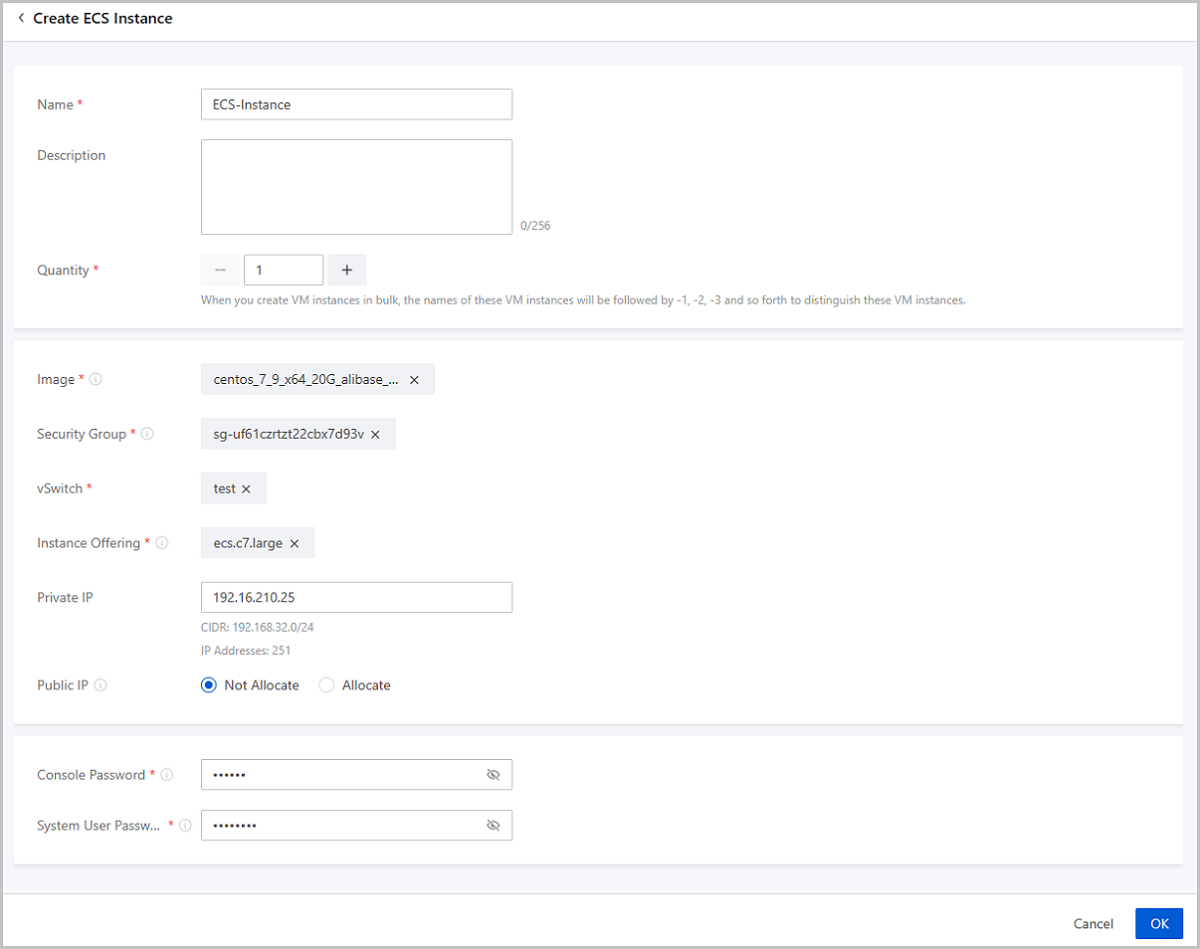
On the main menu of ZStack Cube Ultimate Hybrid Cloud Management, choose . On the ECS Instance page, click Create ECS Instance. Then, the Create ECS Instance page is displayed.
- Name: Enter a name for the ECS instance.
- Description: Optional. Enter a description for the ECS instance.
- Quantity: Select the number of the ECS instances you want to create.
- Image: Select an image on Alibaba Cloud. You can select an Alibaba Cloud image or a custom image.
- Security Group: Select a security group for the ECS
instance.
 Note: Make sure that the protocol or port of the security group
allows the ZStack Cube UltimatePrivate Cloud private network to pass it.
Note: Make sure that the protocol or port of the security group
allows the ZStack Cube UltimatePrivate Cloud private network to pass it. - vSwitch: Select a vSwitch for the ECS instance.
- Instance Offering: Select an instance offering for the ECS instance. An instance offering is a unit of definitions on ECS instance CPU and memory synchronized from Alibaba Cloud.
- Private IP: Optional. Specify a static IP address for the
ECS instance.
- If you specify an IP address, make sure that the IP address is not used by existing ECS instances.
- ZStack Cube Ultimate displays the CIDR of the vSwitch you select and the number of available IP addresses for your reference.
- Public IP: Optional. Choose whether to allocate the ECS instance with a public IP. Default: Not Allocate. If you set it to Allocate, set a network bandwidth for the ECS instance.
- Console Password: Enter a 6-character-long password that contains digits, lower-case, and upper-case letters.
- System User Password: Enter a system user password for
the ECS instance. The password must be 8 to 30 characters in length and contain
at least 3 character types of upper-case letters, lower-case letters, digits,
and special characters.Note:
By default, the system user name of a Linux-based ECS instance is root; the system user name of a Windows-based ECS instance is administrator. To log in to the ECS instance, you need to enter the system user name and the password you set here.
 Note:
Note:
- You can only use an instance offering synchronized from Alibaba Cloud.
- If the custom image you use does not satisfy the Alibaba Cloud image specifications, you cannot start the ECS instance created from this image.
Manage an ECS Instance
On the main menu of ZStack Cube Ultimate Hybrid Cloud Management, choose . Then, the ECS Instance page is displayed.
| Action | Description | ECS Instance State |
|---|---|---|
| Edit ECS Instance | Edit the name and description of an ECS instance. | Running/Stopped |
| Create ECS Instance | Create one or more ECS instances. | / |
| Start ECS Instance | Start a stopped ECS instance. | Stopped |
| Stop ECS Instance | Stop a running ECS instance. | Running |
| Reboot ECS Instance | Reboot a running ECS instance. | Running |
| Launch Console | Launch the console of an ECS instance. You need
following passwords to log in to the ECS system:
|
Running |
| Set Console Password | Set a console password for an ECS instance. The
new password takes effect immediately.Note: The password must be
6-character-long and contain digits, lower-case, and upper-case
letters. You cannot put a special character in the
password. |
Running/Stopped |
| Modify System User Password | Modify the system user password of an ECS
instance. The new password takes effect after the ECS instance restarts.Note:
|
Running |
| Delete ECS Instance | Delete an ECS instance.Note:
|
/ |