
Distributed Storage
What is Distributed Storage?
ZStack Cube Ultimate seamlessly integrates the distributed storage system, supporting password-free login and convenient access to distributed storage services, including block storage and object storage. You can monitor in real-time and effectively manage storage resources on the ZStack Cube Ultimate UI.
Core Concepts
- Server: Servers are physical storage nodes.
- Physical Disk: The physical unit of a data disk. All hard disks on storage servers are scanned and displayed in the list. Healthy free disks can be added as data disks.
- Data Disk: A logical storage unit, with each data disk corresponding to one data process. Multiple data disks can form a storage pool based on replication or Erasure Coding (EC) mechanisms.
- Storage Pool: A logical partition in a storage cluster, which consists of storage severs and data disks to store objects.
- Storage Policy: A set of rules governing resource allocation sources for storage buckets, data storage formats, and more.
- Bucket: A logical storage space allocated to an object user, where user data is stored in the form of objects.
- Object Gateway: The object gateway consists of high-availability object gateways and S3 gateways. The S3 gateway provides an S3-compatible object storage service for accessing storage clusters, while the high-availability object gateway offers high-availability services and load balancing for object storage.
- Object User: An account for a consumer of object storage services, containing information such as permissions, key pairs, and user quotas.
Storage Pool
Create a General Purpose Pool
On the main menu of ZStack Cube Ultimate, choose . On the General Purpose Pool page, click Create Storage Pool.
- Block Storage Pool
- Object Storage Pool
- File Storage Pool
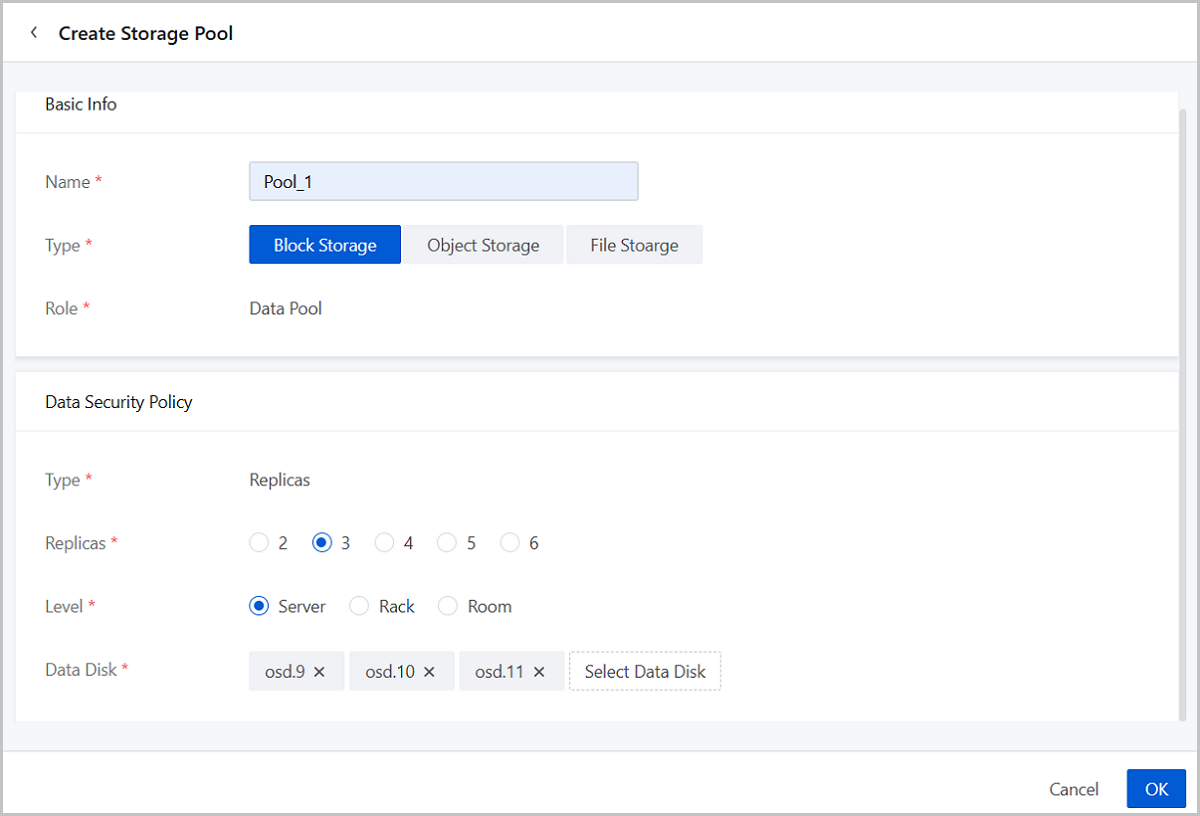
Create a Block Storage Pool
- Name: Set the name for the storage pool.
Naming rules: 1-1288 characters long. A name can contain Chinese characters, letters, digits, spaces, hyphens (-), underscores (_), periods (.), parenthesis (), colons (:), and plus signs (+).
- Type: Select Block Storage.
- Role: The default role is Data Pool and does not support modification.
- Data Security Policy:
- Type: The default type is Replicas and does not support modification.
- Replicas: Set the number of replicas for the
storage pool in the 2-6 value range.
 Note: In production
environments, we recommend setting at least 3 replicas to ensure
data security.
Note: In production
environments, we recommend setting at least 3 replicas to ensure
data security. - Level: Select the level of the failure domain (Server/Rack/Room) according to your topology plan.
- Data Disk: Select data disks based on the topology canvas.Note:
- Selected data disks must meet the redundancy level requirements.
- Select data disks of similar sizes if possible.
Create an Object Storage Pool
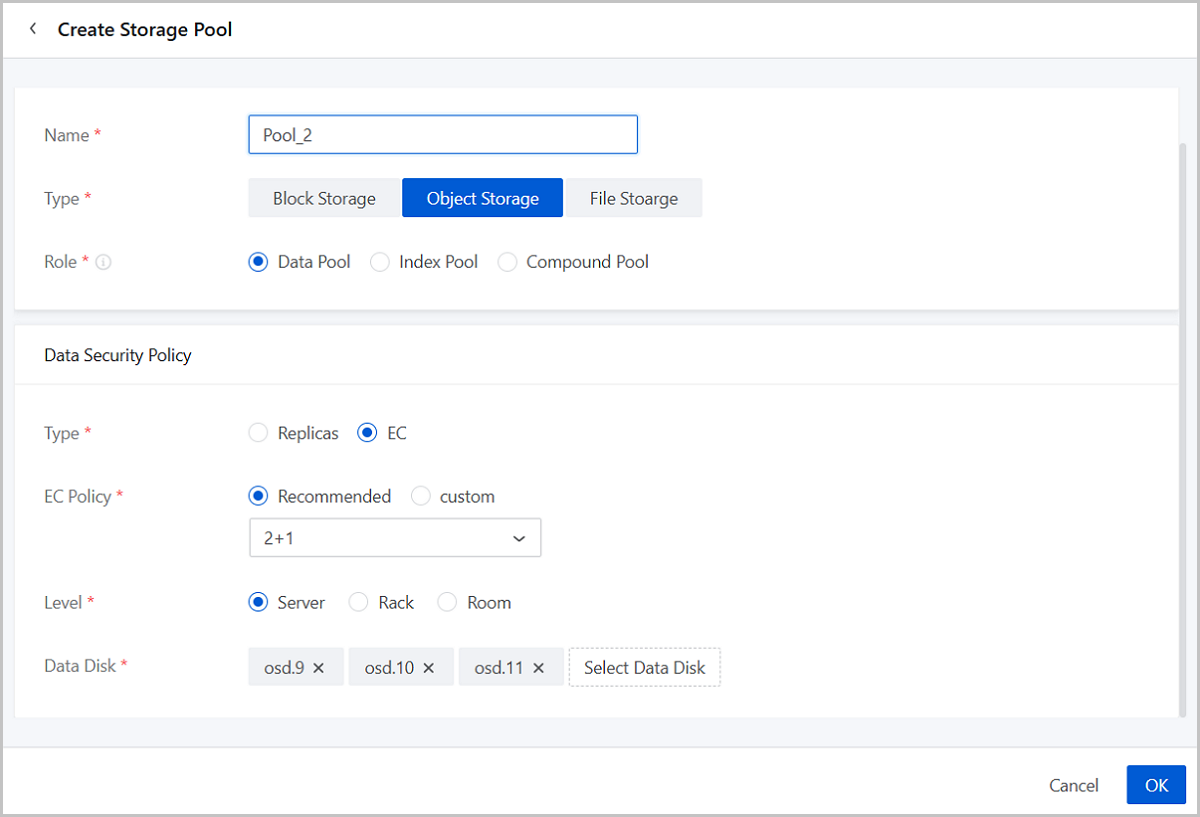
- Name: Set the name for the storage pool.
Naming rules: 1-128 characters long. A name can contain Chinese characters, letters, digits, spaces, hyphens (-), underscores (_), periods (.), parenthesis (), colons (:), and plus signs (+).
- Type: Select Object Storage.
- Role: Select the role of the storage pool (Data Pool,
Index Pool, and Compound Pool).Note:
- Data Pool: Stores data.
- Index Pool: Stores the index information of stored objects.
- Compound Pool: Supports multi-purpose resuse and can be selected as an Index Pool or a Data Extra Pool in Storage Policy.
- Data Security Policy:
- Type: Select data redundancy type
(Replicas/EC).
- If you select Replicas, set the following parameters:
- Replicas: Set the number of replicas for the storage pool in the 2-6 value range.
Note:
- Storage pools with Index Pool or Compound Pool role only support one redundancy policy, that is, Replicas.
- In production environments, we recommend setting at least 3 replicas to ensure data security.
- If you select EC, set the following parameters:
- EC Policy: Set the EC policy
for storage (Recommended/Custom).
- Recommended: Select from six recommended values: 2+1, 4+2, 8+3, 4+2:1, 8+2:1, 16+2:1.
- Custom: Customize the
EC policy. Enter the number of data and parity
blocks.Note: Positive integers only. Make sure
that the number of data blocks is greater than the
number of parity blocks, and parity blocks do not
exceed 4.
Note:
- An EC policy consists of data blocks and parity blocks. Data blocks indicate the number of data shards, while parity blocks indicate the number of parity shards generated through the algorithm. Taking the 4+2 EC policy on the server level as an example. This policy ensures data availability even when 2 servers fail.
- Disk Utilization is displayed in real time. The formula for calculating disk utilization: data blocks/(data blocks + parity blocks).
- EC Policy: Set the EC policy
for storage (Recommended/Custom).
- If you select Replicas, set the following parameters:
- Level: Select the level of the failure domain (Server/Rack/Room) according to your topology plan.
- Data Disk: Select data disks to add based on the
topology canvas.Note:
- Selected data disks must meet the failure domain requirements of the data security policy.
- Select data disks of similar sizes if possible.
- Type: Select data redundancy type
(Replicas/EC).
Create a File Storage Pool
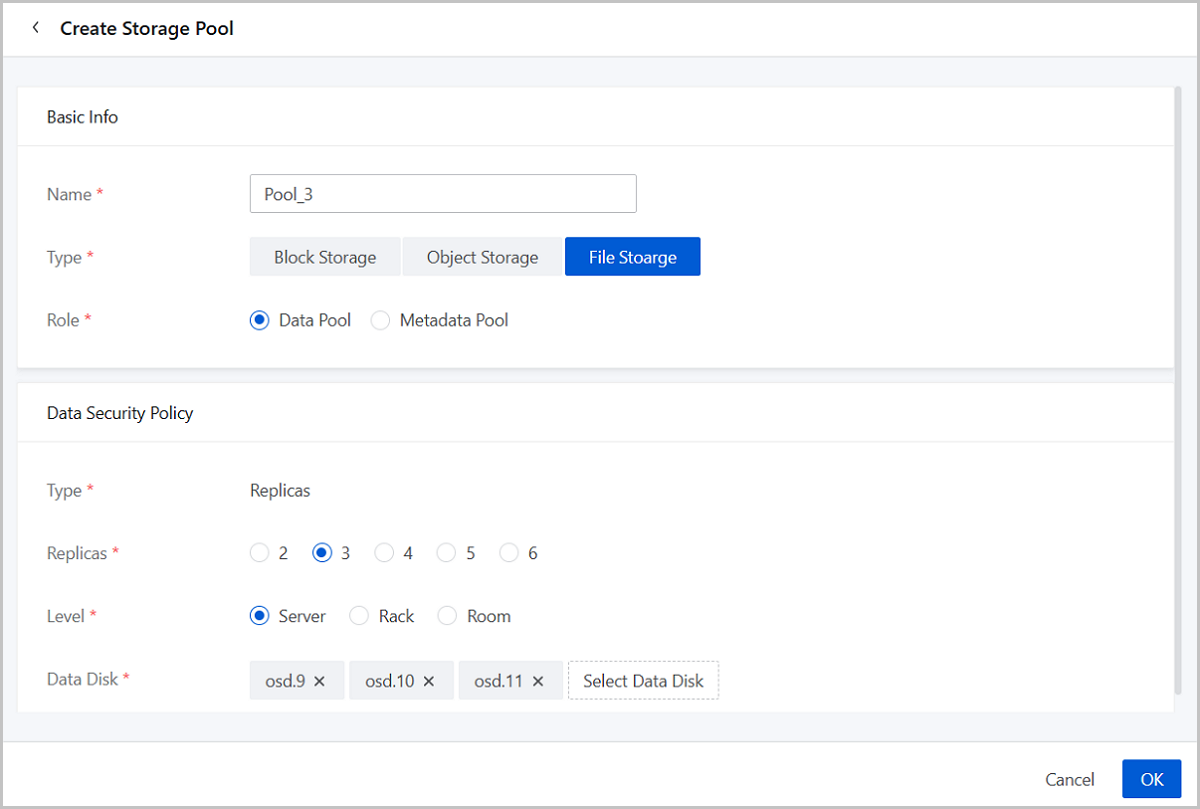
- Name: Set the name for the storage pool.
Naming rules: 1-1288 characters long. A name can contain Chinese characters, letters, digits, spaces, hyphens (-), underscores (_), periods (.), parenthesis (), colons (:), and plus signs (+).
- Type: Select File Storage.
- Role: Select the role of the storage pool (Data Pool/Metadata Pool).
- Data Security Policy:
- Type: The Replicas type has been selected by default and you cannot modify it.
- Replicas: Set the number of replicas for the
storage pool in the 2-6 value range.Note: In production
environments, we recommend setting at least 3 replicas to ensure
data security.
- Level: Select the level of the failure domain (Server/Rack/Room) according to your topology plan.
- Data Disk: Select data disks to add based on
the topology canvas.Note:
- Selected data disks must meet the data redundancy level requirements.
- Select data disks of similar sizes if possible.
- To create a Metadata Pool, you need to use a raw SSD data disk.
Manage a General Purpose Pool
On the main menu of ZStack Cube Ultimate, choose . Then, the General Purpose Pool page is displayed.
| Action | Description |
|---|---|
| Create Storage Pool | Create storage pools. |
| Add Data Disk | Add one or more data disks to the storage pool. |
| Remove Data Disk | Remove a data disk to break the association with
the storage pool. Hence a reduced storage pool capacity. Removing
data disks may cause data losses. Proceed with caution. Note
that you cannot remove data disks if:
|
| Set Recovery QoS | Choose the type of Recovery QoS for storage
pools: Static QoS (Low Speed), Static QoS (Mid Speed), Static QoS
(High Speed). When recovering the pool data, you can check data to
recover, recovery rate, and remaining time on the General
Purpose Pool page.
|
| Check Data Consistency | Set check policy to execute data consistency
checks in the storage pool. We support two check policies:
Note:
|
| Rebalance Data Blocks | Manually rebalance the data blocks in the storage pool.Note:
|
| Modify Data Security Policy | Modify the data security policy for storage
pools. You are not provided with an option that does not meet the
data security requirements.
Note:
|
| Force Flush |
On the details page of a storage pool, click to enter the Data Disk list. You can force flush to rapidly write dirty cache data to backend storage.
Note:
|
| Delete | Delete the existing storage pools. Deleting a
storage pool detaches all data disks from the pool. After deletion,
the storage pool data cannot be recovered. Proceed with caution.Note:
Delete the storage pools of Block Storage type:
Delete the storage pool of Object Storage type:
Delete the storage pool of File Storage type:
|
Object Storage System Resources Pool
On the main menu of ZStack Cube Ultimate, choose . Then, the Object Storage System Resources Pool page is displayed.
The object storage system resources pool is created to store metadata when initializing object storage and shares the same data disks and data security policy with the storage pool selected for initializing object storage.
Check Object Storage System Resources Pools
- .rgw.root: Stores gateway configuration information, such as realm, zonegroup, and zone.
- .rgw.control: Stores objects that are needed for internal notification mechanism, including notify.0-notify.7.
- .rgw.log: Stores log information, such as gc, intent, usage, and reshard.
- .rgw.meta: Stores metadata of the user, such as user.uid and user.keys.
- .rgw.otp: Stores one-time password in multi-factor authentication.
Further Details About Storage Pool
On the main menu of ZStack Cube Ultimate, choose . On the Storage Pool page, click one pool's name and enter its details page.
On the details page, four aspects of the storage pool are shown in card form: Basic Info, Capacity Statistics, Monitoring Data, and Capacity Monitoring.
Basic Info
You can check the basic information including state, type, role, pool UUID, the number of data disks, data redundancy type, and QoS type of the current storage pool.
Capacity Statistics
- Capacity Allocation: Contains three parameters, namely, Raw Capacity, Data
Redundancy Type, and Total Capacity.Note:
- For pools of the Replicas policy type: Total Capacity = Raw Capacity ÷ Replica Number.
- For pools of the EC policy type: Total Capacity = Raw Capacity × Data Blocks ÷ (Data Blocks + Parity Blocks).
- Capacity Usage: Contains four parameters, namely, Total Capacity, Capacity Used, Capacity Available, and Capacity Utilization.
Monitoring Data
- You can check IOPS, bandwidth, and latency of the storage pool.
- Time Span: 15 minutes, 1 hour, 6 hours, 1 day, 1 week, 1 year, and custom.
Capacity Monitoring
Note:
- Only when a newly-created storage pool has been used for 12 hours can it be forecast the capacity.
- This card statically displays data. You can obtain the latest data by refreshing the page or re-enter the same details page.
Server (Storage Node)
Add a General Purpose Storage Server
On the main menu of ZStack Cube Ultimate, choose . On the General Purpose Storage Node page, click Add Server.
Adding a general purpose storage server involves five steps. Set the following parameters to complete the server configurations.
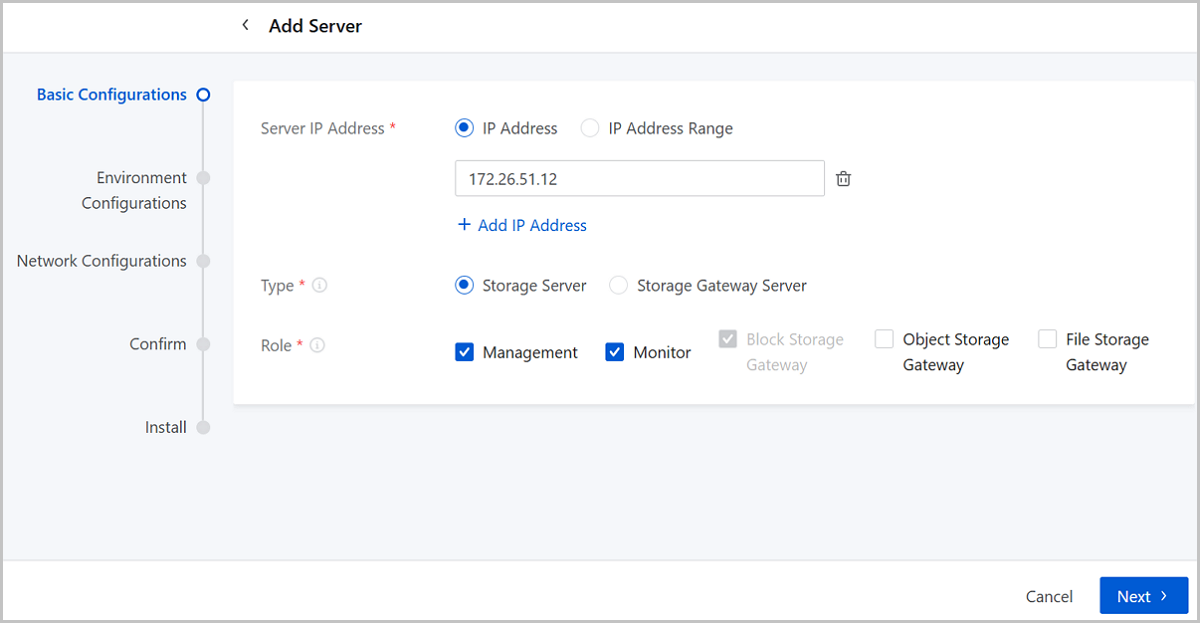
Step One: Basic Configurations
- Server IP Address: Enter the server IP address. You can specify either a single IP address or IP address range. We support adding multiple servers in bulk.
- Type: Select server type. Two server types are
supported:
- Storage Server:
- Provides storage pools with hard disks that can be used as data disks.
- Supports five roles: Management, Monitor, Block Storage Gateway, Object Storage Gateway, and File Storage Gateway.
- Storage Gateway Server:
- Hosts various interfaces and clients. The system only manages the server gateways and does not manage hard disks on the server.
- Supports only one role: Block Storage Gateway.
- Storage Server:
- Role: Configure the role of servers. Five roles are
supported:
- Admin Role (Management):
- Responsible for the collection and management of the runtime status of the cluster and manages the distributed storage cluster as the management node in multiple ways, such as GUI and API.
- We recommend that you deploy at least 2 admin roles to meet the high availability requirement.
- Monitor Role:
- Responsible for monitoring the cluster storage data and maintaining overall status of the cluster, including metadata such as data mapping and cluster authentication.
- We recommend that you deploy an odd number of monitor roles (3+2*N, N≥0) to meet the high availability requirement.
- Block Storage Gateway:
- Responsible for the access between the server and the storage cluster through Block interface.
- By default, this role is selected for a storage server.
- By default, this role is selected for a gateway server. And a storage gateway server only supports this role.
- Object Storage Gateway:
- Responsible for the access between the server and the storage cluster through Object interface.
- To use object storage service, you need to select this role.
- On an object storage gateway server, you can turn on the object gateway to provide the S3 protocol and gateway services.
- File Storage Gateway:
- To use file storage service, you need to select this role.
- On a file storage gateway server, you can create a file gateway to provide file storage access protocols such as SMB and NFS.
Note:
- When you add a server for the first time, three roles including Management, Monitor, and Block Storage Gateway, are selected by default. The Block Storage Gateway role can be deselected, while Management and Monitor roles are required.
- For subsequent server additions, you can add storage servers without roles.
- Deploy at least three storage servers with Management, Monitor, and Block Storage Gateway roles in a cluster.
- Admin Role (Management):
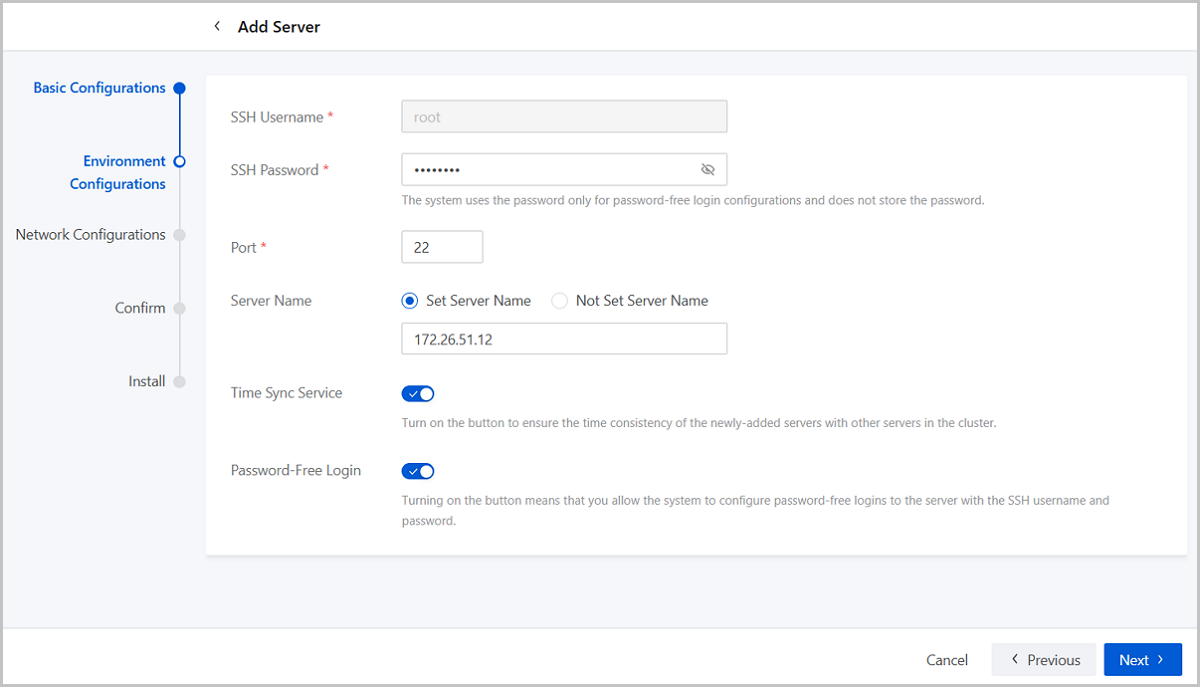
Step Two: Environment Configurations
- SSH Username: Enter the SSH username for the server. Default: root.
- SSH Password: Enter the SSH password. The system uses this password only for password-free login configurations and does not store the password.
- Port: Enter the server port number. Default port: 22.
- Server Name: (Optional) Specify a server
name.
Naming rules: 1-63 characters long. The name can contain lower-case letters (a-z), digits (0-9), periods (.), and hyphens (-). Avoid starting with a hyphen or number as well as ending with a hyphen.
Note:
- If you do not set a server name, ensure the server name-to-IP mapping is preconfigured in /etc/hosts file. The system uses the existing server name after server addition.
- If you set a new server name, it overwrites the existing name-to-IP mapping in /etc/hosts file.
- When you add servers in bulk, the names of these servers will end with a suffix, that is, the last part of their IP address (0-254), to distinguish these servers, for example, server-24.
- Time Sync Service: Choose to enable or disable the
time synchronization service.
If you enable this setting, the system synchronizes the newly-added server's clock with other servers in the cluster.
- Password-Free Login: If you enable this setting, the system configures password-free logins to the server with the SSH username and password.
Step Three: Network Configurations
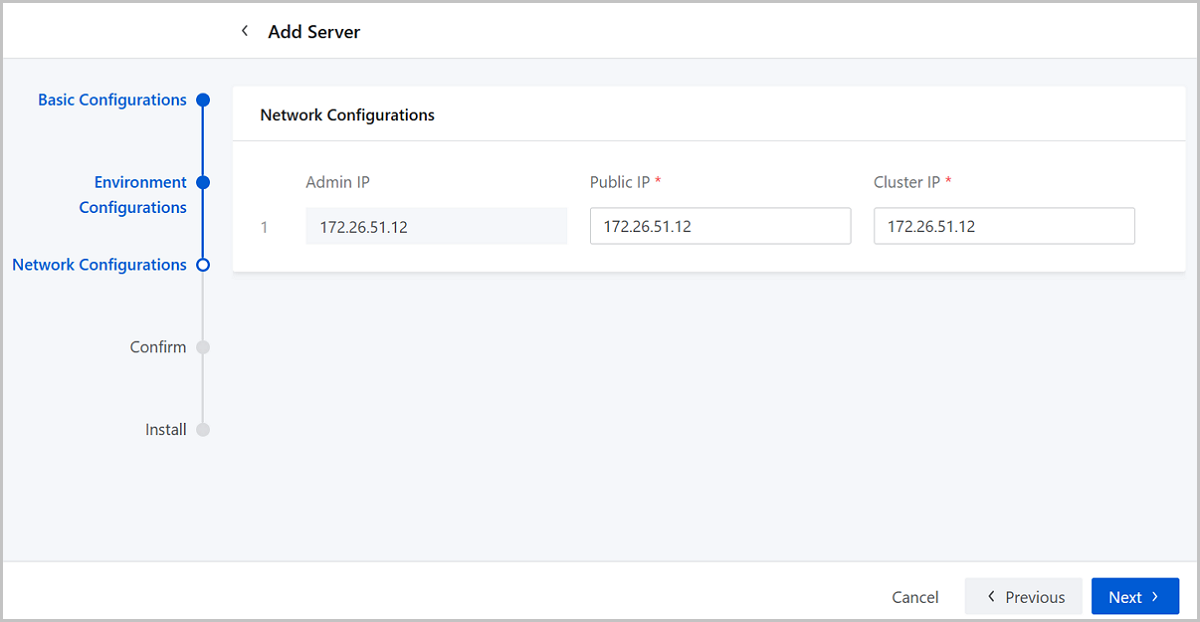
- Admin IP: Sets the IP address the management network which manages and configures storage clusters. The default admin IP is the server IP address.
- Public IP: Sets the IP address of the public cluster network which facilitates interaction between block storage gateways and storage pools.
- Cluster IP: Sets the IP address of the cluster
internal network which monitors data disks across cluster servers and
synchronizes replicas.Note: Skip setting Cluster IP when you add a storage
gateway server.
Step Four: Confirm
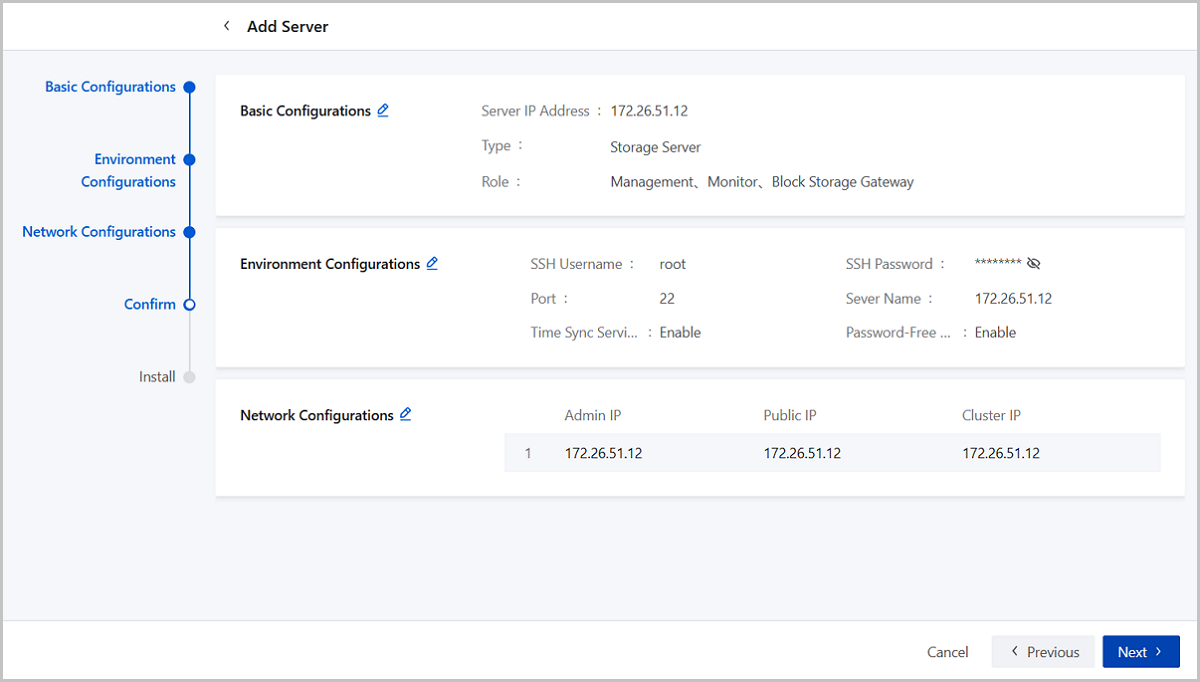
Review the information of the server to add. You can navigate back to modify configuration details if needed.
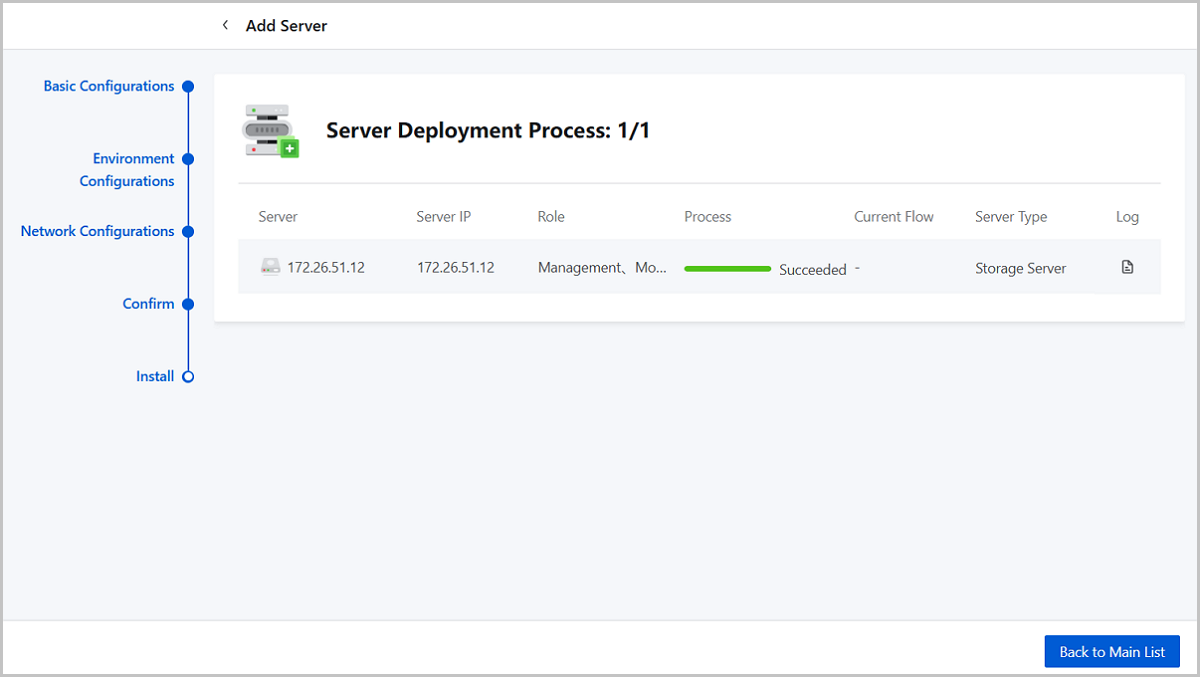
Step Five: Install
Note:
- You cannot exit the page when adding a server for the first time.
- Avoid refreshing the browser when adding a server for the first time.
Manage a General Purpose Storage Server
On the main menu of ZStack Cube Ultimate, choose . Then, the General Purpose Node page is displayed.
| Action | Description |
|---|---|
| Add Server | Add one or more servers.Note: If a monitoring
server in the disconnected state exists
in the cluster, you cannot add a new server. |
| Add Role | Add roles to servers.Note: You cannot add roles
when:
|
| Delete Role | Deleting roles from servers.Note: You cannot
delete roles when:
|
| Delete Server | Deleting a server stops the services provided by
the server and deletes all relevant data. Deleted data cannot be
recovered. Proceed with caution.Note: To delete a server requires
meeting the following requirements:
|
Data Disk
Create a Data Disk on General Purpose Node
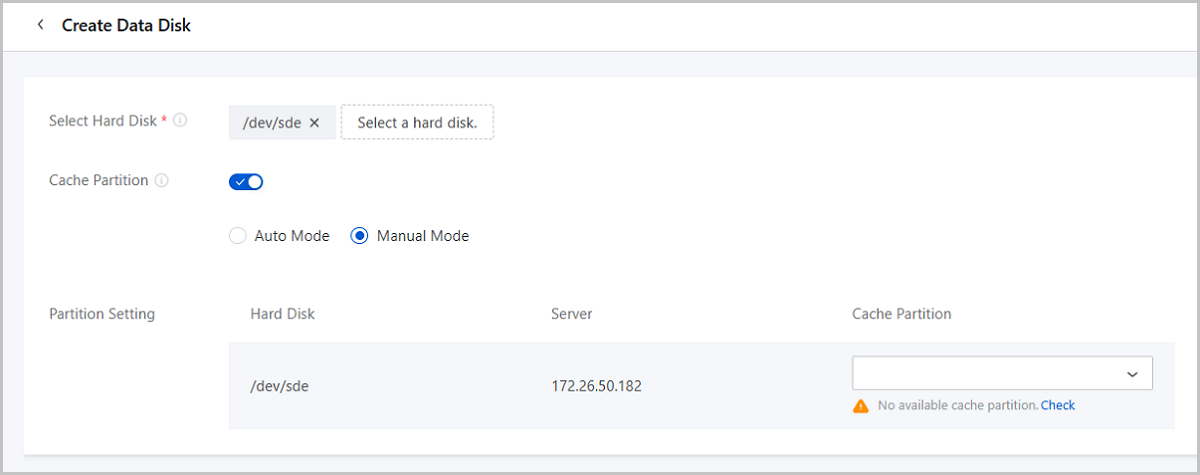
On the main menu of ZStack Cube Ultimate, choose . On the Data Disk | General Purpose Node page, click Create Data Disk.
- Select Hard Disk: Select the hard disk to add as a data
disk.Note: You can add hard disks that are healthy, free, and of at least 25
GB size as data disks.
- Cache Partition: Choose whether to set cache partition
for data disks.
- Auto Mode: If you select auto mode, the system automatically attaches cache partitions provided by servers to the selected hard disks.
- Manual Mode: If you select manual mode, you can manually select cache partitions for each hard disk that has been selected.
Note: If available cache partitions are insufficient for the selected hard
disks when you enable this parameter, part of the hard disks fail to be
added as data disks.
Manage a Data Disk on General Purpose Node
On the main menu of ZStack Cube Ultimate, choose . Then, the Data Disk | General Purpose Node page is displayed.
| Action | Description |
|---|---|
| Create Data Disk | Create one or more data disks. |
| Set Maintenance Mode | Enable or disable the maintenance mode for data
disks. A data disk in the maintenance mode is not involved in data
block rebalances.Note:
|
| Delete | Deleting a data disk stops services provided by
the data disks and deletes all relevant data. The deleted data
cannot be recovered. Proceed with caution.Note: To delete a data
disk requires meeting these requirements:
|
Physical Disk
Scan Physical Disks on General Purpose Node
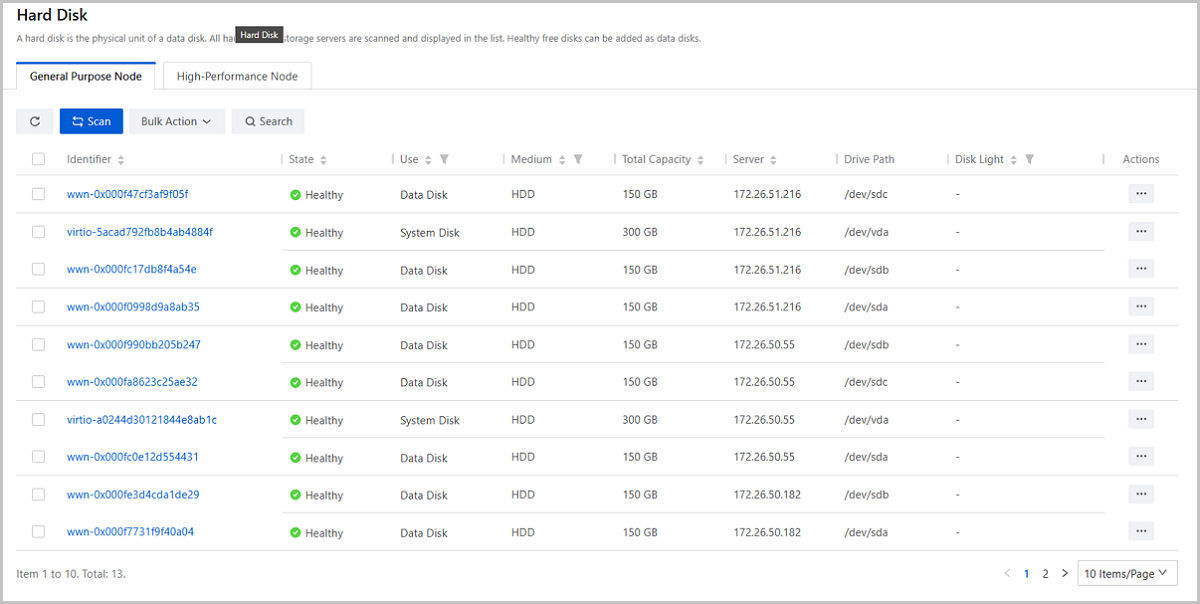
On the main menu of ZStack Cube Ultimate, choose . On the Hard Disk | General Purpose Node page, click Scan and all hard disks on storage servers and their information will be displayed in the list.
 Note:
Note:
- Healthy free disks can be used for cache partitioning (SSD recommended) or added as data disks. If you set cache partition, ensure that each partition has a minimum capacity of 50 GB.
- A scanned unknown disk implies that the disk contains unrecognized
partitions.
- For ZStack Cube Ultimate 4.2.0 and earlier versions,
run the
wipefs -af /dev/sdXcommand to manually clean up partitions before rescanning the disk. - For ZStack Cube Ultimate 4.2.0 and later versions, go to the Hard Disk page and click Initialize Hard Disk to clean up partitions directly.
- For ZStack Cube Ultimate 4.2.0 and earlier versions,
run the
- In some hardware environments, newly-added hard disks may not be detected. Reboot the server or contact official technical support for assistance.
Manage Hard Disks on General Purpose Node
On the main menu of ZStack Cube Ultimate, choose . Then, the Hard Disk | General Purpose Node page is displayed.
| Action | Description |
|---|---|
| Scan | Scan and list all hard disks in the server and their use. |
| Set Cache Partition | You can set cache partitions for one or more
healthy free disks.Note:
|
| Clean up Cache | We support cleaning up cache for cache disks in
the healthy state.Note:
|
| Initialize Hard Disk | Initialize one or more disks in the healthy state
whose use is unknown.Note:
|
| Disk Light | Enable or disable the disk light to quickly
locate the hard disk.Note:
|
Further Details About Hard Disk
On the main menu of ZStack Cube Ultimate, choose . On the Hard Disk page, select one disk and enter its details page.
The details page presents basic information and S.M.A.R.T information of the hard disk in card form.
Basic Info
In this card, you can check the disk's basic information, including identifier, server, UUID, drive path, state, total capacity, medium, use, serial number, model, and disk light.
S.M.A.R.T Info
- Healthy: The current value and the worst value are much greater than the threshold value.
- Alarm: The current value and the worst value are greater than but close to the threshold value.
- Error: The current value and the worst value are smaller than the threshold value.
Note: We recommend you use RAID cards or hard disks compatible with our
platform.- RAID Cards: PM8222 (Provided by INSPUR), 3008IMR (Provided by AVAGO) and so on.
- Hard disks: HGST HUS728T8TALE6L4, ST2000DM001-1ER164 and so on.
Bucket
Create a Bucket
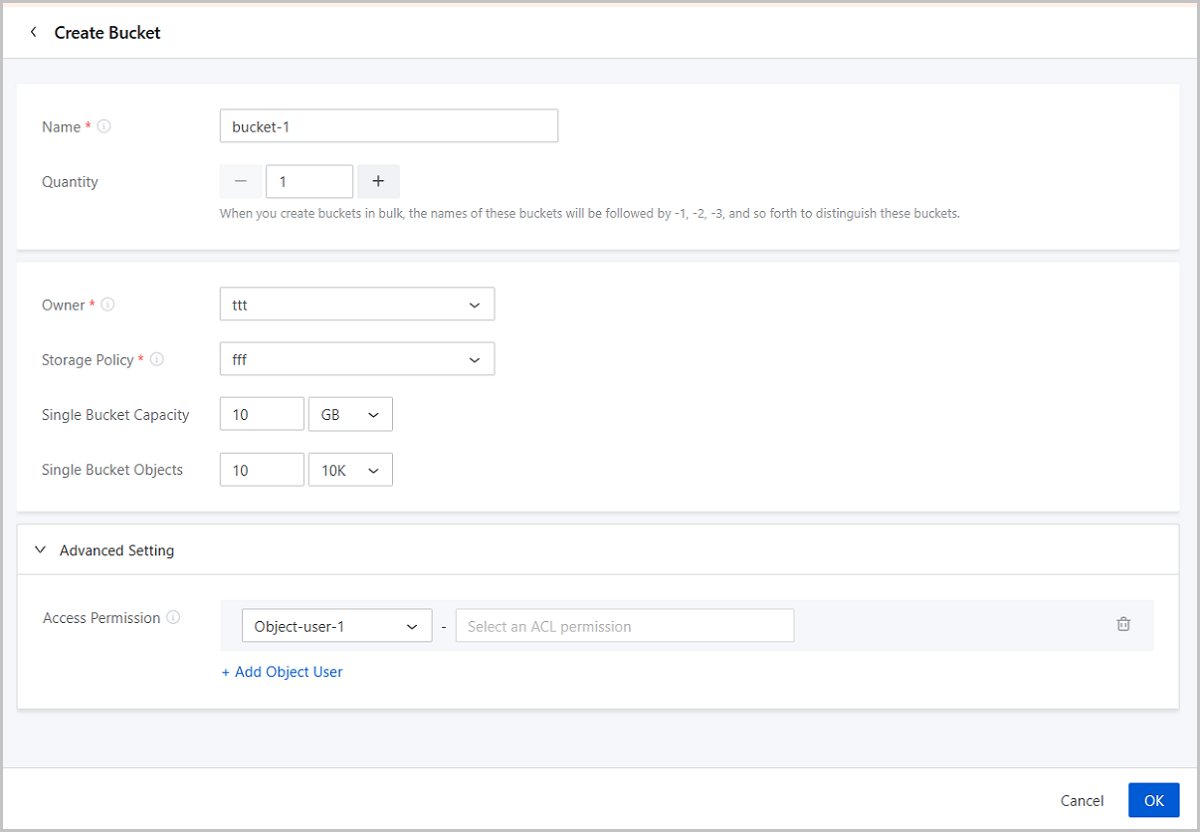
On the main menu of ZStack Cube Ultimate, choose . On the Bucket page, click Create Bucket.
- Name: Set the name for the bucket.The following rules apply for naming a bucket:
- A bucket name must be globally unique.
- A bucket name must be 3 to 63 characters in length.
- A bucket name can consist only of lower-case letters, numbers, hyphens (-), or periods (.).
- A bucket name must begin and end with a lower-case letter or number.
- A bucket name must not be formatted as an IP address, for example, 192.168.0.1.
- A bucket name must consist of one or more labels. Adjacent labels are separated by a single period (.).
- You cannot use "admin" as the bucket name.
Note: Once the bucket name is set, it cannot be
modified. - Quantity: Set the number of buckets. You can create
buckets in bulk.Note: Valid range: 1-100, integer.
- Owner: Set a bucket owner. A bucket can only have one
owner.You can select an object user that meets the following requirements:
- The state of the object user is enabled.
- The object user has Read and Write permissions.
- Storage Policy: Specify a storage policy for the bucket.
The parameter enables bucket to store object data according to the specified
storage policy.Note: By default, the bucket uses the storage policy associated
with the bucket owner. You can also specify a different storage
policy.
- Single Bucket Capacity: Set the capacity quota for each bucket. This field includes KB, MB, TB, and PB for capacity. Valid range: 1 KB-1024 PB, integer.
- Single Bucket Objects: Set the object quota for each
bucket. This field includes Objects, 10K, 100M, T, 10Qa for objects. Valid
range: 1 Object-99 10Qa, integer.Note: When you upload an object in multiple
parts, each part will occupy one object quota. Yet,when the multi-part
upload is completed and a new object is thus created, the new object still
occupies one quota.
- Advanced Setting:
- Access Permission: You can grant specified ACL
permissions to an object user.
- READ: Allows grantee to list the objects in the bucket and read the object.
- WRITE: Allows grantee to create, delete, or overwrite objects in the bucket.
- READ_ACP: Allows grantee to read the bucket ACL.
- WRITE_ACP: Allows grantee to write the ACL rules.
- FULL_CONTROL: Allows grantee the READ, WRITE, READ_ACP, and WRITE_ACP permissions.
Note:
- By default, a bucket owner is granted the FULL_CONTROL permission and cannot be modified.
- A bucket can have up to 100 ACL grants.
- Bucket owners and object users with READ permission can only download objects they have uploaded.
- User-level permissions have priority over ACL permissions. For example, if object user A only has Read permission, the user cannot upload objects to Bucket B even when granted WRITE ACL permission.
- Access Permission: You can grant specified ACL
permissions to an object user.
Manage a Bucket
On the main menu of ZStack Cube Ultimate, choose . Then, the Bucket page is displayed.
| Action | Description |
|---|---|
| Create Bucket | Create buckets. |
| Modify Bucket Quota | Modify the capacity and object quota for buckets.Note:
|
| Add Object User | Add an object user and grant specified ACL
permissions to the user.Note: On the Bucket
page, select a bucket and its details page is displayed. Choose
Authorized Object User on the top row.
Then, the Authorized Object User page is
displayed wherein you can add or remove object users as well as
modify certain user's access permissions. |
| Remove Object User | Remove the selected object user. After being
removed, the object user cannot access the bucket. Proceed with
caution.Note: If the selected object user is a bucket owner, it
cannot be deleted. |
| Clear Configuration | Clear the access logging configurations for this bucket. |
| Delete | Delete the selected bucket.Note: This option will
delete all object data in the bucket and the deletion is
irrecoverable. Proceed with caution. |
Further Details About Bucket
Authorized Object User
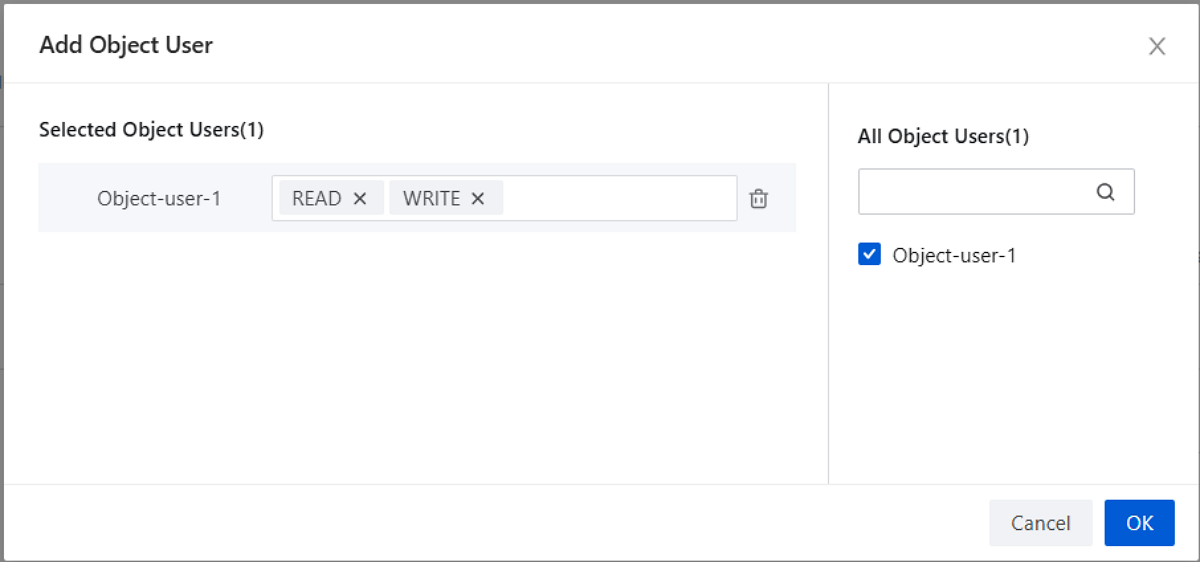
Add an Object User
- Select the object user to add in the All Object Users list on the right.
- Grant specified ACL permissions to the object user in the Selected Object Users list on the left.
- Click OK to add the object user.
Manage an Authorized Object User
| Action | Description |
|---|---|
| Add Object User | Add object users. |
| Modify Access Permission | Modify the ACL permissions for the object user.Note:
|
| Remove Object User | Remove the selected object user. After being
removed, the object user cannot access the bucket. Proceed with
caution.Note: If the selected object user is a bucket owner,
it cannot be deleted. |
Storage Policy
Create a Storage Policy
On the main menu of ZStack Cube Ultimate, choose . On the Storage Policy page, click Create Storage Policy.
- Name: Set the name for the storage policy.The following rules apply for naming a storage policy:
- The storage policy name must be globally unique.
- The name must be 1 to 16 characters in length and can contain letters, digits, underscores (_), or hyphens (-). The name cannot start or end with a space.
- Description: Optional. You can enter related notes in this field.
- Index Pool: Store the index information of objects.You can select a storage pool that meets the following requirements:
- The type of the storage pool is Object Storage.
- The role of the storage pool is Index Pool or Compound Pool.
- The data redundancy type is Replicas.
- Data Extra Pool: Store intermediate data when uploading
multi-part objects and help you resume from breakpoints and collect garbage
data.You can select a storage pool that meets the following requirements:
- The type of the storage pool is Object Storage.
- The role of the storage pool is Index Pool or Compound Pool.
- The data redundancy type is Replicas
- Storage Class: 7 storage classes are supported. Object data
defaults to the STANDARD class. You can specify storage classes on the client to
meet diverse storage needs.
- Class ID: Specify the storage policy class ID
(storageclass_0 to storageclass_6).Note: By default, the first class ID
in a storage policy is storageclass_0 with
the name STANDARD. Customizing a name and
deleting the name are not supported.
- Name: Enter a name for the storage class.The following rules apply for naming a storage class:
- The storage class name must be unique within the storage policy. The storage class name can be duplicated in different storage policies.
- The name must be 1 to 16 characters in length and can contain letters, digits, underscores (_), or hyphens (-). The name cannot start or end with a space.
Note: The storage class name is used as a unique identifier
when specifying a storage class and cannot be changed once being
set. - Data Pool: Select the storage pool for storing
object data.Note: A storage class can be attached to only one data
pool.
- Data Compression: If enabled, when you upload an
object to a bucket that uses this storage policy, the object data is
automatically compressed before being stored. By default, this option is disabled.Note:
- Enabling data compression occupies the CPU resources of the storage gateway server. We recommend that you use a storage gateway server with high-configuration CPUs.
- If you copy cross-bucket objects in buckets that use different storage policies, the data compression service will be in accordance with the setting of the original bucket.
- Class ID: Specify the storage policy class ID
(storageclass_0 to storageclass_6).

Manage a Storage Policy
On the main menu of ZStack Cube Ultimate, choose . Then, the Storage Policy page is displayed.
| Action | Description |
|---|---|
| Create Storage Policy | Create a storage policy. |
| Edit Description | Modify the description of the storage policy. |
| Set as Default Policy | Set the selected storage policy as the default policy. |
| Set Data Compression | Enable or disable Data Compression. If enabled,
when you upload an object to a bucket that uses this storage policy,
the object data is automatically compressed before being stored.Note:
|
| Delete | Delete the selected storage policy.Note:
|
Further Details About Storage Policy
Storage Class
Add a Storage Class
On the Create Storage Policy page, click Add Storage Class.
- Class ID: Specify the storage policy class ID
(storageclass_0 to storageclass_6).Note: By default, the first class ID in a
storage policy is storageclass_0 with the name
STANDARD. Customizing a name and deleting the
name are not supported.
- Name: Enter a name for the storage class.The following rules apply for naming a storage class:
- The storage class name must be unique within the storage policy. The storage class name can be duplicated in different storage policies.
- The name must be 1 to 16 characters in length and can contain letters, digits, underscores (_), or hyphens (-). The name cannot start or end with a space.
Note: The storage class name is used as a unique identifier
when specifying a storage class and cannot be changed once being
set. - Data Pool: Select the storage pool for storing object
data.Note: A storage class can be attached to only one data
pool.
- Data Compression: If enabled, when you upload an
object to a bucket that uses this storage policy, the object data is
automatically compressed before being stored. By default, this option is disabled.Note:
- Enabling data compression occupies the CPU resources of the storage gateway server. We recommend that you use a storage gateway server with high-configuration CPUs.
- If you copy cross-bucket objects in buckets that use different storage policies, the data compression service will be in accordance with the setting of the original bucket.
Manage a Storage Class
| Action | Description |
|---|---|
| Add Storage Class | Add a new storage class. |
| Set Data Compression | Enable or disable Data Compression.Note:
|
| Delete | Delete the selected storage class.Note: The
storage class called storageclass_0 cannot be
deleted. |
Object Gateway
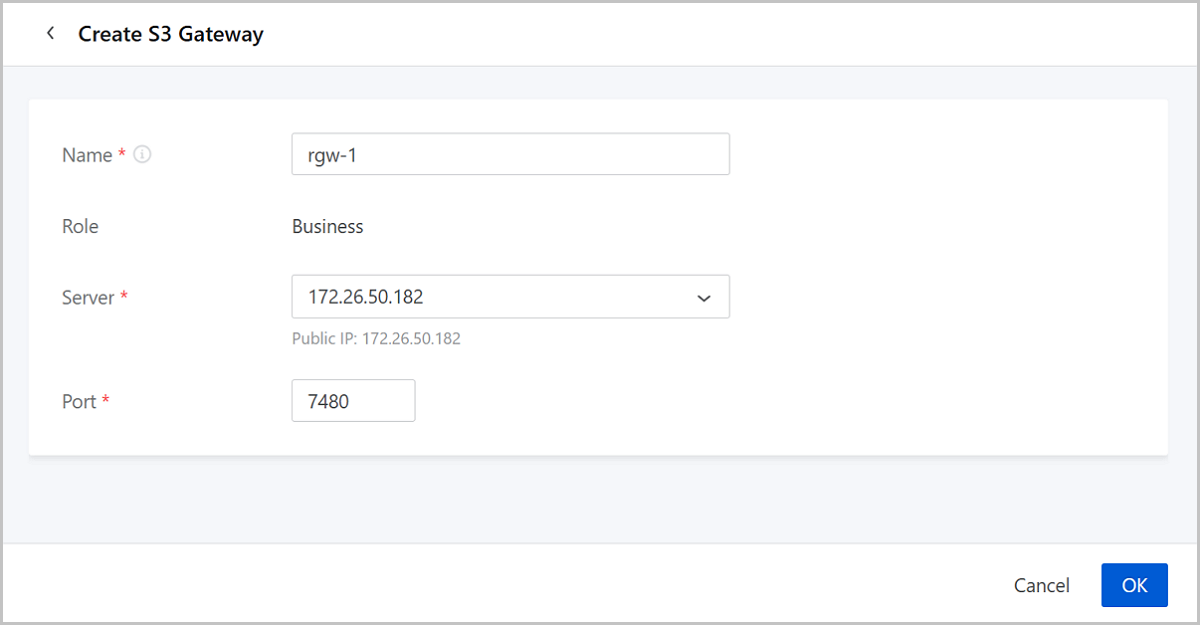
Create an S3 Gateway
On the main menu of ZStack Cube Ultimate, choose. On the S3 Gateway page, click Create S3 Gateway.
- Name: Set the name for the S3 Gateway.
Naming rules: 1-128 characters long. A name can contain letters (a-z, A-Z), digits, underscores (_), or hyphens (-). The name cannot start or end with a space.
- Role: The default role is Business, which means addressing business requirements.
- Server: Select a server as the S3 Gateway. By default,
the options are shown in the form of server IPs.Note:
- You can select the Connected server with the role of Object Storage Gateway.
- Those servers already added as an object gateway cannot be added again.
- Port: Specify the port of the object gateway. Valid range: 7480~7489.
Manage an S3 Gateway
On the main menu of ZStack Cube Ultimate, choose. Then, the S3 Gateway page is displayed.
| Action | Description |
|---|---|
| Create S3 Gateway | Create S3 gateways. |
| Enable | Enable the S3 gateway in the stopped state. |
| Disable | Disable the S3 gateway in the healthy state. |
| Delete | Delete the selected S3 gateway.Note:
|
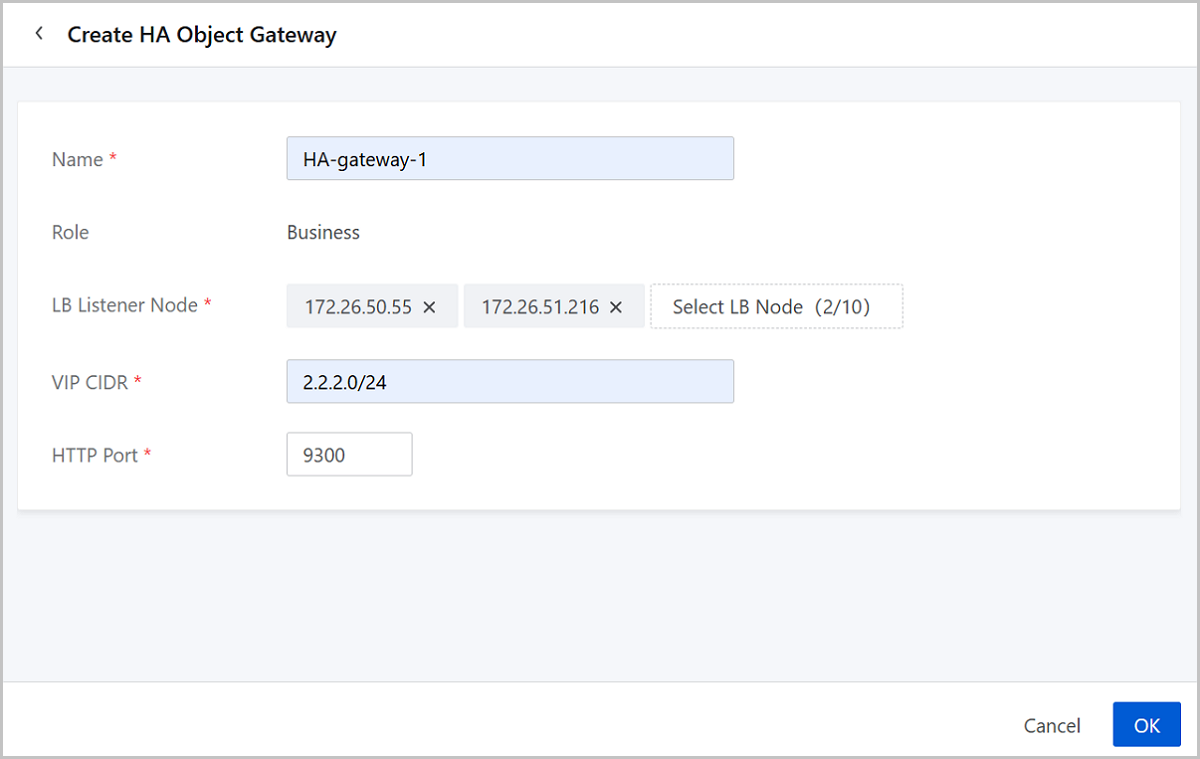
Create an HA Object Gateway
On the main menu of ZStack Cube Ultimate, choose . On the HA Object Gateway page, click Create HA Object Gateway.
- Name: Set the name for the HA object gateway.
Naming rules: 1-128 characters long. A name can contain letters (a-z, A-Z), digits, underscores (_), or hyphens (-).The name cannot start or end with a space.
- Role: The default role is Business, which means addressing business requirements.
- LB Listener Node: You can add up to 10 nodes, each running
one load balancer listener.Note: Only the servers with Object Storage
Gateway role can be selected as listener nodes.
- VIP CIDR: Enter the VIP CIDR that allocates Public IPs (NICs) for load balancer listener nodes.
- HTTP Port: Enter the HTTP port (Valid range: 9300-9399).
Manage an HA Object Gateway
On the main menu of ZStack Cube Ultimate, choose . Then, the HA Object Gateway page is displayed.
| Action | Description |
|---|---|
| Create HA Object Gateway | Create HA object gateways. |
| Add Listener | Add listeners to the HA object gateway.
|
| Remove Listener | Remove listeners from the HA object gateway.
|
| Delete | Deleting an HA object gateway may result in the inability to access the object storage service. Proceed with caution. |
Object User
Create an Object User
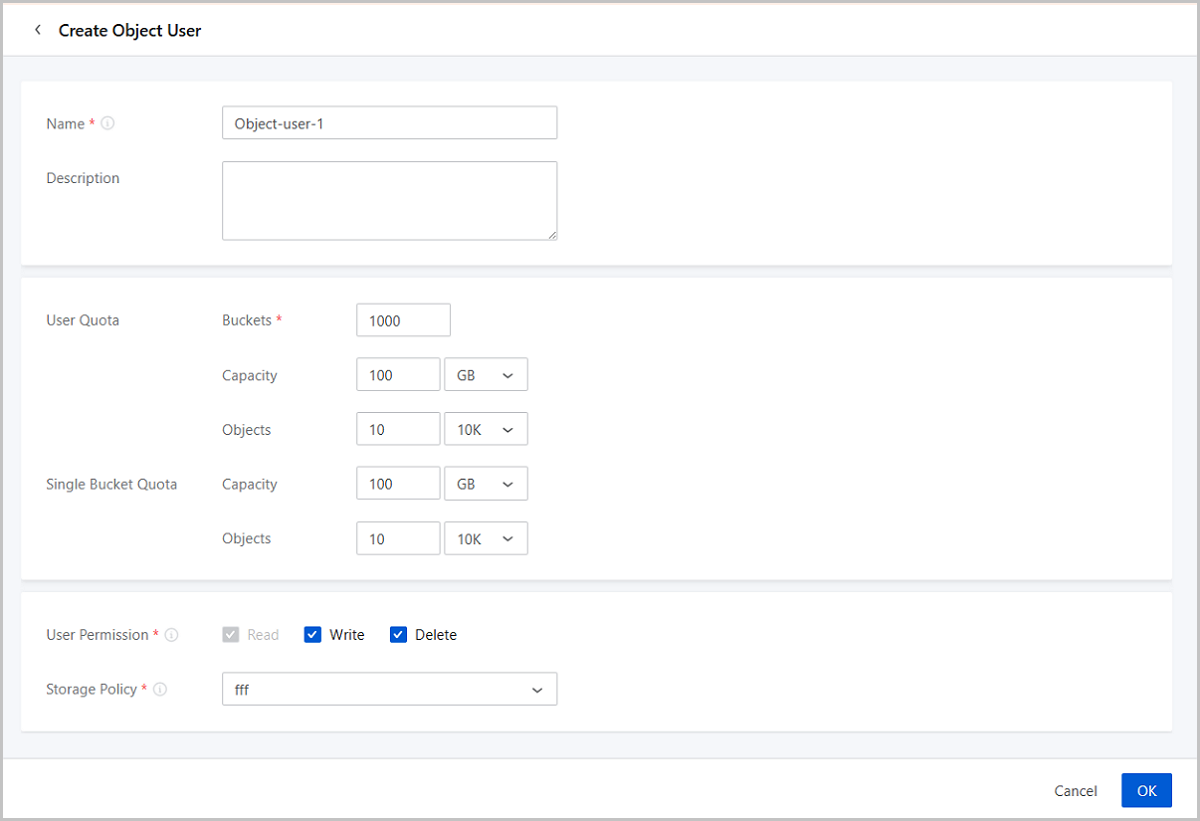
On the main menu of ZStack Cube Ultimate, choose. On the Object User page, click Create Object User.
- Name: Set the name for the object user.
Naming rules: 1-64 characters long. A name can contain letters (a-z, A-Z), digits, underscores (_), hyphens (-),or periods (.). The name cannot start or end with a space.
Note: After an object user is created, its name cannot be
changed. - Description: Optional. You can add related notes in this field.
- User Quota: Set the number of buckets that object users
can create and use as well as capacity and the number of objects.
- Buckets: Set the bucket quota. The default is 1000. Valid range: 1-10000, integer.
- Capacity: Set the capacity quota. This field includes KB, MB, TB, and PB for capacity. Valid range: 1 KB-1024 PB, integer.
- Objects: Set the object quota. This field
includes Objects, 10K, 100M, T, 10Qa for objects. Valid range: 1
object–99 10Qa, integer.Note: When you upload an object in multiple
parts, each part will occupy one object quota. Yet, when the
multi-part upload is completed and a new object is thus created, the
new object still occupies one quota.
- Single Bucket Quota: Set the capacity and object quota
that the current object user can use in each bucket.
- Capacity: Set the capacity quota that the current object user can use in each bucket. This field includes KB, MB, TB, and PB for capacity. Valid range: 1 KB-1024 PB, integer.
- Objects: Set the object quota that the current
object user can use in each bucket. This field includes Objects, 10K,
100M, T, 10Qa for objects. Valid range: 1 Object-99 10Qa,
integer.Note: When you upload an object in multiple parts, each part
will occupy one object quota. Yet, when the multi-part upload is
completed and a new object is thus created, the new object still
occupies one quota.
- User Permission: Grant an object user with bucket/object
access permissions. By default, an object user is granted with Read, Write, and
Delete permissions. You can flexibly combine the three permissions according to
business needs, For example, Read Only, Read+Write, Read+Delete, and Read+Write+Delete.Note:
- Read: Allows grantee to read the bucket ACL, list and download the objects in the bucket. You cannot deselect this permission.
- Write: Allows grantee to create buckets, modify the bucket ACL, upload objects, and so on.
- Delete: Allows grantee to delete buckets, delete objects, and so on.
- Storage Policy: Associate a storage policy with an object
user.Note: After you associate a storage policy, if you select the object
user as the bucket owner when creating a bucket, the bucket will use the
storage policy associated with the object user by default.
Manage an Object User
On the main menu of ZStack Cube Ultimate, choose . Then, the Object User page is displayed.
| Action | Description |
|---|---|
| Create Object User | Create Object Users. |
| Enable | Enable the object user in the disabled state. |
| Disable | Disable the object user in the enabled
state.Note: After being disabled, the object user cannot access
the object storage service. |
| Edit Description | Edit the description of the object user. |
| Modify User Quota | Modify the quota for the object user, including User Quota and Single Bucket Quota. |
| Modify User Permission | Modify the bucket/object access permissions of
the object user.Note: You cannot deselect the
Read permission. |
| Modify Storage Policy | Modify the storage policy associated with the
object user.Note: After you associate a storage policy, if you
select the object user as the bucket owner when creating a
bucket, the bucket will use the storage policy associated with
the object user by default. |
| Delete | Delete the selected object user.Note:
|
Further Details About Object User
User Key Pair
User Key Pair: A user key pair, consisting of Access Key ID and Secret Access Key, is used for identity authentication when accessing object storage resources. The system automatically generates a key pair upon successful object user creation.
Generate a Key Pair
On the User Key Pair page, click Generate Key Pair and a key pair will be automatically generated.
Manage a Key Pair
| Action | Description |
|---|---|
| Generate Key Pair | Generate key pairs. |
| Delete | Delete one or more key pairs.Note:
|