
Block Storage
Overview
Block Storage: The block storage function provides high-performance service for important business.
Related Definitions
Block Storage Volume: A block storage volume displays the block storage device provided in a storage pool. The data of a block storage volume is distributed in multiple data disks of multiple servers based on specified replicas and has advanced characteristics such as thin provisioning and scalability.
Snapshot: A snapshot is a point-in-time capture of data status in a block storage volume and provides data backup and recovery features for the storage system.
Block Storage Volume
Create a General Block Storage Volume
On the main menu of ZStack ZStone, choose . On the Block Storage Volume page, click . Then, the Create Block Storage Volume page is displayed.
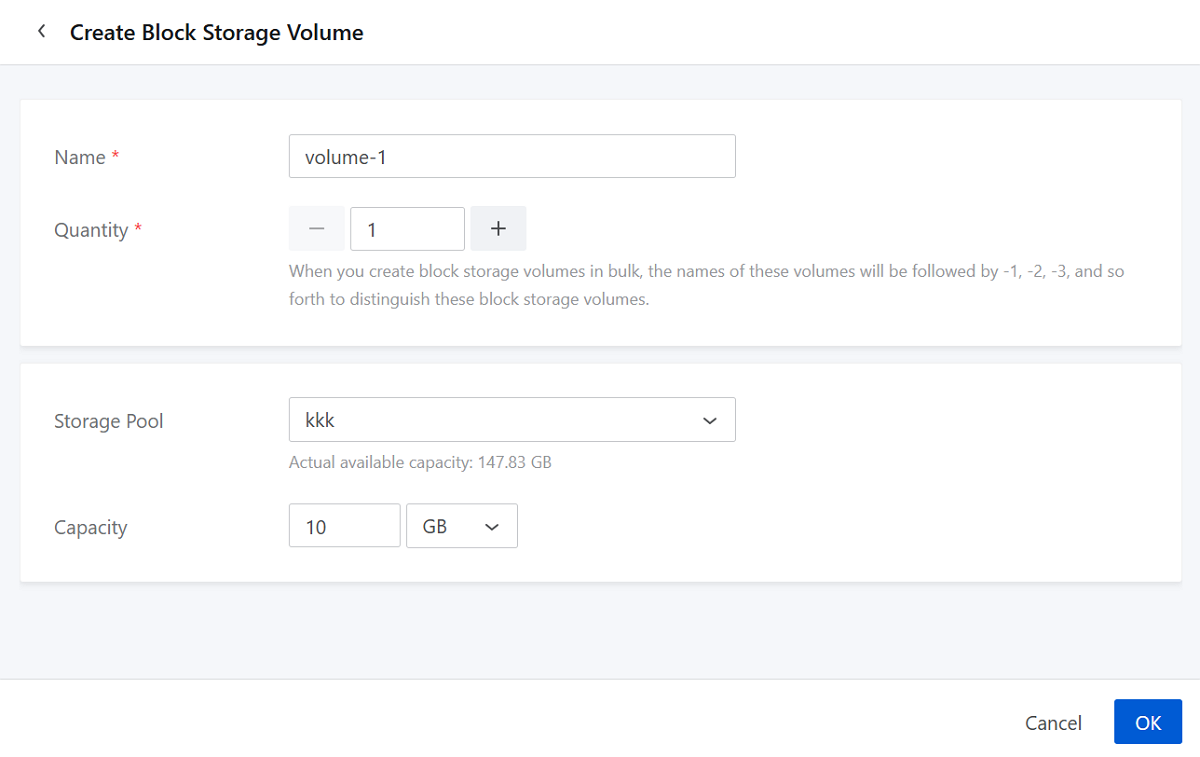
- Name: Set the name for the block storage volume.
Naming rules: 1-128 characters long. The name can only contain Chinese characters, letters (a-z, A-Z), digits, spaces, hyphens (-), underscores (_), periods (.), parentheses (), colons (:), and plus signs (+). You cannot start or end with spaces.
- Quantity: Set the number of block storage volumes. You
can create block storage volumes in
bulk.
 Note: The
field requires to be a digit ranging from 1 to
100.
Note: The
field requires to be a digit ranging from 1 to
100. - Storage Pool: Select storage pools for block storage
volumes.The platform automatically filters available storage pools that meet the three requirements below at the same time:
- The type of the storage pool is Block Storage.
- The role of the storage pool is Data Pool.
- The data redundancy type is Replicas.
- Capacity: Set the capacity for the block storage volume (MB/GB/TB).Note:
- The input must be greater than 1 MB and not exceed the maximum limit of 512TB.
- We recommend you input a capacity no more than the actual available capacity of the selected storage pool.
Manage a General Block Storage Volume
Manage a Local Block Storage Volume
On the main menu of ZStack ZStone, choose . On the General Block Storage Volume page, click Local. Then, the Local page is displayed.
| Action | Description |
|---|---|
| Create Block Storage Volume | Create block storage volumes. You can create up to 100 volumes at a time. |
| Set Business QoS | If you enable this parameter, you can set the
upper limit of the I/O requests that can be processed per second
and the read/write bandwidth for the block storage volume.
|
| Flatten | Disconnect the volume with its source, creating an independent volume. Bulk action is supported. We recommend selecting fewer than 4 volumes every time to minimize the impact on I/O of the storage pool. |
| Expand Capacity | Increases volume capacity.
|
| Migrate | Migrate volumes to other storage pools. You
can migrate up to 6 volumes at a time.
|
| Create Snapshot | Create snapshots for block storage volumes.
You can create snapshots for up to 32 volumes at a time.
|
| Roll Back | Restore volume data to the selected snapshot
point. All data from the snapshot point to the current time
point will be overwritten. Note that the action is irreversible.
Proceed with caution.
|
| Deep Clone | Create full copies including all snapshots and QoS configurations of source volumes. You can clone up to 6 volumes at a time. |
| Delete | Remove local block storage volumes. You can
delete a maximum of 20 volumes at a time.Note:
|
Manage a Third-Party Block Storage Volume
On the main menu of ZStack ZStone, choose . On the General Block Storage Volume page, click Third Party. Then, the Third Party page is displayed.
| Action | Description |
|---|---|
| Update | You can manually update the list of third-party block storage volumes and view their details. |
| Set Business QoS | If you enable this parameter, you can set the
upper limit of the I/O requests that can be processed per second
and the read/write bandwidth for the block storage volume.
Note: QoS cannot be configured for those volumes already
attached to access paths. |
| Create Snapshot | Create snapshots for block storage volumes.
You can create snapshots for up to 32 volumes at a time.
|
| Deep Clone | Create full copies including all snapshots and QoS configurations of source volumes. You can clone up to 6 volumes at a time. |
| Delete | Remove the updated block storage volumes. You
can delete a maximum of 20 volumes at a time.Note: Deleting a
bock storage volume detaches all data from the volume. After
deletion, the volume data cannot be recovered. Proceed with
caution. |
Create a High-Performance Block Storage Volume
On the main menu of ZStack ZStone, choose . On the Block Storage Volume page, click . Then, the Create Block Storage Volume page is displayed.
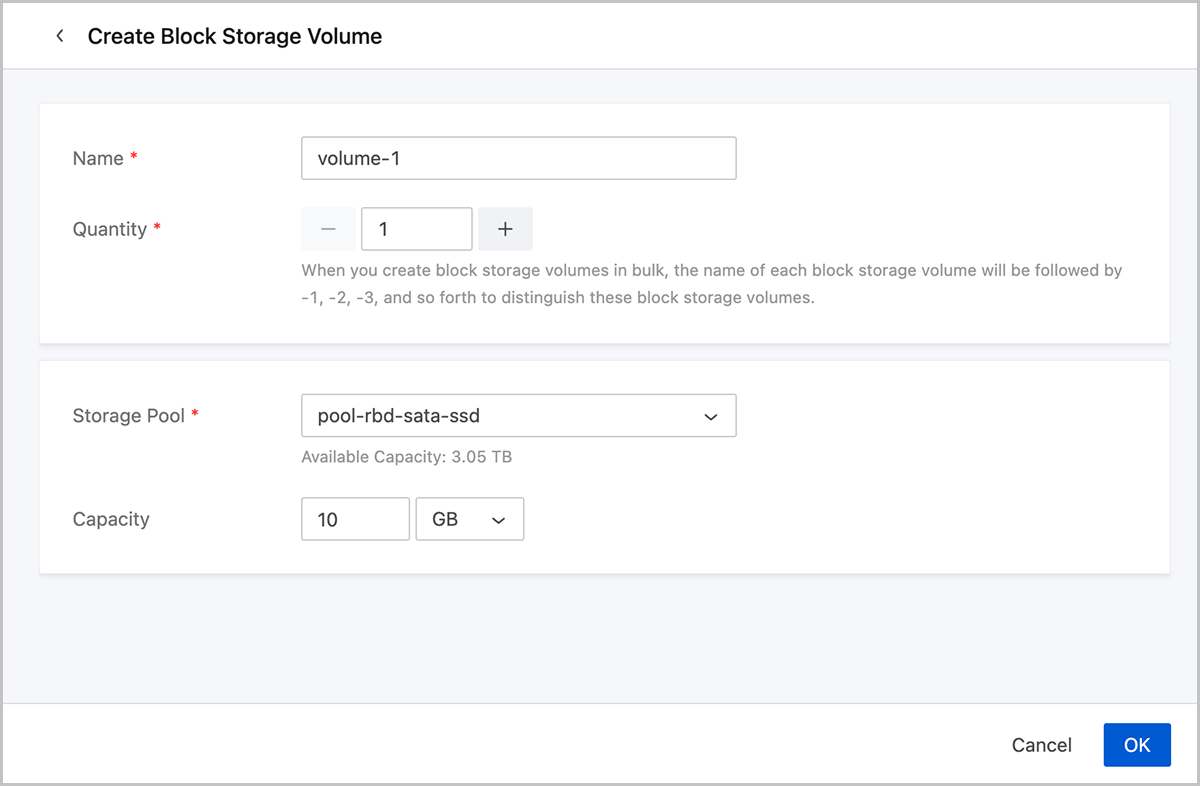
- Name: Set the name for the block storage volume.
Naming rules: 1-128 characters long. The name can only contain Chinese characters, letters (a-z, A-Z), digits, spaces, hyphens (-), underscores (_), periods (.), parentheses (), colons (:), and plus signs (+). You cannot start or end with spaces.
- Quantity: Set the number of block storage volumes. You can create block storage volumes in bulk.Note: The field requires to be a digit ranging from 1 to 100.
- Storage Pool: Select high-performance storage pools for block storage volumes.
- Capacity: Set the capacity for the block storage volume (MB/GB/TB).Note:
- The input must be greater than 1 MB and not exceed the maximum limit of 512TB.
- We recommend you input a capacity no more than the actual available capacity of the selected storage pool.
Manage a High-Performance Block Storage Volume
Manage a Local Block Storage Volume
On the main menu of ZStack ZStone, choose . On the High-Performance Block Storage Volume page, click Local. Then, the Local page is displayed.
| Action | Description |
|---|---|
| Create Block Storage Volume | Create block storage volumes. You can create up to 100 volumes at a time. |
| Delete | Remove local block storage volumes. You can
delete a maximum of 20 volumes at a time.Note:
|
Snapshot Management
On the main menu of ZStack ZStone, choose . Then, the Snapshot Management page is displayed.
| Action | Description |
|---|---|
| Clone | Clone block storage volumes based on selected
snapshots.
|
| Delete | Delete selected snapshots. After deletion, you
cannot roll back the volume to the snapshot point. Proceed with
caution.Note: If a selected snapshot connects with cloned
volumes, it cannot be deleted. Only when you flatten their
connection or delete the cloned volumes can you delete the
selected snapshot. |