SSH Key: SSH key is a login authentication method of Linux VM
instances. An SSH public key and an SSH private key work together as a pair.
Characteristics
SSH key has the following characteristics:
Security: SSH key applies the asymmetric encryption mechanism, which help
reduces the risk of brute force attacks.
Convenience: With the SSH key, you can access the target VM instance quickly
without entering the password.
Restriction: You can use SSH keys to access Linux VM instances as root
users.
Quick Start
You can quickly get started with SSH key by following these steps:
Create a SSH key pair and keep the private key well.
Attach the SSH public key to a VM instance.
Upload the SSH private key to the access terminate, and run ssh -i
${private_key.pem} ${UserName}@${IpAddress} to log in to the VM
instance.
Note: In the login command, ${private_key.pem} refers to the private key file
path, ${UserName} refers to the username, and ${IpAddress} refers to the IP
address of the VM instance to be logged in to. For example,
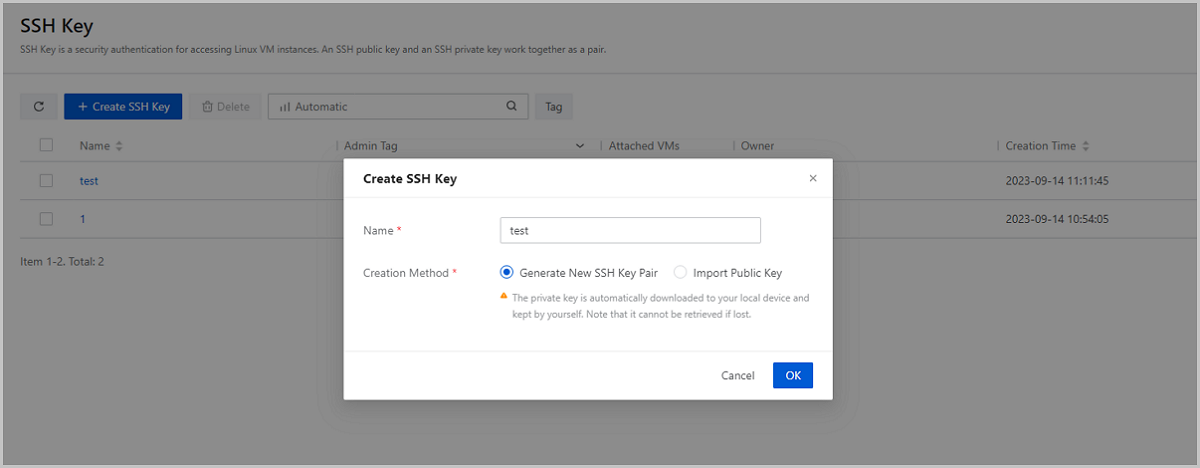
On the main menu of ZStack Cube Ultimate, choose Resource Center > Resource Pool > Security > SSH Key. On the SSH Key page, click Create SSH
Key. Then, the Create SSH Key page is
displayed.
On the displayed page, set the following parameters:
Name: Enter a name for the SSH key.
Creation Method: Select a creation method. ZStack Cube Ultimate supports two methods to create SSH keys: Generate
New SSH Key Pair and Import Existing Key.
You can choose Generate New SSH Key Pair to create an SSH public
key and an SSH private key.
Note:ZStack Cube Ultimate
saves the public key only. The private key is downloaded to local
automatically and kept by yourself. Note that it cannot be retrieved
if lost.
You can choose Import Existing Key to import the public key among
the SSH key pair you generate through other methods and enable it to be
managed and used on the Cloud. If you choose this option, set the
following parameter:
Public Key: Copy the public key you have
generated and paste it here. The following encryption are
supported: ssh-rsa, ssh-dss, ecdsa-sha2-nistp256, ssh-ed25519,
ssh-ecdsa .
图 1. Create SSH Key
Manage an SSH Key
On the main menu of ZStack Cube Ultimate, click Resource Center > Resource Pool > Security > SSH Key. Then, the SSH Key page is displayed.
The following table lists the actions that you can perform on an SSH key.
Action
Description
Create SSH Key
Generate an SSH key pair or import an SSH public
key.
Edit SSH Key
Modify the name and description of an SSH
key.
Associate VM Instance
Associate an SSH public key with a VM instance.
Then, you can SSH into the VM instance with the corresponding
private key. An SSH key can be associated with one or more VM instances.
Note:
Make sure that the VM instance satisfies the following
requirements:
The VM instance runs a Linux operating
system.
The VM instance is running.
The VM instance has a Qemu Guest Agent (QGA)
installed and the QGA is running. You can install
the QGA by installing the GuestTools for the VM
instance. If you install through other methods,
make sure that the QGA you use is of 2.5 or later
versions.
Currently, you can access a VM instance with an SSH key only
as a root user.
Disassociate VM Instance
Disassociate the SSH key from the VM
instance.
Note: Make sure that the VM instance satisfies the
following requirements:
The VM instance is running.
The VM instance has a Qemu Guest Agent (QGA) installed
and the QGA is running. You can install the QGA by
installing the GuestTools for the VM instance. If you
install through other methods, make sure that the QGA
you use is of 2.5 or later versions.
Delete SSH Key
Delete the SSH public key information from the
Cloud. If the SSH key has been attached to a VM instance, detach it
from the VM instance before you can delete it.

 Note: In the login command, ${private_key.pem} refers to the private key file
path, ${UserName} refers to the username, and ${IpAddress} refers to the IP
address of the VM instance to be logged in to. For example,
Note: In the login command, ${private_key.pem} refers to the private key file
path, ${UserName} refers to the username, and ${IpAddress} refers to the IP
address of the VM instance to be logged in to. For example,