
Snapshot
What is Snapshot?
A snapshot is a point-in-time capture of data status in a volume. Before you perform a business-sensitive operation, you can schedule snapshot creation at specified time points to record the state of the root volume, data volume, or memory of a VM instance. This allows rollback in case of breakdowns. If you want to backup data for a long term, you can use the Backup Service.
Snapshot Category
- Manual snapshot: snapshots that are manually created for root volumes or data volumes.
- Auto snapshot: snapshots that are automatically created at a scheduled time
interval or in specific scenarios.
- To create auto snapshots for a resource at a scheduled time interval, you need to create a scheduled snapshotting policy for the resource. This way, the system creates snapshots at scheduled time points for the resource.
- The system may create an auto snapshot in the
following scenarios:
- Root volume capacity expansion
- Data volume capacity expansion
- VM reset
- Snapshot rollback
 Note:
Note:
- By default, the system does not create a snapshot in the snapshot rollback scenarios.
- You can enable or disable one-time
snapshot-creation in snapshot rollback scenarios
on the Global Setting page.
Choose . Turn on or off the Auto Create Volume Snapshot switch according to your business needs.
- Image creation of root volume or data volume on Ceph primary storage
Snapshot View
- List view: In this view, snapshot information are displayed in a list, including their name, type, size, creation time, and supported operations.
- Topology view: In this view, snapshots are displayed in a hierarchical tree with snapshot chains and snapshot nodes. You can locate the current snapshot, reset canvas, zoom in or out the canvas, and enter the full screen of the view.
Scenarios
- Fast recovery from breakdowns: If the production environment breaks down, you can rollback snapshots to return to the normal state. Snapshot rollback is a temporary use for unexpected breakdowns. To backup data for a long term, we recommend that you use Backup Service.
- Data exploration: You can create snapshots for production data and use the snapshots to do data mining, query, and development and test.
- Fault tolerance improvement: Before you perform a business-sensitive operation such as upgrading your system or migrating data, we recommend that you create one or more snapshots. This allows fast recovery to the normal state in case of any errors or exceptions during the operation.
Snapshot Fundamentals
Non-Ceph Storage QCOW2 External Snapshot Mechanism
For non-Ceph storage, including LocalStorage, NFS, Shared Mount Point, and Shared Block, ZStack Cube Ultimate uses QCOW2 (QEMU Copy On Write, Version 2) external snapshot mechanism.
- Snapshot Tree and Snapshot Chain
A volume corresponds to a snapshot chain. ZStack Cube Ultimate allows you to create a snapshot tree for a volume. Each branch of the snapshot tree is a snapshot chain.
图 1. Snapshot Tree 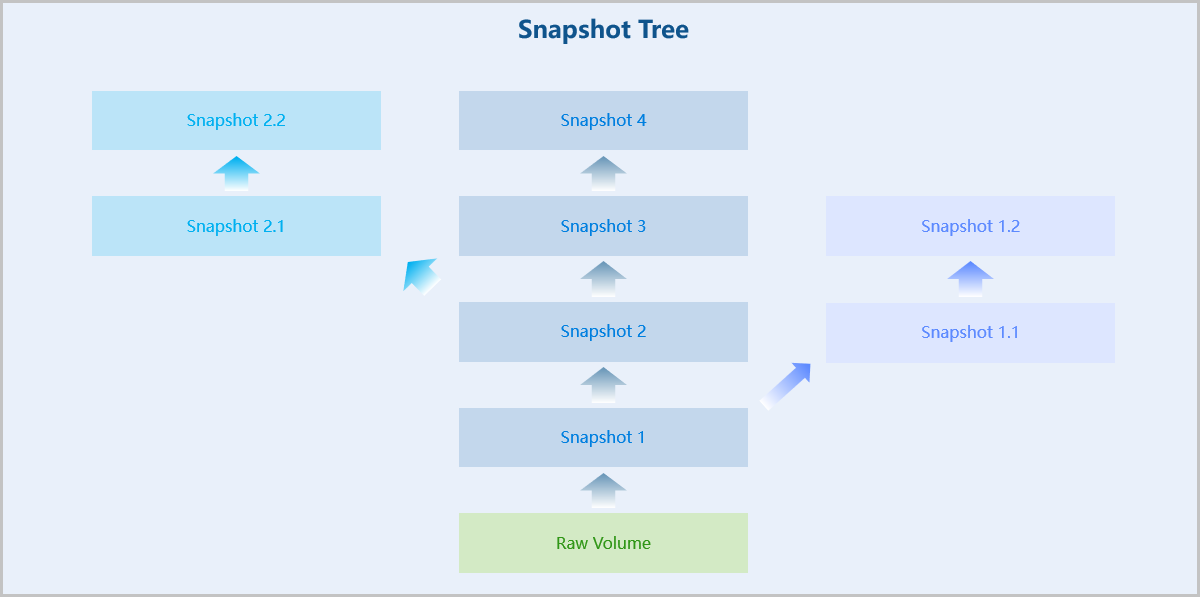
A snapshot tree includes the following information:- Snapshot chain: a chain of snapshots of a volume that are associated with each other. Each branch of a snapshot tree is a snapshot chain.
- Snapshot node: a node in a snapshot chain that represents a snapshot of a volume.
- Snapshot size: the storage space that a snapshot occupies. You can view the total size of all snapshots in a snapshot tree and the size of an individual snapshot node.
Note:
- For non-Ceph storage, a snapshot node can have a maximum of 128 nodes by default. You can customize the maximum length of a snapshot chain Global Setting by setting Maximum Incremental Volume Snapshot. For Ceph storage, a snapshot node can have a maximum of 32 nodes, including the auto-created and manually-created nodes.
- When the length of a snapshot chain reaches the threshold:
- If an auto-snapshot is created, the system automatically deletes the snapshot that was created at the earliest time.
- If you manually create a snapshot, you need to manually delete the snapshot that you do not need.
- In the production environment, we recommend that you limit the number of snapshots created for a volume to 5. Too many snapshots will lower VM and volume performance, increase data security risks, and occupy storage space of primary storage. To back up data for the long term, you can use Backup Service.
- Create Snapshot
When an external snapshot is created, an empty qcow2 file is created. The backing file of the empty file points to the previous qcow2 file. This qcow2 file is set to read-only and become a snapshot. Data is written to the empty qcow2 file.
- Create single-chain snapshots based on the backing file.
图 2. Create Single-Chain Snapshots 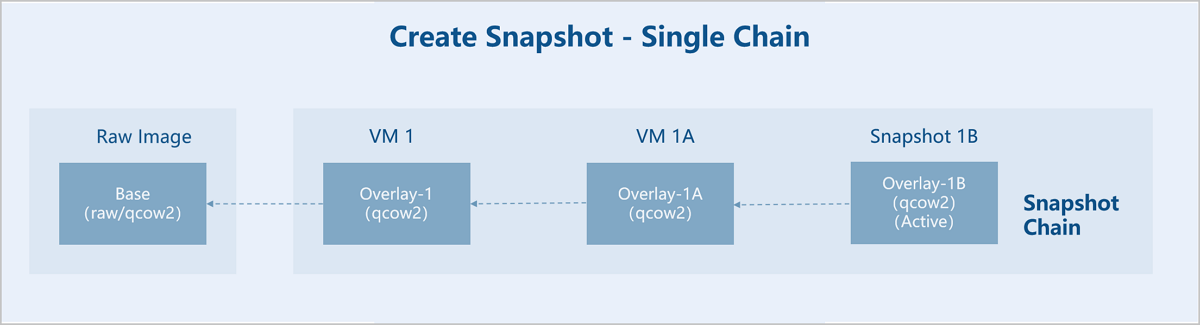
Suppose you have a raw image. You use the image to create a VM instance named VM 1 and then create snapshot 1A and 1B for VM 1.- Raw image: a disk image file that includes a complete operating system and boot process. The image is a read-only file used as the base file.
- VM 1: creates an empty file named Overlay-1. The backing file of the empty file points to the base file. The base file is kept read-only and becomes a snapshot. Data is written to Overlay-1.
- Snapshot 1A: creates an empty file named Overlay-1A. The backing file of the empty file points to Overlay-1. Overlay-1 is set to read-only and becomes a snapshot. Data is written to Overlay-1A.
- Snapshot 1B: creates an empty file named Overlay-1B. The backing file of the empty file points to Overlay-1A. Overlay-1A is set to read-only and becomes a snapshot. Data is written to Overlay-1B. Overlay-1B is the last snapshot in the snapshot chain and is in Active state. VM 1 uses the disk file that corresponds to the snapshot Overlay-1B.
- Create a multi-chain snapshot chain based on the backing file.
图 3. Create Multi-Chain Snapshots 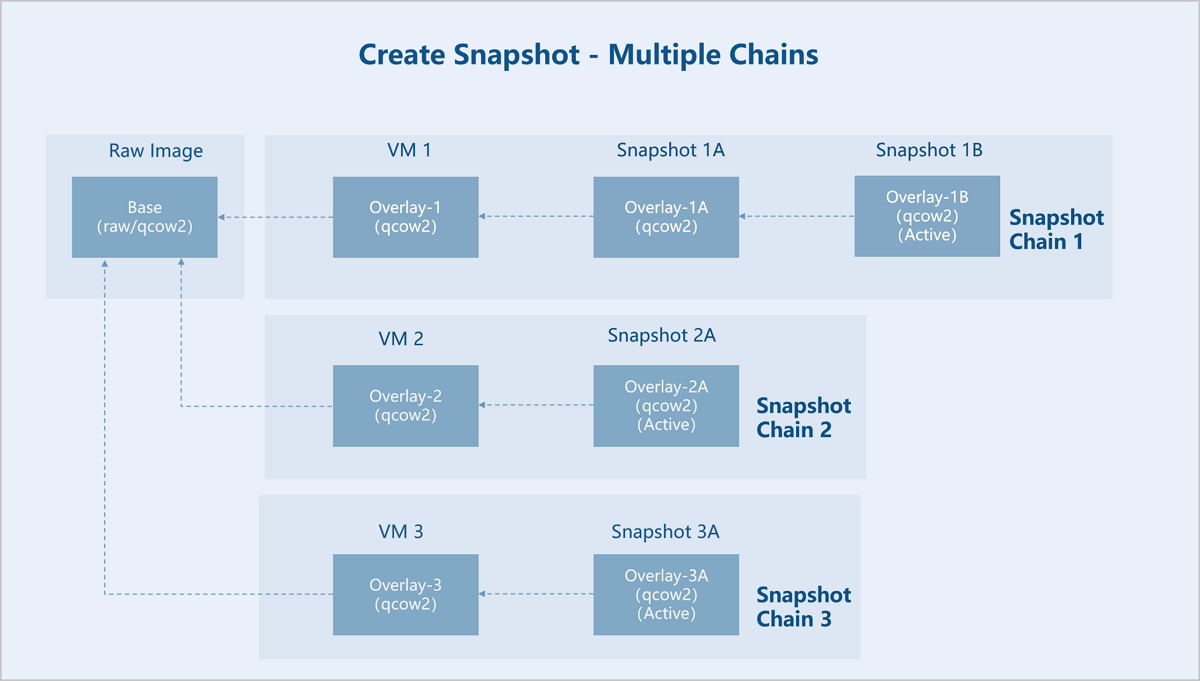
Suppose you have a raw image. You use the image to create VM instances named VM 1, VM 2, and VM 3 and then create snapshot 1A and 1B for VM 1, snapshot 2A for VM 2, and snapshot 3A for VM 3.- Raw image: a disk image file that includes a complete operating system and boot process. The image is a read-only file used as the base file.
- Snapshot chain 1:
- VM 1: creates an empty file named Overlay-1. The backing file of the empty file points to the base file. The base file is kept read-only and becomes a snapshot. Data is written to Overlay-1.
- Snapshot 1A: creates an empty file named Overlay-1A. The backing file of the empty file points to Overlay-1. Overlay-1 is set to read-only and becomes a snapshot. Data is written to Overlay-1A.
- Snapshot 1B: creates an empty file named Overlay-1B. The backing file of the empty file points to Overlay-1A. Overlay-1A is set to read-only and becomes a snapshot. Data is written to Overlay-1B. Overlay-1B is the last snapshot in the snapshot chain and is in Active state. VM 1 uses the disk file that corresponds to the snapshot Overlay-1B.
- Snapshot chain 2:
- VM 2: creates an empty file named Overlay-2. The backing file of the empty file points to the base file. The base file is kept read-only and becomes a snapshot. Data is written to Overlay-2.
- Snapshot 2A: creates an empty file named Overlay-2A. The backing file of the empty file points to Overlay-2. Overlay-2 is set to read-only and becomes a snapshot. Data is written to Overlay-2A. Overlay-2A is the last snapshot in the snapshot chain and is in Active state. VM 1 uses the disk file that corresponds to the snapshot Overlay-2A.
- Snapshot chain 3:
- VM 3: creates an empty file named Overlay-3. The backing file of the empty file points to the base file. The base file is kept read-only and becomes a snapshot. Data is written to Overlay-3.
- Snapshot 3A: creates an empty file named Overlay-3A. The backing file of the empty file points to Overlay-3. Overlay-3 is set to read-only and becomes a snapshot. Data is written to Overlay-3A. Overlay-3A is the last snapshot in the snapshot chain and is in Active state. VM 1 uses the disk file that corresponds to the snapshot Overlay-3A.
- Create single-chain snapshots based on the backing file.
- Consolidate Snapshots
External snapshots are interdependent with each overlay snapshot depending on its backing file. Each snapshot captures certain amounts of data. You cannot directly delete a snapshot to shorten a snapshot chain. To shorten a snapshot chain, you can blockcommit or blockpull external snapshots.
- Blockcommit
Consolidate overlay snapshots of a snapshot chain into backing files.
图 4. Blockcommit 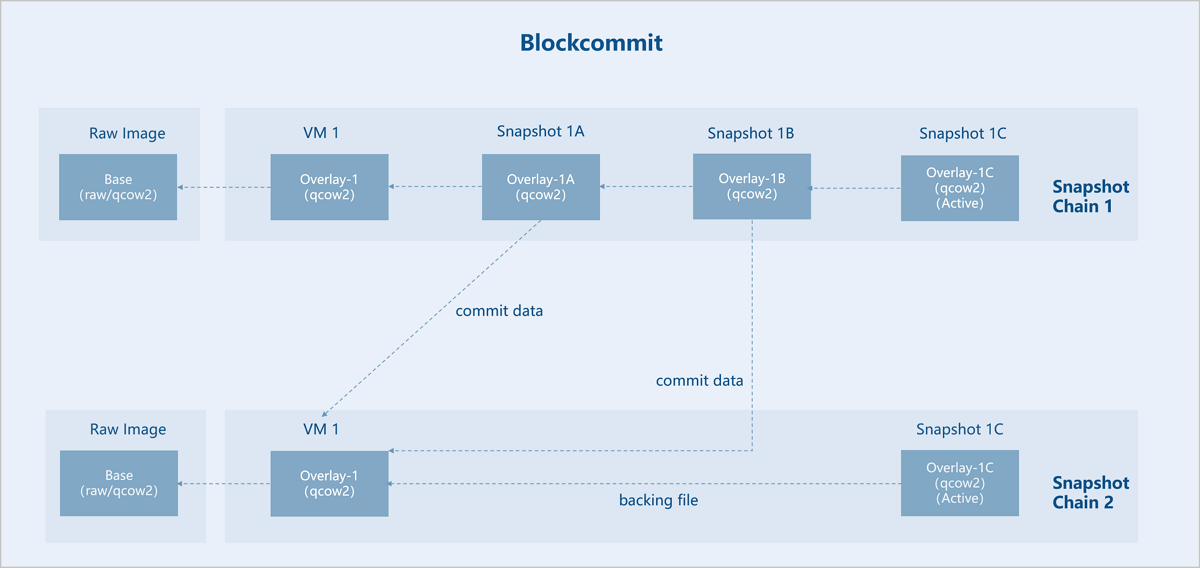
Suppose you have a raw image. You use the image to create VM instance named VM 1 then create three dependent snapshots named 1A, 1B, and 1C for VM 1. Then you blockcommit snapshot 1A and 1B to VM 1. This makes the backing file of snapshot 1C which is in Active state points to VM 1 and shortens the snapshot chain. Snapshot 1A and 1B are no longer useful and you can delete the two snapshots.
- Blockpull
Consolidate backing files of a snapshot chain into overlay snapshots.
图 5. Blockpull 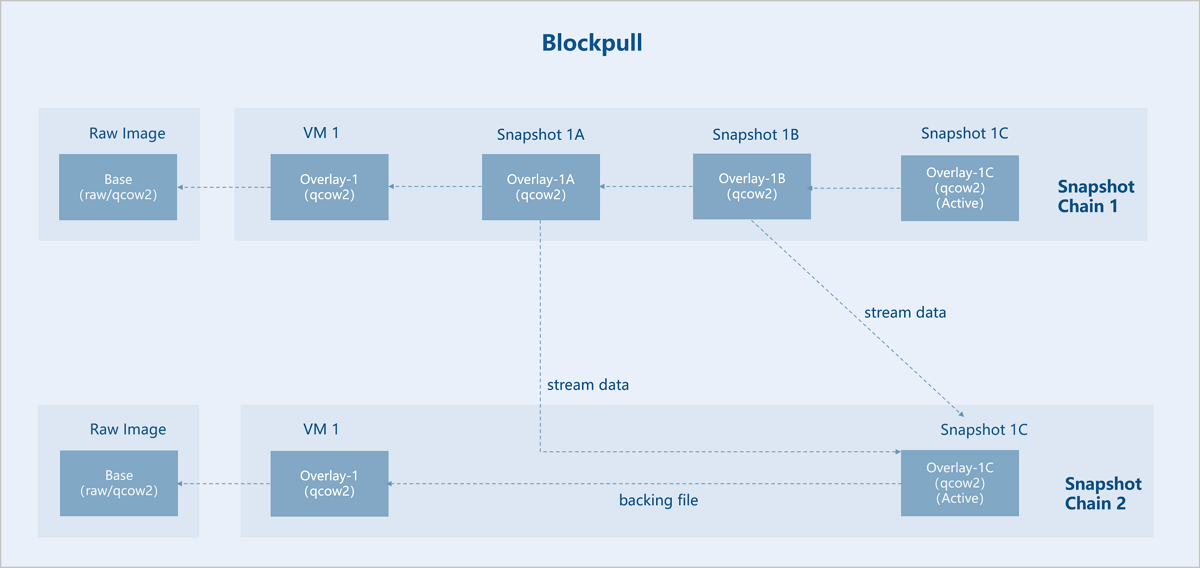
Suppose you have a raw image. You use the image to create VM instance named VM 1 then create three dependent snapshots named 1A, 1B, and 1C for VM 1. Then you blockpull snapshot 1A and 1B to snapshot 1C of VM 1. This makes the backing file of snapshot 1C which is in Active state points to VM 1 and shortens the snapshot chain. Snapshot 1A and 1B are no longer useful and you can delete the two snapshots.
- Blockcommit
Ceph Storage Snapshot Mechanism
For Ceph storage, ZStack Cube Ultimate uses the mainstream ROW (Redirect-On-Write) snapshot mechanism of Ceph.
Create a Snapshot
- Create VM snapshots:
- Single snapshot: creates a snapshot for the root volume of a VM instance.
- Snapshot group: creates snapshots for the root volume, data volumes, and memory of a VM instance.
- Create data volume snapshots: creates snapshots for data volumes.
- Create elastic baremetal instance snapshots: create snapshots for an elastic baremetal instance.
Create VM Snapshot
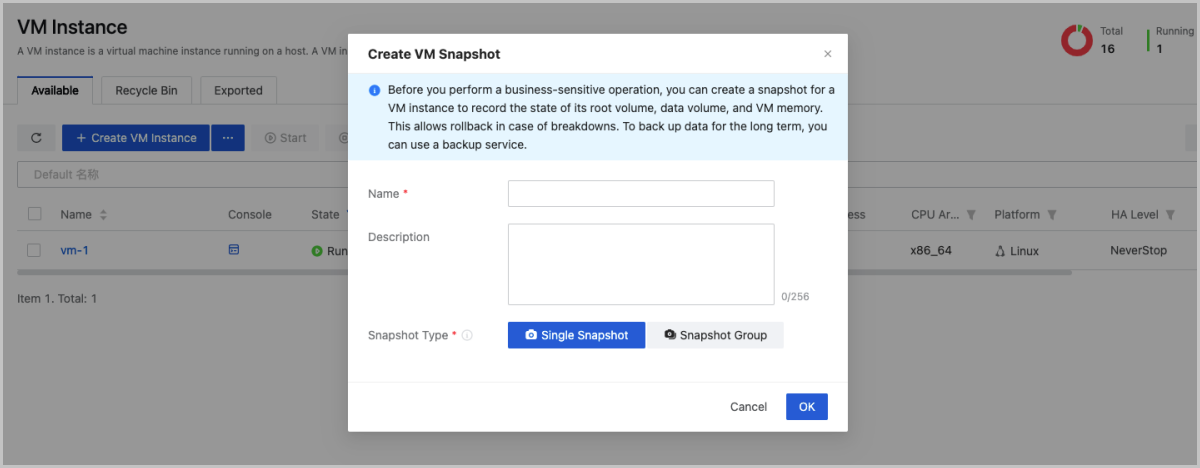
On the main menu of ZStack Cube Ultimate, choose . On the VM Instance page, select a running, stopped, or paused VM instance, and then choose . Then, the Create Snapshot for VM Instance dialog box appears.
- Name: Enter a name for the volume.
The name must be 1 to 128 characters in length and can contain Chinese characters, letters, digits, spaces, hyphens (-), underscores (_), periods (.), parenthesis (), colons (:), and plus signs (+) and cannot begin or end with spaces.
- Description: Optional. Enter a description for the snapshot.
- Snapshot Type: Select either of the following type of snapshots that you want to create:
-
- Single Volume Snapshot: creates a snapshot for the root volume of the VM instance.
- Snapshot Group: creates a group of snapshots
for the volumes of the VM instance, including the root volume and
data volumes.Note:
- You cannot create snapshot groups for a VM instance to which shared volumes are attached.
- Before you can create a memory snapshot, make sure that the VM instance is in the running state.
- Before you can create a memory snapshot, detach the peripheral devices (if any) from the VM instance first.
- When you create a memory snapshot, to ensure memory consistency, the VM instance will be in the paused state for seconds.
- Ceph primary storage does not support memory snapshots.
You can also create snapshots for a VM instance on its details page. On the details page, click the Snapshot tab. On the tab, click Create Snapshot. Then, the Create Snapshot for VM Instance dialog box appears. On the dialog box, set the required parameters and create a snapshot for the VM instance.
Create Data Volume Snapshot
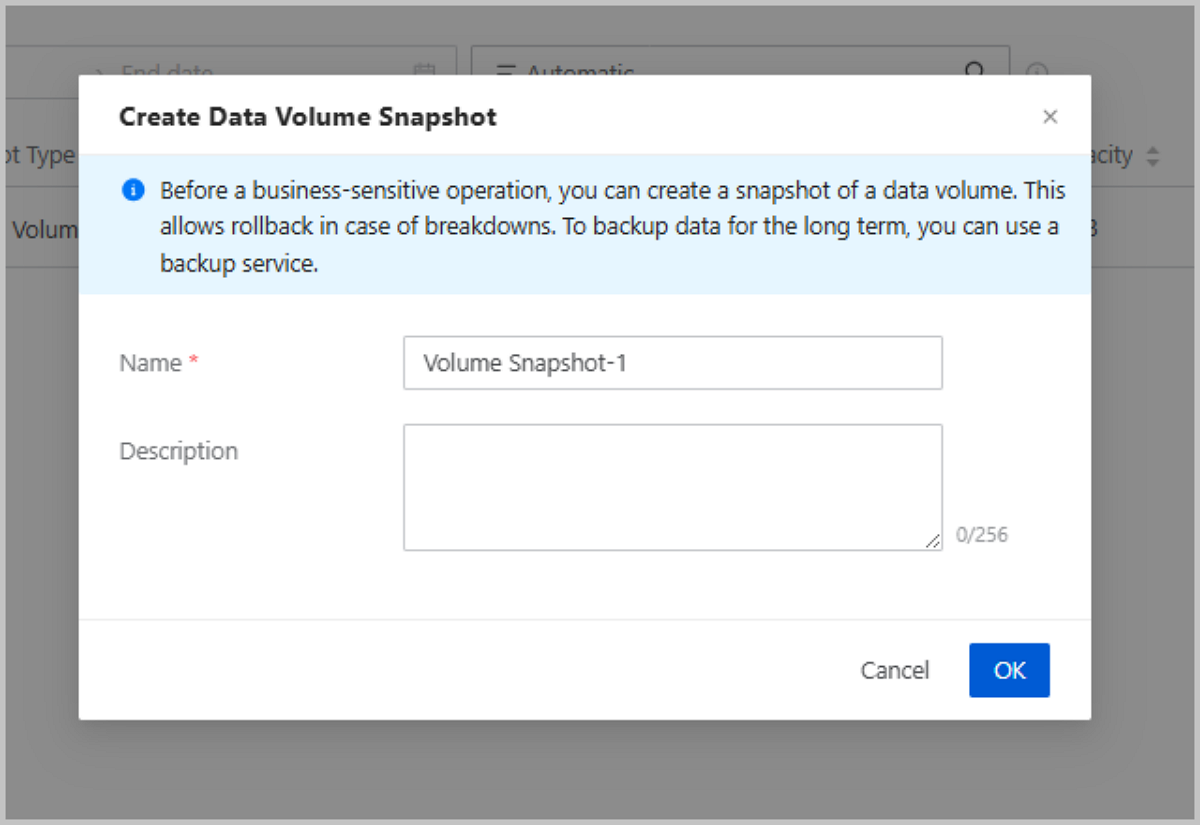
On the main menu of ZStack Cube Ultimate, choose . On the Data Volume page, select a data volume, and then choose . Then, the Create Data Volume Snapshot dialog box appears.
- Name: Enter a name for the volume.
The name must be 1 to 128 characters in length and can contain Chinese characters, letters, digits, spaces, hyphens (-), underscores (_), periods (.), parenthesis (), colons (:), and plus signs (+) and cannot begin or end with spaces.
- Description: Optional. Enter a description for the snapshot.
You can also create snapshots for a data volume on its details page. On the details page, click the Snapshot tab. On the tab, click Create Snapshot. Then, the Create Data Volume Snapshot dialog box appears. On the dialog box, set the required parameters and create a snapshot for the volume.
Create Elastic Baremetal Instance Snapshot
On the main menu of ZStack Cube Ultimate, choose . On the Elastic Baremetal Management page, locate an elastic baremetal instance. Click . Then, the Create Elastic Baremetal Instance Snapshot page is displayed.
- Name: Enter a name for the snapshot. The name must be 1 to 128 characters in length and can contain Chinese characters, letters, digits, spaces, hyphens (-), underscores (_), periods (.), parenthesis (), colons (:), and plus signs (+) and cannot begin or end with spaces.
- Description: Optional. Enter a description for the snapshot.
- Type: You can only create a snapshot for the elastic baremetal instance root volume.
You can also enter the details page of an elastic baremetal instance. On the details page, choose Snapshot tab and click Create Snapshot. Then, the Create Elastic Baremetal Snapshot is displayed.
Notes
- You can create a snapshot for a running or stopped instances.
- You cannot create a snapshot group for an elastic baremetal instance.
- You cannot create a snapshot group for a VM instance attached with shared volumes.
- In the production environment, we recommend that you create a maximum of five snapshots for a volume. Excessive number of snapshots lowers I/O performance of volumes or VM instances, increases data security risks, and occupies storage space of primary storage. To back up data for the long term, you can use Backup Service.
- In the production environment, we do not recommend that you create snapshots for VM instances with high I/O operations. This is because if a VM instance has high I/O operations, some data may be still in the memory and is not stored on the volume when you create a snapshot for the VM instance. This part of data is not reserved in the snapshot, thus affecting data integrity.
- You cannot create a snapshot for a shared volume that is created on a Shared Block or Ceph primary storage.
Manage a Snapshot
On the main menu of ZStack Cube Ultimate, choose . Then, the Snapshot page is displayed.
Manage a VM Snapshot
| Action | Description |
|---|---|
| Create VM Snapshot | Create a snapshot for a running or a stopped
VM instance. VM snapshots are categorized into single
snapshots and snapshot groups:
Note: You cannot create a snapshot group for a VM
instance attached with shared volumes. |
| Edit VM Snapshot | Edit the name and description of a VM snapshot. |
| Delete VM Snapshot | Delete a VM snapshot no longer required.Note:
|
| Revert VM Snapshot | Recover the VM instance to the state at the
time point when you created the snapshot.Note:
|
| Unbind Snapshot Group | Restore the VM snapshot to a single snapshot and disassociated the VM instance from the data volume snapshots. This action is irreversible. Please exercise caution. |
Manage a Data Volume Snapshot
| Action | Description |
|---|---|
| Create Data Volume Snapshot | Create a snapshot for a data volume.Note: You
cannot create a snapshot for a shared volume on a Shared
Block primary storage. |
| Edit Name and Description | Edit the name and description of a data volume snapshot. |
| Revert Volume Snapshot | Recover the volume data to the state at the
time point when you create the snapshot.Note:
|
| Delete Volume Snapshot | Delete a data volume snapshot no longer
required. You can delete volume snapshots in bulk.Note:
|
Manage an Elastic Baremetal Instance Snapshot
| Action | Description |
|---|---|
| Create Elastic Baremetal Instance Snapshot | Create a snapshot for a running or stopped elastic baremetal instance. |
| Edit Elastic Baremetal Instance Snapshot | Edit the name and description of an elastic baremetal instance snapshot. |
| Revert Elastic Baremetal Instance Snapshot | Recover the elastic baremetal instance data
to the state at the time point when you create the snapshot.Note:
|
| Delete Elastic Baremetal Instance Snapshot | Delete an elastic baremetal instance snapshot.Note:
|
Snapshot Usage Suggestion
This topic provides some suggestions for you to better use snapshots.
Suggestions for Creating Snapshots
- We recommend that you create less than 5 snapshots in a production environment. Too many snapshots negatively affect the VM/volume I/O performance, reduce the data security level, and occupy the primary storage space. For a long-term backup, we recommend that you use Backup Management.
- For the data integrity, we recommend that you do not create a snapshot for a high-I/O VM instance. If you create a snapshot for the VM instance when it is exercising a high-I/O operation, you may fail to record the data that has not been stored by volumes to the snapshot.
- To ensure successful reversion of snapshots, we recommend that you do not create snapshot groups with memory snapshots for a VM instance that has had ordinary snapshot groups (groups without memory snapshots), and vice versa.
- We recommend that you do not schedule automatic snapshot creations
frequently in a production environment. Frequent scheduled snapshots
negatively affect the I/O performance, storage space, and business stability
of a production environment.
- The snapshots created by frequent scheduled jobs affect VM business. For example, a VM instance on a Ceph primary storage reduces its write performance, and a VM instance on a LocalStorage or shared primary storage reduces its read performance if you create too many snapshots for it.
- The snapshots created by frequent scheduled jobs affects the I/O output of a primary storage.
- The snapshots created by frequent scheduled jobs occupy a large space on a primary storage.
Automatic Scheduled Snapshots
- Resizing a VM root volume.
- Resizing a data volume.
- Reimaging a VM instance.
- Creating images for volumes on Ceph primary storage.
- Using a snapshot to make a data rollback.Note:
- By default, the system does not automatically create snapshots when you exercise snapshot rollbacks.
- To make the system automatically create snapshots when you
exercise snapshot rollbacks, follow these method:
On the main menu of ZStack Cube Ultimate, choose . Enable Volume Snapshot Auto Creation.
- We recommend that you create a snapshot for the volume to record its current data state before you make the snapshot rollback.
Snapshot Impacts
- System Capacity Occupation
- In a LocalStorage or shared storage scenario, an incremental snapshot occupies only a small space, while a full snapshot occupies twice as much space.
- In a Ceph primary storage scenario, creating a snapshot does not occupy a storage space, but the Copy-On-Write triggered when you write in the disk may consume a space as much as the disk size.
- Business Impacts
- Creating Snapshot: In normal scenarios, creating a snapshot does not affect the business. If you create a full snapshot, it brings an excess storage network I/O. In a LocalStorage or shared storage scenarios, it occupies a certain disk I/O bandwidth, but brings little influence the disk IOPS.
- Deleting Snapshot: In normal conditions, deleting a snapshot also deletes the snapshots on its sub branches and merges the data to the disk. This brings an excess disk I/O, and slightly slows down the business I/O.