
VPC vRouter
What is VPC vRouter?
A VPC vRouter is a dedicated VM instance that provides multiple network services.
Characteristics
- A VPC vRouter can be used to provide network services such as virtual IP address, elastic IP address, IPsec tunnel, port forwarding, load balancing, DHCP, and Shared Bandwidth.
- You can set multicast routing for VPC vRouters.
- You can attach or detach a VPC network or public network to or from a VPC vRouter as needed.
- VPC vRouters have higher priorities to use resources than VM instances. If the resource utilization of the host is so high that the resource distribution must be prioritized, the resources are distributed first to VPC vRouters, then to VM instances with High priorities, and then to VM instances with Normal priorities. For example, if VPC vRouters and VM instances are competing for CPU resources, the CPU resources are distributed first to VPC vRouters.
Notice
- Before you create a VPC vRouter, you need to create a public network, management network, and VPC vRouter image required for a vRouter offering.
- A VPC vRouter is created from a vRouter offering with a public network and a management network. The public network and management network defined in a vRouter offering cannot be detached.
- We recommend that a VPC vRouter has no more than 23 VPC networks and public networks in total associated. Too many networks might lower the VPC vRouter performance and affect the quality of related network services.
- All network services in this Cloud share the bandwidth of the physical NIC. Therefore, too many VIPs on a VPC vRouter might cause network performance bottlenecks. We recommend that you reasonably plan the number of VIPs based on actual bandwidth requirements.
Create a VPC vRouter
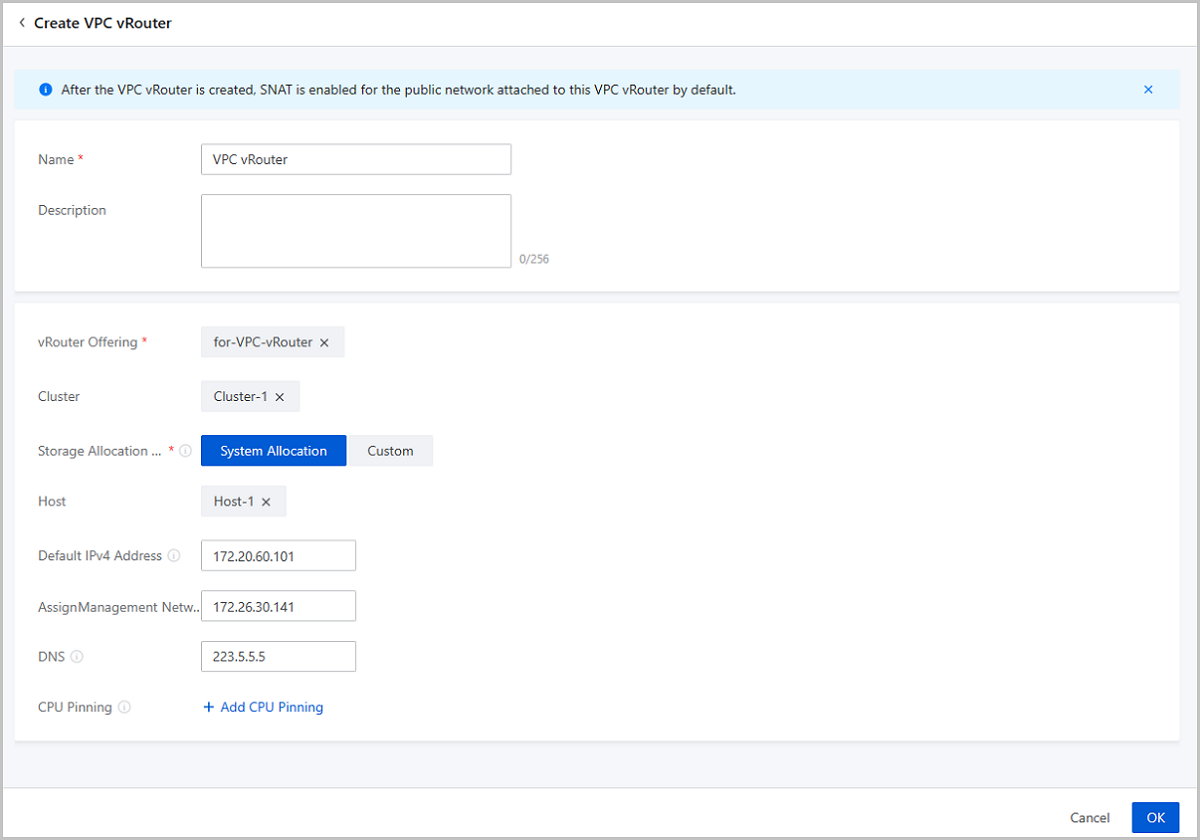
On the main menu of ZStack Cloud, choose . On the VPC vRouter page, click Create VPC vRouter. Then, the Create VPC vRouter page is displayed.
On the displayed page, set the following parameters:
- Name: Enter a name for the VPC vRouter.
- Description: Optional. Enter a description for the VPC vRouter.
- vRouter Offering: Select a vRouter offering you created
before.
 Note: A VPC vRouter created from a vRouter offering has a public
network and a management network.
Note: A VPC vRouter created from a vRouter offering has a public
network and a management network.- Enable SR-IOV: Optional. Choose whether to use
SR-IOV to pass through a VF NIC to the VPC vRouter as a default public
network NIC.Note:
- By default, SR-IOV is disabled and a vNIC is attached to the VPC vRouter as a public network NIC.
- If the hardware requirements are satisfied, you can enable SR-IOV to attach a VF NIC to the VPC vRouter as a public network NIC.
- To enable SR-IOV, ensure the following points:
- The public network and the management network of the VPC vRouter are deployed separately.
- The vRouter offering uses an openEuler image.
- There are available VF NICs based on the physical NICs corresponding to the public network.
- Enable SR-IOV: Optional. Choose whether to use
SR-IOV to pass through a VF NIC to the VPC vRouter as a default public
network NIC.
- Cluster: Optional. Specify a cluster for the host on which the VPC vRouter is to be started.
- Storage Allocation Policy: Specify how the Cloud
allocates a primary storage. The following two policies are supported:
- System Allocation: The Cloud allocates a primary storage according to the preconfigured policy.
- Custom: Select a primary storage as needed.
- Primary Storage: Select a primary storage for the VPC vRouter.
- Host: Optional. Select a host on which the VPC vRouter is started.
- Default IPv4/IPv6 Address: Optional. Specify a default IP address for the VPC vRouter. If not specified, the Cloud allocates one automatically.
- Assign Management Network IP: Optional. Assign a
management network IP to the VPC vRouter. Note: To assign a management network
IP, make sure that the management network used by the VPC vRouter is
separated from the public network the VPC vRouter uses. If the VPC vRouter
uses a same network both as its management network and public network, you
cannot assign a management network IP.
- DNS: Optional. Set the DNS service for the VPC vRouter.
If not specified, 223.5.5.5 will be used.Note:
- You can set an IPv4 DNS or IPv6 DNS as needed. For example, you can set the IPv4 DNS to 223.5.5.5 or IPv6 DNS to 240C::6644.
- Services in the VPC vRouter can access the public network services via DNS. You can also specify the other DNS address if necessary.
- For VM instances created by using a VPC network, the DNS is the gateway of the VPC network. The VM traffics are forwarded by a VPC vRouter.
- CPU Pinning: Associate the
virtual CPUs (vCPUs) of a VPC vRouter with host pCPUs stringently and allow you
to allocate specific pCPUs for the VPC vRouter, thus improving VPC vRouter performances.Note:
- Pinning Format
- In the left input box, set a vCPU range. In the right input box, set a pCPU range. Range format: integer, hyphen(-), and caret (^). Use commas to separate them.
- The vCPU range depends on the vRouter offering attached to the VPC vRouter.
- The pCPU range depends on the pCPU quantity of the selected cluster or host.
- Example: In the left input box, enter 1. In the right input box, enter 0-3,^2. This example indicates that vCPU 1 is stringently associated with pCPU 0, pCPU 1, and pCPU 3, while ^ represents that vCPU 2 is excluded.
- Pinning Format
Considerations
When you use a VPC vRouter, note the following:
- VPC networks under different VPC vRouters are isolated from each other by default at Layer 2.
- The IP address segments of different VPC networks under the same VPC vRouter cannot overlap. In addition, the gateways of any two VPC networks cannot be the same.
- Before an ordinary account can create a VPC vRouter, the admin needs to share the vRouter offering. Otherwise, the ordinary account could not create a VPC vRouter or VPC network.
- Before you use a VPC vRouter to provide network services, make sure that the VPC vRouter is in the running or connected state. If the VPC vRouter is in other states, check whether exceptions occur on the related resources.
- If a VM instance is using a VPC network, the VPC network could not be detached from the VPC vRouter.
- You can login to a VPC vRouter by using a password or SSH key:
- SSH login using password:
- By default, SSH login by using a password is disabled. To enable this login method, you can go to Global Setting and enable SSH Login with Password. After enabling, reconnect the VPC vRouter to make the modification take effect.
- After enabling SSH Login with Password, you can log in to the VPC vRouter with
the default account and password. To modify the
password, you can go to Global Setting and set
VPC vRouter SSH Login Password. After the
modification, reconnect the VPC vRouter to make the new
password take effect.
- VyOS 1.1.7 VPC vRouters:
- Default SSH Account: vyos
- Default SSH Password: vrouter12#
- openEuler 22.03 VPC vRouter:
- Default SSH Account: zstack
- Default SSH Password: vrouter12#
- VyOS 1.1.7 VPC vRouters:
- SSH login using key: The SSH key is stored in the path: $ZSTACK_HOME/WEB-INF/classes/ansible/rsaKeys/id_rsa.
- SSH login using password:
Manage a VPC vRouter
On the main menu of ZStack Cloud, choose . Then, the VPC vRouter page appears.
The following table lists the actions that you can perform on a VPC vRouter.
| Action | Description |
|---|---|
| Edit VPC vRouter | Edit the name and description of a VPC vRouter. |
| Create VPC vRouter | Create a VPC vRouter. |
| Start VPC vRouter | Start a stopped VPC vRouter. |
| Stop VPC vRouter | Stop a running VPC vRouter.Note: Stopping a VPC
vRouter also stops all network services of this VPC vRouter.
Proceed with caution. |
| Reboot VPC vRouter | Reboot a VPC vRouter. |
| Reconnect VPC vRouter | Reconnect a VPC vRouter.Note: A VPC vRouter
automatically upgrades after the management node is upgraded and
rebooted. |
| Change Host | Migrate a VPC vRouter to another host, and hot
migration is supported.
|
| Change Host and Primary Storage | Migrate a VPC vRouter to another host and primary
storage. After you change the primary storage, the host where the
VPC vRouter resides is changed based on the system policy.
|
| Launch Console | Access a VPC vRouter through terminals. |
| Set Console Password |
|
| Set Instance-Cluster Binding | Select whether to bind the VPC vRouter to the
current cluster.
|
| Change System | Change the operating system of the VPC vRouter.Note:
|
| Delete VPC vRouter | Delete a VPC vRouter.Note: Deleting VPC vRouters
will cause the network services of relevant VM instances
unavailable. To resume the network service, you must re-create a
VPC vRouter, attach the VPC network used by the VM instances,
and then reboot the VM instances. Proceed with
caution. |