
vRouter Image
What is vRouter Image?
A vRouter image encapsulates network services and can be used to create VPC vRouters.
Characteristics
A vRouter image encapsulates network services and can be used to create VPC vRouters.
However, a VPC vRouter image cannot be used to create VM instances. ZStack Cloud provides two versions of vRouter image. The following
lists the network services supported by different versions.
| Network Service | VyOS 1.1.7 | openEuler 22.03 |
|---|---|---|
| SNAT | Support | Support |
| STS | Support | Support |
| VIP | Support | Support |
| VIP QoS | Support | Support |
| EIP | Support Note: Does not support attaching an
EIP to an IPv6 NIC on the VPC network. Note: Does not support attaching an
EIP to an IPv6 NIC on the VPC network. |
Support |
| Port Forwarding | Support | Support |
| Load Balancing | Support | Support |
| Load Balancing ACL |
|
|
| Firewall | Support | Support |
| IPsec Tunnel | Support | Support |
| OSPF Area | Support | Support |
| Netflow | Support | Support |
| Multicast Routing | Support | Support |
| Distributed Routing | Support | Support |
| Route Table | Support | Support |
| Shared Bandwidth | Support | Support |
| Attaching VF NIC to vRouter (SR-IOV) | Not Support | Support |
Add a vRouter Image
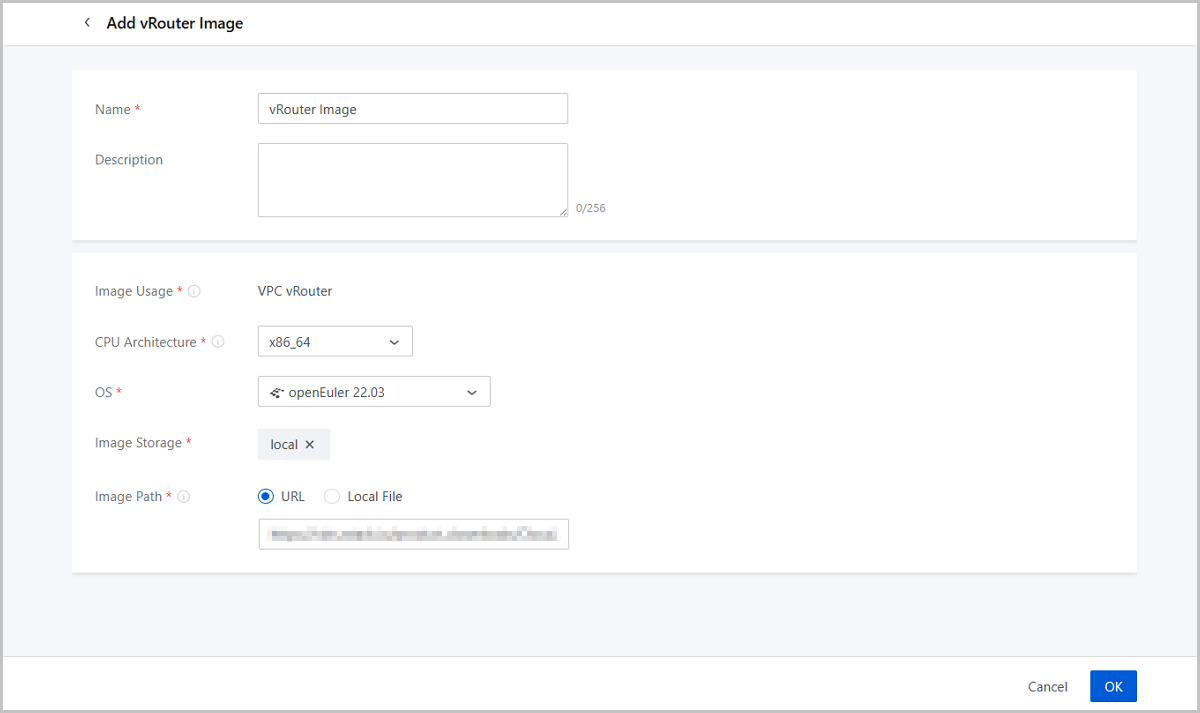
On the main menu of ZStack Cloud, choose . On the vRouter Image page, click Add vRouter Image. Then, the Add vRouter Image page is displayed.
Set the following parameters:
- Name: Enter a name for the vRouter image.
- Description: Optional. Enter a description for the vRouter image.
- Image Usage: Display VPC vRouter.
- CPU Architecture: Select a CPU architecture for the vRouter image. VPC vRouters created from the vRouter image inherit this CPU architecture.
- OS: Select a OS for the vRouter image. Supported OS types differ depending on the CPU architecture.
- Image Storage: Select an image storage to store the vRouter image.
- Image Path: Enter a URL or upload a local file.
- URL: Enter the download URL of the vRouter
image.ZStack Cloud provides you with dedicated VPC vRouter images (KVM). You can download the latest vRouter images from the official website.
- Software (VyOS): ZStack-5.5.24-vRouter-1.1.7.qcow2
- Software (openEuler): ZStack-5.5.24-openEuler-22.03.qcow2
- Download address: Click here
- Local File: Upload a vRouter image file that can
directly be accessed by the current browser.Note:
- You can upload the vRouter image to an ImageStore or Ceph image storage.
- A local browser will serve as a transmission relay used for uploading the vRouter image. Do not refresh or stop the current browser, nor stop your management node. Otherwise, you will fail to add the vRouter image.
- URL: Enter the download URL of the vRouter
image.
Manage a vRouter Image
On the main menu of ZStack Cloud, choose . Then, the vRouter Image page appears.
The following table lists the actions that you can perform on a vRouter image.
| Action | Description |
|---|---|
| Edit vRouter Image | Edit the name and description of a vRouter image. |
| Add vRouter Image | Add a vRouter image. |
| Enable vRouter Image | If enabled, the vRouter image is available as a candidate when you create a vRouter. |
| Disable vRouter Image | If disabled, the vRouter image is no longer available as a candidate when you create a vRouter. |
| Export VPC vRouter Image | Export a VPC vRouter image. ImageStore and Ceph
image storage support image export. Exported images are displayed on
the Exported tab.Note:
|
| Delete vRouter Image | Delete a vRouter image.Note: Deleting a vRouter
image may cause VPC vRouter creation failures. Proceed with
caution. |
| Recover vRouter Image | Recover a deleted vRouter image. If you recover a deleted vRouter image, the vRouter image is displayed on the Available tab. |
| Expunge vRouter Image | Expunge a deleted vRouter image. You can only expunge a vRouter image that is in the recycle bin. |
| Download Exported vRouter Image | Download an exported vRouter image. ImageStore
and Ceph image storage support image export. If you download an
exported vRouter image, the download is implemented by the
browser.Note: ImageStore image storage allows you to view the
MD5 value of the downloaded image to check whether the
downloaded image is the same as the exported
image. |
| Delete Exported vRouter Image | Delete an exported vRouter image.Note:
|