
HA Policy
What is HA Policy?
HA Policy is a mechanism that ensures sustained and stable running of the business if VM instances are unexpectedly stopped or are errored because of errors occurring to compute, network, or storage resources associated with the VM instances. By enabling this feature, you can customize VM HA policies to ensure your business continuity and stability.
Concepts
- HA mode: Specifies whether to enable auto restart if VM instances are
unexpectedly stopped or are errored because of errors occurring to compute,
network, or storage resources associated with the VM instances. None and
NeverStop are supported:
- None: VM instances are not auto restarted no matter it is planned to be stopped or unexpectedly stopped.
- NeverStop:
- Unexpectedly stopped VM instances are auto restarted on another host depending on the failover strategy you configure for them.
- The VM instance does not reboot automatically if you stop it
manually, including:
- Manually perform the stopping VM instance, force stopping VM instance, and powering off VM instance actions on the UI.
- Manually run the
shutdown,poweroff, andhaltcommands in the VM OS. - Create a scheduled job to trigger the VM shutdown as planned.
- VM Failover Strategy: Specifies whether to migrate a VM instance to another
host if errors occur to the compute resource, storage resource, or network
resource associated with the VM instance.The VM failover mechanism inspects the following resource status:
- Management Network Connectivity Status:
- Management network connectivity status indicates the status of the network that connects the management node and the host where VM instances reside.
- This status may turn Abnormal if errors occur to the management node or to the management network.
- Storage Network Connectivity Status:
- Detects the connectivity status of the network that VM instances use to access the primary storage where the root volumes of these VM instances reside.
- This status may turn Abnormal if errors occur to the primary storage or to the storage network.
- Business NIC Status:
- Business NIC status may turn Abnormal if errors occur to the host business NIC or the switch port directly connecting to the host business NIC that is associated with the L2 network of VM instances.
Based on the resource status inspection, the Cloud allows you to configure failover strategies for 4 fault scenarios:Fault Scenario Management Network Connectivity Status Storage Network Connectivity Status Business NIC Status Fail Over Scenario A: Business NIC Fault Normal Normal Abnormal Enable/Disable Scenario B: Storage Network Fault Normal Abnormal Normal Enable/Disable Scenarios C: Storage Network and Business NIC Fault Normal Abnormal Abnormal Set as false if both the scenario A and B have the failover policy set as false. Set as true if either of the scenario A or B has the failover policy set as true. Scenario D: Management Network Fault Abnormal Normal Normal Disable. The failover cannot be enabled in this scenario.  Note: The failover policies take effect on VM instances whose HA
modes are set as NeverStop only.
Note: The failover policies take effect on VM instances whose HA
modes are set as NeverStop only. - Management Network Connectivity Status:
Fundamentals
- The Cloud polls the running status of VM instances. If a VM instance is
unexpectedly stopped, its HA mode is checked. If the HA mode of the VM
instance is NeverStop, then the VM instance is restarted on the current host
or another host.
图 1. VM HA Started After Unexpectedly Stopped 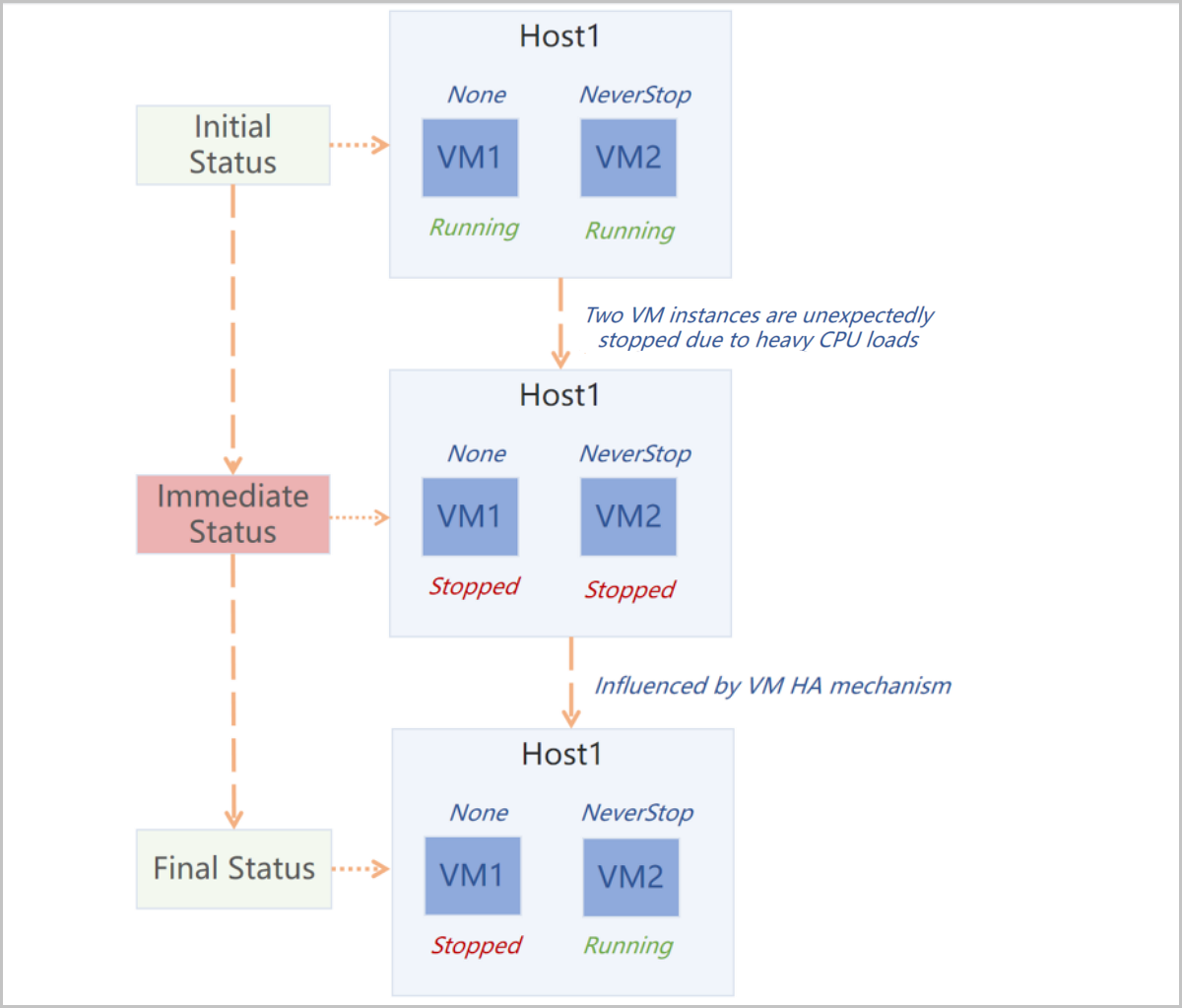
- The Cloud polls the status of the hosts where VM instances reside. Either of
the management network connectivity status, storage network connectivity
status, and business NIC status of the host turns abnormal, the
corresponding VM failover strategy and VM HA mode are checked. If the
corresponding failover strategy is Yes and VM HA mode is NeverStop, then
related VM instances are migrated to another host.
图 2. VM HA Started After Host Business NIC Turns Down 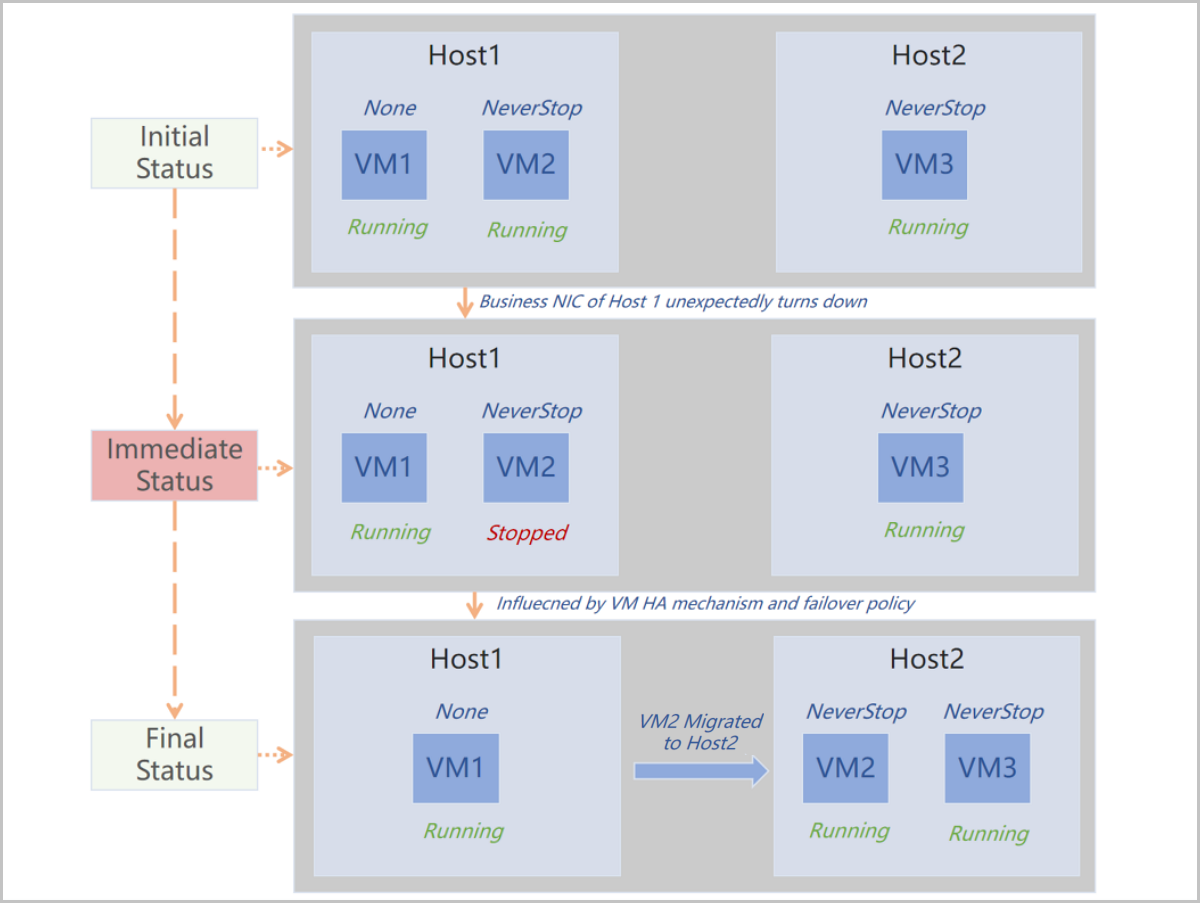
Characteristics
- Comprehensive & Powerful: Covers all mainstream HA scenarios, including various failures, and ensures the stability and continuity of your business.
- Flexible & Visualized: Provides a simple table that allows you to configure VM failover strategies with one click. This table functions together with the HA Mode that can be configured on all and individual VM instances, thus greatly improving the flexibility of your business HA configuration.
Scenarios
The following describes the scenarios of the HA Policy feature.
- Host Business NIC Turns Down:If a host business NIC turns down, to ensure high availability of business, all VM instances associated with this NIC are expected to migrate to other hosts.
- For example, your business VM instances are running MySQL database service which is required to achieve high availability. In this case, you can set the HA mode of these VM instances to NeverStop and turn on the switch corresponding to Abnormal Business NIC Status. Then as long as host resources are sufficient, in case that a host business NIC associated with these VM instances turns down, these VM instances will be auto started on other hosts.
- VM Unexpectedly Stops:If a VM instance is unexpectedly stopped, it is expected to auto HA start.
- For example, your VM instances are running important business applications. To ensure business auto-recovery in case of VM stops due to reasons such as host powered-offs or business overloads, you can set the HA mode of these VM instances to NeverStop. Then if these VM instances are stopped, they are auto started.
Manage HA Policy
On the main menu of ZStack Cube Ultimate, choose . Then, the HA Policy page is displayed.
| Action | Description |
|---|---|
| Enable HA Policy | Enables the HA Policy feature. |
| Disable HA Policy | Disables the HA Policy feature.Note: If you disable HA Policy, VM
instances will not be auto restarted if they are stopped. This
may cause business interruptions. Proceed with
caution. |
HA Policy|Failover Policy
| Fault Scenario | Management Network Connectivity Status | Storage Network Connectivity Status | Business NIC Status | Fail Over |
|---|---|---|---|---|
| Scenario A: Business NIC Fault | Normal | Normal | Abnormal | Enable/Disable |
| Scenario B: Storage Network Fault | Normal | Abnormal | Normal | Enable/DisableNote: If the storage type is SharedBlock and
this status is Abnormal, VM instances will auto fail over
regardless of this configuration. |
| Scenarios C: Storage Network and Business NIC Fault | Normal | Abnormal | Abnormal | Set as false if both the scenario A and B have the failover policy set as false. Set as true if either of the scenario A or B has the failover policy set as true. |
| Scenario D: Management Network Fault | Abnormal | Normal | Normal | Disable. The failover cannot be enabled in this scenario. |
Note:
- The failover policies take effect on VM instances whose HA modes are set as NeverStop only.
- For Storage Network Connectivity Status, only shared storage is detected. Local storage is not supported.
- If an L2 network of a VM instance is of the VXLAN type or the L2 network applies the SR-IOV or Smart NIC, and errors occur to the host business NIC associated with this L2 network or occur to the switch port directly connecting to the host business NIC, this VM instance will not fail over.
| Name | Description |
|---|---|
| Host Self-Inspection Interval | The interval that a host inspects its own status. Default: 5. Unit: second. |
| Maximum Host Self-Inspection Attempts | The maximum number of attempts that a host inspects its own status. If the self-inspection of a host fails by the maximum attempts, it is determined that network errors occur with the host. Default: 6. |
HA Policy|Advanced Settings
| Category | Name | Description |
|---|---|---|
| VM Instance | VM Cross-Cluster HA | Specifies whether to enable VM migration
across clusters to achieve high availability. Default: false. If
set to true, hosts across clusters can be detected to achieve VM
high availability. Note:
|
| Maximum Interval for VM Attempt to HA Start | The maximum interval for the system to finish the GC (garbage collection) job and attempt to restart a NeverStop VM according to the HA policy after the VM instance is stopped unexpectedly. Default: 300. Unit: second. | |
| VM Retry HA Start Interval | The interval for a Neverstop VM to retry an HA start after the previous HA start attempt fails. Default: 60. Unit: second. | |
| HA VM State Scanning Interval | The interval to scan the status of a NeverStop VM after it fails to HA start. Default: 60. Unit: second. | |
| HA VM State Update Speed | The speed of updating the state of NeverStop VM instances on the UI. Default: 1. Valid values: -1 to 5. A higher value indicates a lower update speed. However, a lower update speed makes the system ignore a lot of outdated notifications, thus decreasing the system workload. If set to -1, the NeverStop VM states on the UI are not updated automatically. | |
| VM HA Mode Default Value | Sets the default value of HA mode when
creating VM instances. Valid values: None and NeverStop.
Note:
|
|
| Host | Minimum Connection Attempts Required to Determine Host is Disconnected | The maximum times for the system to attempt to connect to a host. If the system fails to connect to the host after the specified times of attempt, the host is determined as disconnected. Default: 12. |
| Ping Response Time to Determine Host Connection is Established Successfully | The time period for the system to wait the host response after it pings the host. Receiving a response within this period indicates that the system establishes a successful connection with the host. Default: 5. Unit: second. | |
| Minimum Successful Connections Required to Determine Host is Re-Connected | The minimum successful connections that the system has to establish with a disconnected host before the host can be determined as re-connected. Default: 5. | |
| Timeout Period for Host Connecting to Primary Storage | The time for hosts to attempt to connect to primary storage. If a host fails to connect to a primary storage during this period, its connection attempt is determined as timeout. Default: 5. Unit: second. | |
| Minimum Connection Success Rate to Determine Host is Re-Connected | The minimum rate of successful connections occupied in total connection attempts to determine a disconnected host is successfully re-connected. Default: 50. Unit: %. | |
| Abnormal Host Status Update Interval | The interval for the system to check and update the status of abnormal hosts. Default: 5. Unit: second. |
HA Log
On the main menu of ZStack Cube Ultimate, choose . Then, the HA Policy page is displayed. If HA policy is enabled and the HA mechanism is triggered, then HA logs are generated.
- You can select a time span to view HA logs. Available time spans: recent 7 days and recent 1 month. By default, logs generated in recent 7 days are displayed.
- You can customize a time span to view the HA logs in the specified time span.
- You can search for HA logs by VM name, VM owner, Pre Host, or Destination Host.
- You can filter HA logs by task result. The task results include succeeded and failed.
- You can sort HA logs by creation or completion time.
- You can export the HA logs in CSV format.
- You can adjust the number of HA logs displayed on each page. Optional values: 10, 20, 50, and 100.
- Click Task Description, you can enter the log details page to view more information.