
Theme and Appearance
What is Theme and Appearance?
You can customize the theme and appearance of the Cloud.
Customize Theme and Appearance
Prerequisites
This scenario describes how to customize the product logo and release information after you install ZStack Cube Ultimate.
Procedure
-
Enter the Theme and Appearance page.
On the main menu of ZStack Cube Ultimate, choose . Then, the Theme and Appearance page is displayed.
图 1. Theme and Appearance 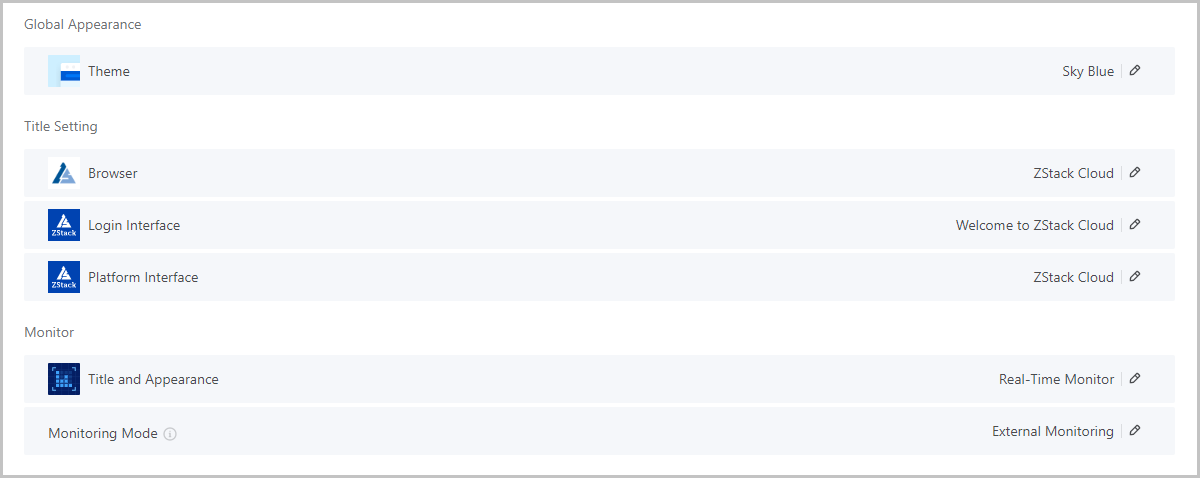
-
On the Theme and Appearance page, you can customize
following settings:
- Global Appearance:
- Theme: Choose a global theme color. 8
options are provided.
 Note: This setting takes effect on pages
displayed to all Cloud managers, accounts, and
users.
Note: This setting takes effect on pages
displayed to all Cloud managers, accounts, and
users.
- Theme: Choose a global theme color. 8
options are provided.
- Title Setting:
- Browser:
- Favicon: Upload an icon for the
browser.Note: You can upload a
file only in ICO format and the file must no greater
than 2 MB in size.
- Chinese Title: Enter a Chinese
title for the browser.Note: The title must be 1 to 25
characters in length.
- English Title: Enter an English
title for the browser.Note: The title must be 1 to 25
characters in length.
- Favicon: Upload an icon for the
browser.
- Login Interface:
- Logo: Upload a logo for the login
interface.Note: You can upload
a JPG, JPEG, ,or SVG image that is within 250*70px
and 2 MB.
- Chinese Title: Enter a Chinese
title for the login interface.Note: The title must be 1
to 25 characters in length.
- English Title: Enter an English
title for the login interface.Note: The title must be 1
to 25 characters in length.
- Logo: Upload a logo for the login
interface.
- Platform Interface:
- Logo: Upload a logo for the
platform interface.Note:
- You can upload a JPG, JPEG, PNG, or SVG image that is within 110*40px and 2 MB.
- We recommend that you upload a white or light-colored logo on a dark background.
- Chinese Title: Enter a Chinese
title for the platform interface.Note: The title must be
1 to 25 characters in length.
- English Title: Enter an English
title for the platform interface.Note: The title must be
1 to 25 characters in length.
- Front Size: Select a front size for the platform interface title. Valid values: Large, Medium, and Small. Default: Medium.
- Logo: Upload a logo for the
platform interface.
- Browser:
- Monitor:
- Title and Appearance:
- Chinese Title: Enter a Chinese
title for the monitor.Note: The title must be 1 to 18
characters in length.
- English Title: Enter an English
title for the monitor.Note: The title must be 1 to 18
characters in length.
- Theme: Choose an appearance for the monitor. Valid values: Classic and Technology. Default: Classic.
- Chinese Title: Enter a Chinese
title for the monitor.
- Monitoring Mode: Choose a monitoring mode. Valid values: External Monitoring and Internal Monitoring. Default: External Monitoring.
- Title and Appearance:
- Global Appearance:
-
Reset to default settings.
You can cancel all custom settings and reset the product theme and appearance to default configurations by clicking Reset to Default Settings.Note: After you click Reset to Default
Settings, all custom logo images and release information
stored in /var/lib/zstack/static are
deleted.