Log Server
What is Log Server?
A log server is used to collect management node logs or the platform operation logs. You can add a log server to the cloud and use the collected logs for operation trace or troubleshooting. This makes your O&M more efficient.
Log Server Type
- Management Node Log Server: The server is used to receive management node logs of the Cloud. Only admin or platform managers can add management node log servers.
- Cloud Operation Log Server: The server is used to receive cloud operation
logs. Both the admin/platform managers and project members can add cloud
operation log servers.
- If added by a project member, the log server receives the operation logs of users in this project. One project can have up to one log server.
- If added by the admin/platform manager, the log server receives operation logs of all users of the Cloud.
Add a Log Server
On the main menu of ZStack Cube Ultimate, choose . On the Log Server page, click Add Log Server. Then, the Add Log Server page is displayed.
The following lists the two log server addition scenarios:
- Add a Management Node Log Server.
- Add a Cloud Operation Log Server.
Add a Management Node Log Server
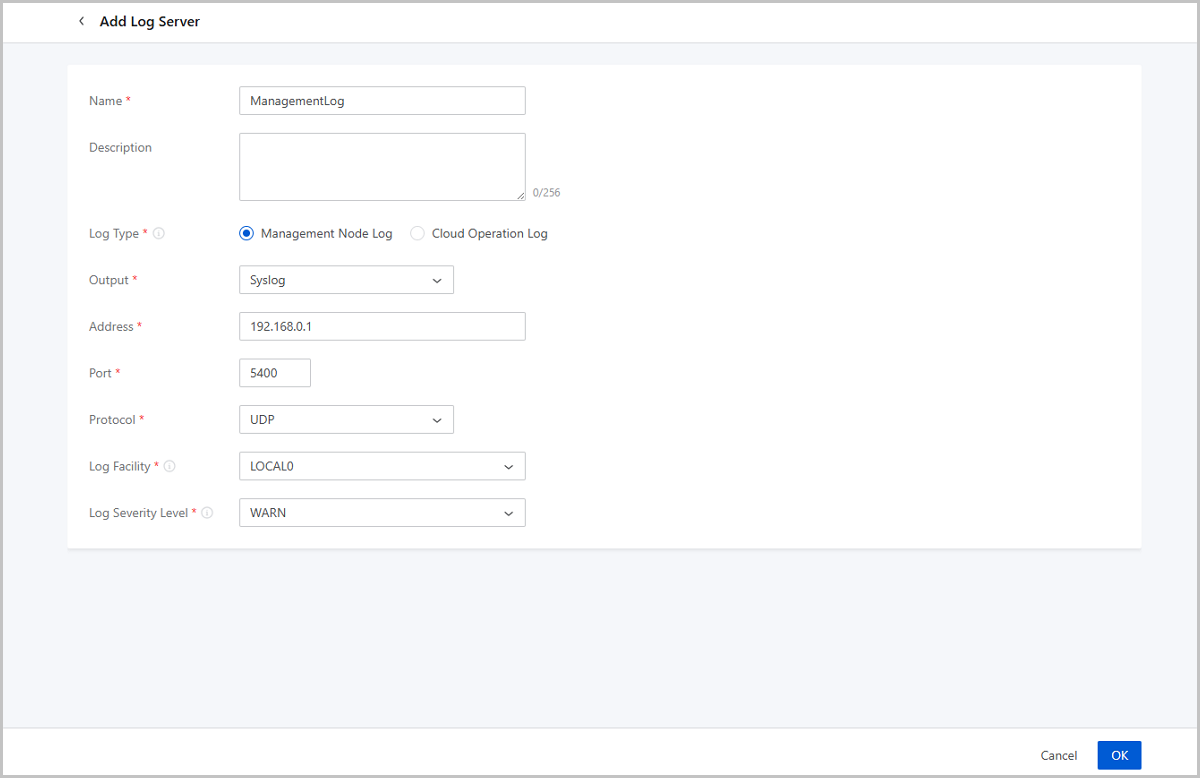
On the displayed page, set the following parameters:
- Name: Enter a name for the log server. The name must be 1 to 128 characters in length and can contain Chinese characters, letters, digits, spaces, hyphens (-), underscores (_), periods (.), parenthesis (), colons (:), and plus signs (+) and cannot begin or end with spaces.
- Description: Optional. Enter a description for the log server.
- Log Type: Select Management Node Log.
- Output: Select the output type. This scenario supports one type: Syslog.
- Address: Enter the server address. You can enter an IP address, domain name, or URL pattern.
- Port: Enter a port to provide services.
- Protocol: Select the data transfer protocol.
- Log Facility: Select a value that is consistent with the log identifier you configure in the file, rsylog.conf, of the log server. Then, the Cloud can send logs correctly to this server. Valid values: LOCAL0~LOCAL7.
- Log Severity Level: Select a log severity level. Only
logs of this level or higher levels will be received by the log server.
Supports the following 7 options (lowest to highest): ALL, TRACE, DEBUG,
INFO, WARN, ERROR, FATAL.
 Note:
Note:
- For example, if you select the severity level as WARN, the log server can receive logs of the WARN level and higher levels (ERROR and FATAL).
- If you select the severity level as ALL, the log server receives logs of all levels.
Add a Cloud Operation Log Server
On the displayed page, set the following parameters:
- Name: Enter a name for the log server. The name must be 1 to 128 characters in length and can contain Chinese characters, letters, digits, spaces, hyphens (-), underscores (_), periods (.), parenthesis (), colons (:), and plus signs (+) and cannot begin or end with spaces.
- Description: Optional. Enter a description for the log server.
- Log Type: Select Cloud Operation Log.
- Output: Select the output type..
- If you select Syslog, set the following parameters:
- Address: Enter the server address. You can enter an IP address, domain name, or URL pattern.
- Port: Enter a port to provide services.
- Protocol: Select the data transfer protocol.
- If you select Elasticsearch, set the following parameters:
- Address: Enter the server address. You can enter an IP address, domain name, or URL pattern.
- Port: Enter a port to provide services.
- Index: Specify an index on the log
server for receiving and storing logs from the
Cloud.Note: The Index must be created on the log server
in advance.
- TLS: Select whether to enable TLS (Transport Layer Security).
- User Name: Optional. Enter the user name for identity authentication.
- Password: Optional. Enter the password corresponding to the user name.
- If you select Forward, set the following parameters:
- Address: Enter the server address. You can enter an IP address, domain name, or URL pattern.
- Port: Enter a port to provide services.
- If you select Kafka, set the following parameters:
- Address: Enter the server address. You can enter an IP address, domain name, or URL pattern.
- Port: Enter a port to provide services.
- Topics: Specify a Topics on the log server for receiving and storing logs from the Cloud.
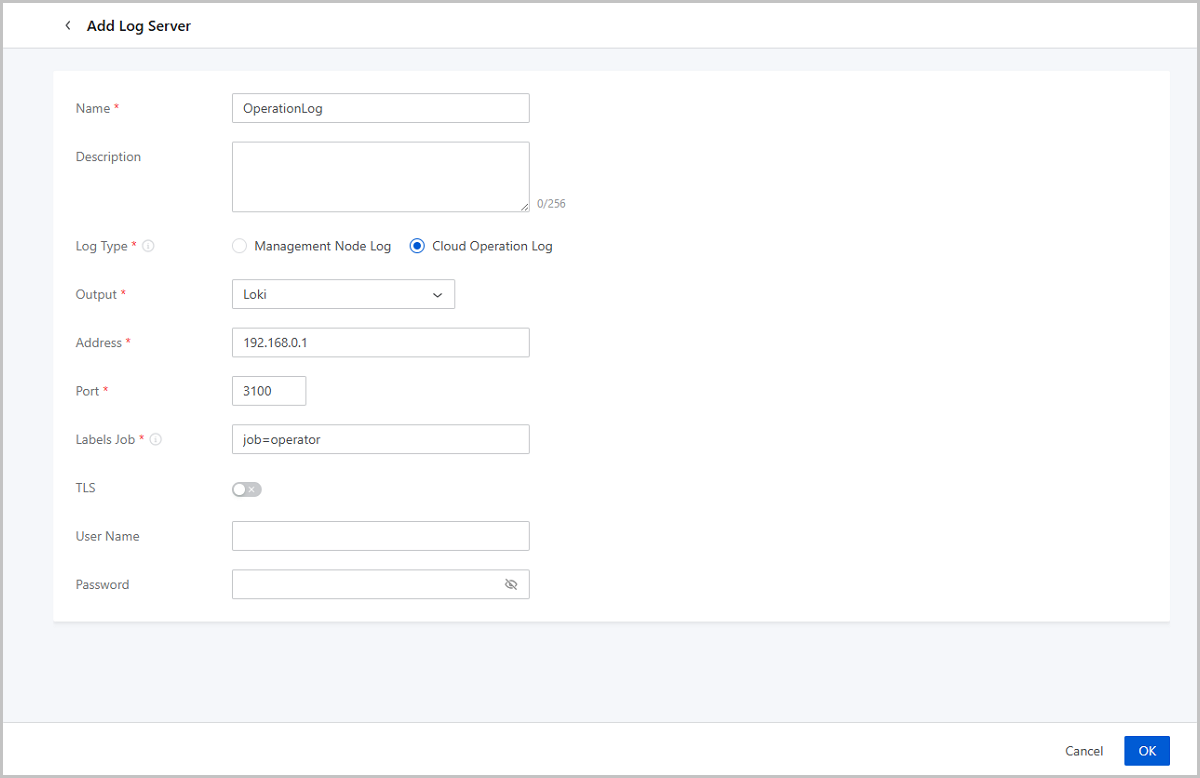
- If you select Loki, set the following parameters:
- Address: Enter the server address. You can enter an IP address, domain name, or URL pattern.
- Port: Enter a port to provide services.
- Labels Job: Add job labels to logs to indicate that these logs are from this Cloud. You can use this label to quickly filter Cloud logs on the log server.
- TLS: Select whether to enable TLS (Transport Layer Security).
- User Name: Optional. Enter the user name for identity authentication.
- Password: Optional. Enter the password corresponding to the user name.
- If you select Syslog, set the following parameters: