SNMP Management: SNMP Management is a service that allows a 3rd-party platform to monitor
resources and events on ZStack Cloud, as well as receive alarms
from ZStack Cloud.
Concept
The following are concepts involved in SNMP Management
SNMP: SNMP stands for Simple Network Management Protocol, a protocol used to
manage the devices in the network. In SNMP Management, it is through this
protocol that the 3rd-party platform obtains the monitoring data of ZStack Cloud resources and receives alarms from ZStack Cloud.
NMS: NMS stands for Network Management System, a system that monitors and
manages the devices in the network through SNMP. NMS sends requests to the
agent of managed devices to query the device parameters, and receives the
trap messages sent from the agent. In SNMP Management, NMS refers to a
3rd-party platform.
SNMP Agent: The agent of the managed objects. This agent is responsible for
response to the requests from the NMS and send Trap message to the trap
receivers proactively. In SNMP management, the management nodes of ZStack Cloud undertakes the role of SNMP agent.
Managed Object: In SNMP Management, Managed Object refers to resources on
ZStack Cloud.
MIB: MIB is a database that is maintained by the SNMP Agent and defines the
properties of managed objects, such as the object name, state, access
permission, and object data type. A 3rd-party platform uses the MIB as a
reference to collect the monitoring data ZStack Cloud
resources and parse the alarms received. ZStack Cloud
provides its dedicated MIB for you to download and refer to.
SNMP Trap Receiver: SNMP trap receiver is a 3rd-party server used to receive
alarms pushed by Cloud. You can add an SNMP trap receiver as an endpoint and
attached to alarms, so that Cloud can push specified alarm messages to this
SNMP trap receiver.
Enable SNMP Service
On the main menu of ZStack Cloud, click Settings > Platform Setting > SNMP Management. On the SNMP Management page, click
Enable. Then, the Enable SNMP Management
page is displayed.
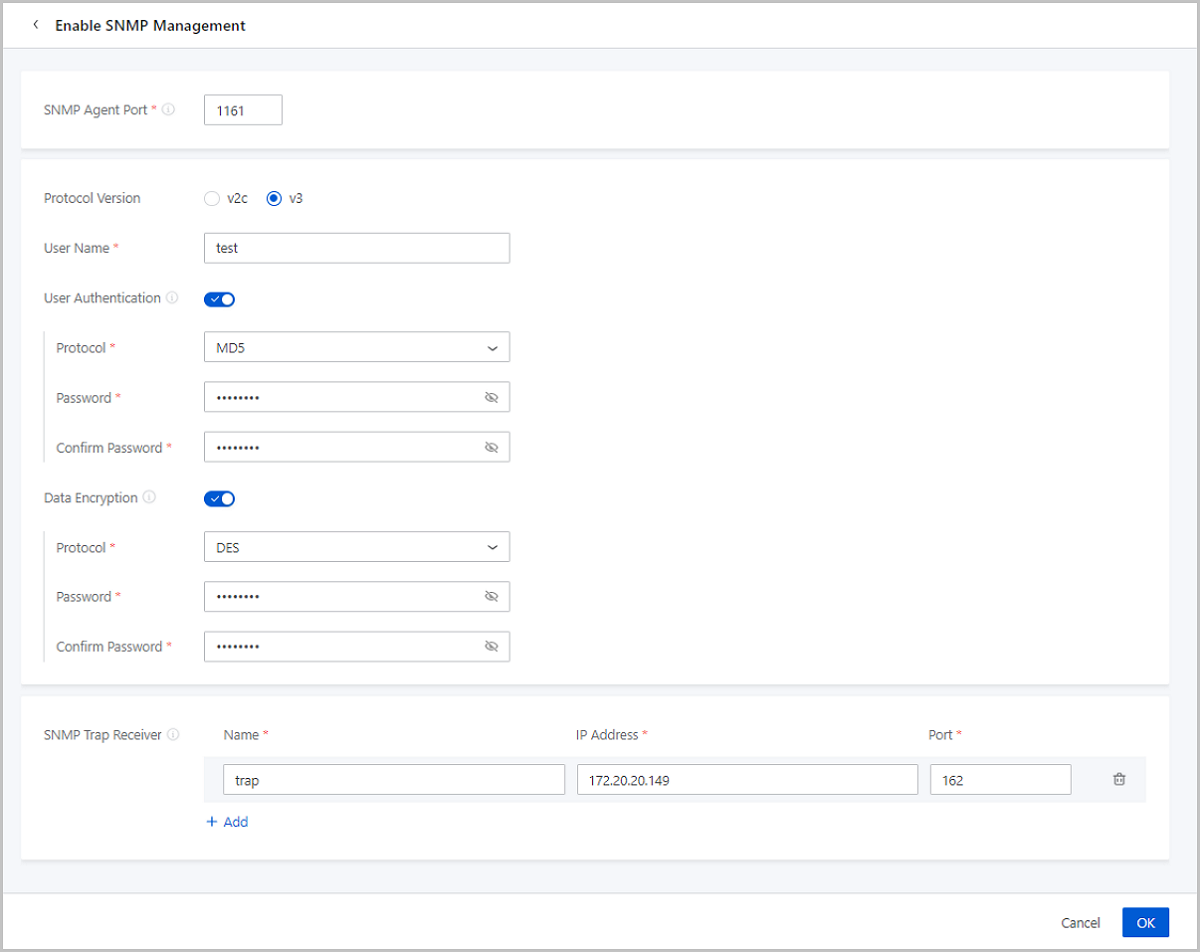
Set the following parameters on the displayed page:
SNMP Agent Port: Set an SNMP agent port to receive and
response to the request from the 3rd-pafrty platform.
Note: SNMP SNMP Agent port
is a port on the management node. Default: 1161. Valid values:
1024-65565.
Protocol Version: Select a SNMP version. Supported two
protocol version: v2c and v3.
If you choose v2c, set the following parameters:
Community: Set a community. This
community is used for the connectivity authentication between
ZStack Cloud and the 3rd-party
platform.
If you choose v3v, set the following parameters:
Username: Set the username.
User Authentication: Optional. If set to
true, a security authentication is enabled for the connectivity
between ZStack Cloud and the 3rd-party
platform and you need to set the following parameters:
Authentication Protocol: Select
an authentication protocol. Supported protocols: MD5,
SHA, SHA224, SHA256, SHA384, and SHA512.
Authentication Password: Set an
authentication password.
Confirm Password: Enter the
password again to confirm it.
Data Encryption: Optional. Choose whether
to encrypt the data transmitted between ZStack Cloud and the 3rd-party platform. To
enable Data Encryption, you need to enable User Authentication
first and set the following parameters:
Encryption Protocol: Choose an
encryption protocol. Supported protocols: DES,AES128,
AES192, AES256, and 3DES.
Encryption Password: Set an
encryption password.
Confirm Password: Enter the
password again to confirm it.
SNMP Trap Receiver: Optional. Enter the IP address and
port of a 3rd-party server which is used to received alarms sent from ZStack Cloud.
图 1. Enable SNMP Management
Manage SNMP Service
On the main menu of ZStack Cloud, choose Settings > System Setting > SNMP Management. Then, the SNMP Management page is displayed.
The following lists the actions you can perform on the SNMP
Management page:
Action
Description
Enable SNMP Management
Enable the SNMP management.
Modify SNMP Config
Modify the SNMP protocol configurations, such as
the SNMP agent port, protocol version, community, and
username.
Add SNMP Trap Receiver
Add a new SNMP trap receiver.
An SNMP trap
receiver can be added as an endpoint and attached to alarms, so
as ZStack Cloud can push specified alarm
messages to the SNMP trap receiver.
Edit SNMP Trap Receiver
Modify the IP address and port of the SNMP trap
receiver.
Delete SNMP Trap Receiver
Delete an SNMP trap receiver.
Note: If the SNMP
trap receiver has been added as an alarm endpoint, this alarm
endpoint will be deleted synchronously.
Download MIB
Download the MIB file provided by ZStack Cloud. The 3rd-party platform relies on
this file to collect the data of ZStack Cloud
resources and parse alarms from ZStack Cloud.
Disable SNMP Management
Disable the SNMP management.
After the enabling, the 3rd-party platform will no longer
collect resource data from ZStack Cloud proactively. However, the SNMP trap receivers added as
alarm endpoints can continue received alarms sent from
ZStack Cloud.
ZStack Cloud will keeps the SNMP
parameters you set so as you can re-enable the SNMP service
conveniently on the next time.

 Note: SNMP SNMP Agent port
is a port on the management node. Default: 1161. Valid values:
1024-65565.
Note: SNMP SNMP Agent port
is a port on the management node. Default: 1161. Valid values:
1024-65565.