
Sub-Account Setting
What is Sub-Account?
A sub-account can be created by the admin or synced from an SSO authentication system and is managed by the admin. Resources created under a sub-account are managed by the sub-account. You can use a sub-account to create and manage resources under its management and implement fine-grained control over the permissions on resources.
Concepts
- admin: The admin has super privileges over resources and shall be owned
by the IT system administrator.
- The admin can share instance offerings, disk offerings, networks, images, and other cloud resources with sub-accounts or revoke the resources from sub-accounts. Sub-accounts can only manage resources to which they are granted access.
- The admin can modify resource quotas granted to a sub-account based on different business scenarios.
- After the admin created a VXLAN pool, sub-accounts can create VXLAN networks based on the VXLAN pool.
- Changing the owner of a VM instance will change the owner properties of the EIPs associated with the VM instance.
- Sub-account:
- Sub-accounts can be categorized into local sub-accounts and SSO
sub-accounts:
- Local sub-account: A local sub-account is created by the admin. The account information is stored locally.
- SSO sub-account:
- The SSO sub-account information is stored in the SSO server and can be synchronized to the Cloud via the SSO server.
- The admin can create a sub-account locally. The account
information is synchronized to the SSO server for
cross-platform SSO.
 Note: Currently, you can create an
SSO account locally only after you add a ZStack IAM
server.
Note: Currently, you can create an
SSO account locally only after you add a ZStack IAM
server.
- A sub-account has management permissions on VM instances, images, volumes, and security groups created under the sub-account. A sub-account can perform read operations on resources shared by the admin, but cannot delete the resources.
- Deleting a sub-account will delete all resources created by the sub-account, such as VM instances, volumes, and images.
- The names of sub-accounts must be unique.
- Resource quotas that the admin shares with a sub-account is displayed on the homepage of the sub-account.
- Before a sub-account can create a VM instance, the admin must share an instance offering, disk offering, network, and other required resources with the sub-account. Otherwise, a VM instance cannot be created.
- A sub-account can use an image that it adds to the Cloud or use an image shared by the admin.
- Sub-accounts can be categorized into local sub-accounts and SSO
sub-accounts:
- Quota:
Resource quotas that the admin shares with a sub-account specify the maximum resources that the sub-account can manage, including computing resource quotas, storage resource quotas, network resource quotas, and other resource quotas.
The admin uses the preceding resource quota settings to manage the maximum resources granted to sub-accounts. If a resource is deleted but not expunged, the resource still occupies storage space of primary storage and volumes.
SSO Rename
| Legacy Term | Current Term |
|---|---|
| Third-Party Authentication | Single Sign On or SSO |
| Third-Party Authentication Server | SSO Server |
| Third-Party Authentication System | SSO System or SSO Authentication System |
| Third-Party User | SSO User |
| Third-Party Sub-Account | SSO Sub-Account |
| Third-Party Attribute | SSO Attribute |
Sub-Account
Create a Sub-Account
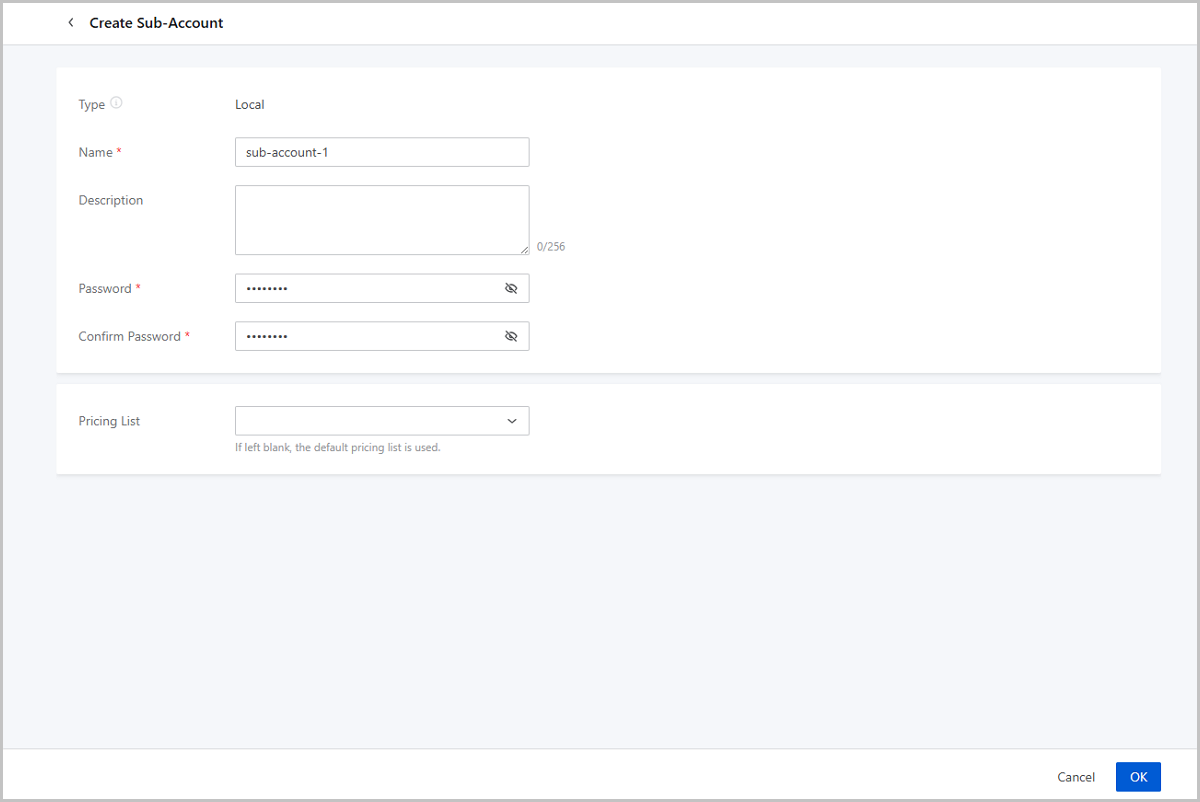
On the main menu of ZStack Cloud, choose . On the Sub-Account page, click Create Sub-Account. Then, the Create Sub-Account page is displayed.
- Type: Select the sub-account type.Note: ZStack Cloud supports two sub-account types.
- Local Sub-account: The account information is stored locally. If you add a ZStack IAM server, you cannot create a local sub-account.
- SSO Sub-account: The account information is synchronized to the SSO server for cross-platform SSO. You can create an SSO sub-account only after you add a ZStack IAM server.
- Name: Enter a name for the local sub-account.
- Description: Optional. Enter a description for the local sub-account.
- Password: Enter a password for the local sub-account.
- Confirm Password: Confirm the local sub-account password.
- Pricing List: Optional. Select a pricing list. If left blank, the default pricing list is used.
Manage a Sub-Account
On the main menu of ZStack Cloud, choose . Then, the Sub-Account page is displayed.
Manage a Local Sub-Account
| Action | Description |
|---|---|
| Create Sub-Account | Create a new sub-account. |
| Change Password | Change the password of an account.Note: After
changing the password of admin, you need to log out of the
account and log in again to take effect. |
| Change Pricing List | Change a pricing list attached by an account. |
| Delete Sub-Account | If you delete a sub-account, the sub-account
cannot be used to log in to the platform. VPC vRouters managed
by the sub-account will be deleted. VM instances and volumes
will be deleted based on the policy configured by the admin:
|
Manage an SSO Sub-Account
| Action | Description |
|---|---|
| Change Pricing List | Change a pricing list attached by an account. |
| Delete Sub-Account | If you delete a sub-account, the sub-account
cannot be used to log in to the platform. VPC vRouters managed
by the sub-account will be deleted. VM instances and volumes
will be deleted based on the policy configured by the admin:
|
SSO
Add an SSO Server
On the main menu of ZStack Cloud, choose . On the Single Sign On page, click Add SSO Server. Then, the Add SSO Server page is displayed.
- Add SSO Server | ZStack IAM
- Add SSO Server | Other Identity Provider
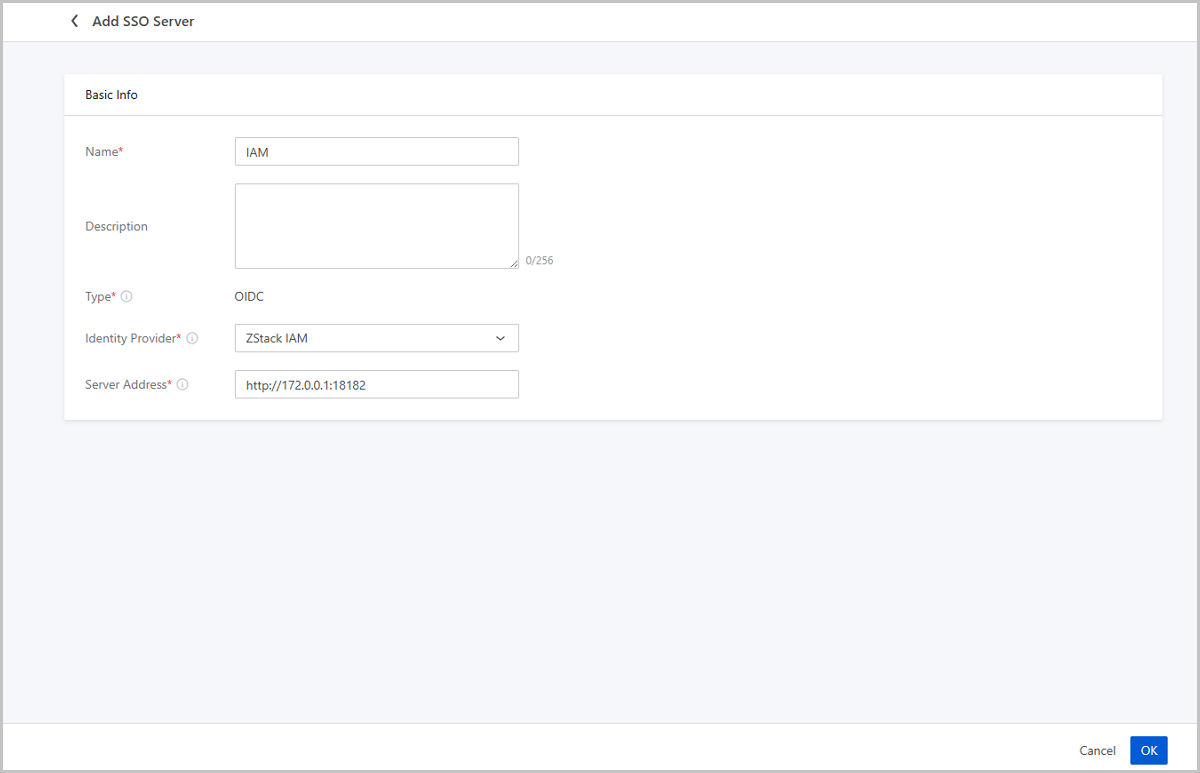
Add SSO Server | ZStack IAM
-
- Name: Enter a name for the SSO server.
- Description: Optional. Enter a description for the SSO server.
- Type: Only supports OIDC Server. It is an SSO server that applies the OIDC protocol. It authenticates and authorizes SSO users to log into the Cloud without password and syncs user information to the Cloud based on the mapping rule.
- Identity Provider: Select ZStack
IAM.Note: The ZStack IAM server is dedicated to SSO across
multiple regions.
- Server Address: Enter the ZStack IAM server address. Enter a complete URL.
Add SSO Server | Other Identity Provider
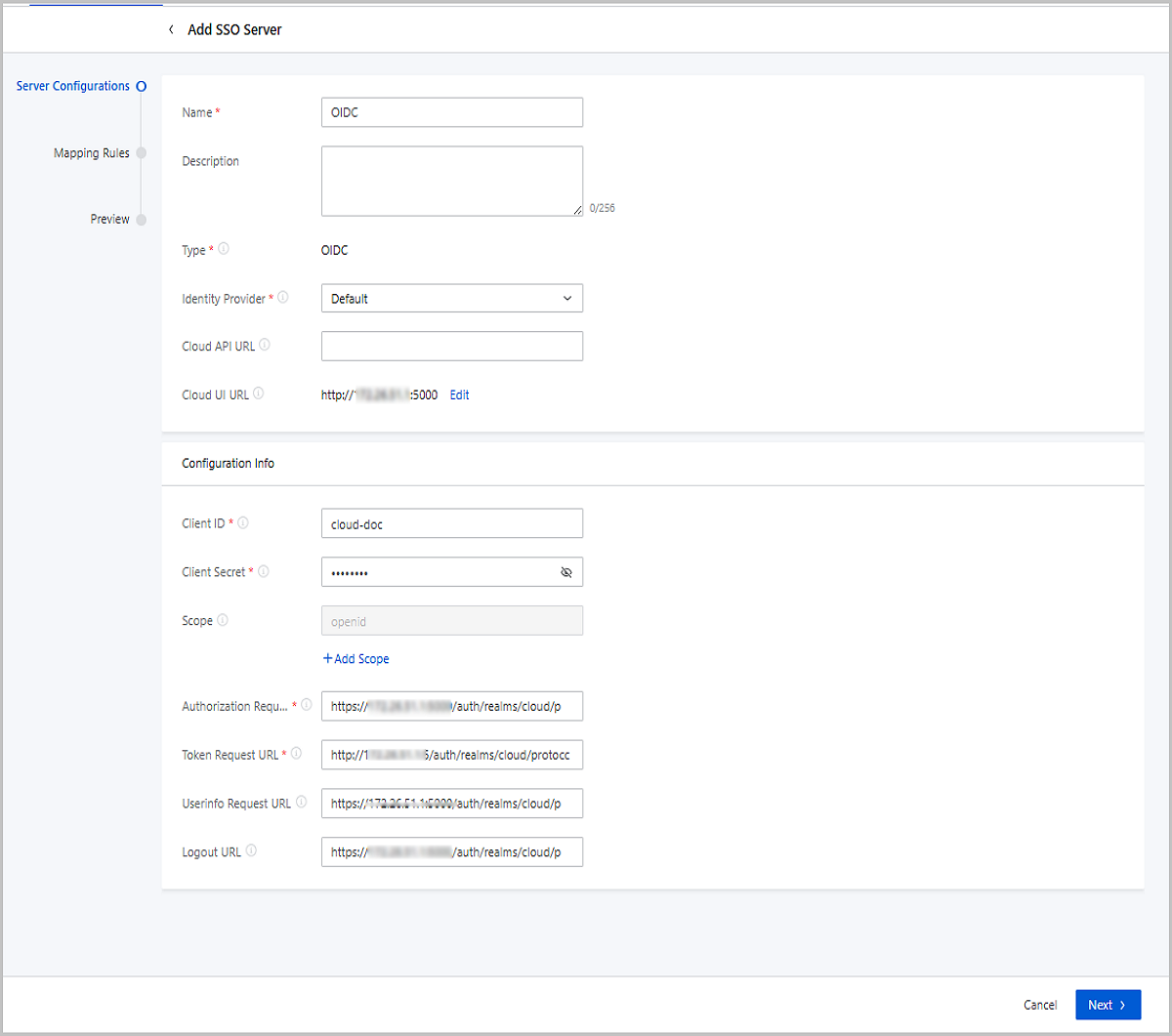
- Name: Enter a name for the SSO server.
- Description: Optional. Enter a description for the SSO server.
- Type: Only supports OIDC Server. It is an SSO server that applies the OIDC protocol. It authenticates and authorizes SSO users to log into the Cloud without password and syncs user information to the Cloud based on the mapping rule.
- Identity Provider: An IdP collects and stores user identity information, such as usernames and passwords, and authenticates user during login. Supported identity providers include default, ZFIAM, Alibaba Cloud IDaaS (Private), MaxKey SSO System, and uploaded SSO plugins.
- Cloud API URL: The
URL used to redirect to the Cloud platform when the
authentication server is certified.Note:
- If the Cloud platform API service uses a reserve
proxy, replace the original address and port with
the proxied ones while keeping the path and
parameters.Example:
- Original: https://192.168.1.100:8080/api/auth/callback
- With reverse proxy: https://api.example.com:8443/api/auth/callback
- This URL must match the callback address configured on the authentication server.
- If the Cloud platform API service uses a reserve
proxy, replace the original address and port with
the proxied ones while keeping the path and
parameters.
- Cloud UI URL: The
redirect template for password-free login within the Cloud
platform.Note:
- If the Cloud platform UI address uses a reverse
proxy, replace only the original address and port
with the proxied ones while keeping the path and
parameters.Example:
- Original: https://192.168.1.200:80/login/sso?token=<token>
- With reverse proxy: https://portal.example.com/login/sso?token=<token>
- This template directly affects login redirection. Incorrect configuration will cause SSO failure.
- If the Cloud platform UI address uses a reverse
proxy, replace only the original address and port
with the proxied ones while keeping the path and
parameters.
- Client ID: Enter the unique ID that the authentication system assigns to the Cloud.
- Client Secret: Enter the secret that the authentication system assigns to the Cloud.
- Scope: The Scope is used to specify the scope of user attributes to be obtained when requesting an access token or ID token, such as name, email, phone number, and so on. After specifying the scope, the returned token will contain the corresponding attributes.
- Authorization Request URL: Enter the request URL used to obtain an authorization grant in authorization code mode.
- Token Request URL: Enter the request URL used to obtain an access token from the authentication server.
- Userinfo Request URL: The request URL used to obtain the user information from the authentication server.
- Logout URL: The URL used to log off sessions after logging out of the Cloud. When logging in to the Cloud again, you need to re-enter the authentication server. If left blank, the login information will not be immediately cleared after logging out of the Cloud, and you can still log in to the Cloud without a password as long as the session is valid.
- User Mapping Rule: Through the user mapping rule, the
third-party user has local user attributes after it is synced to the Cloud.
The rule used to map third-party attributes of a third-party user to Cloud
local attributes.
- Name: Specify a rule to map the attribute of
OIDC users to the name of Cloud users. The name is the unique
identification of a user. Make sure that the name that you fill in
also has a unique identity in the authentication system.
For example, if a Name maps username, the Name whose user is created in the Cloud can use the value (such as Xiaoming) matching username.
- Description: Optional. Specify a rule to map
the attribute of OIDC users to the description of Cloud users.
For example, if a Description maps description, the Description whose user is created in the Cloud can use the value (such as dev-backend) matching description.
- Name: Specify a rule to map the attribute of
OIDC users to the name of Cloud users. The name is the unique
identification of a user. Make sure that the name that you fill in
also has a unique identity in the authentication system.
Manage an SSO Server
On the main menu of ZStack Cloud, choose . Then, the Single Sign On page is displayed.
| Action | Description |
|---|---|
| Edit SSO Server | Edit the name and description of an SSO server. |
| Delete SSO Server | Delete an SSO server.Note: Deleting an SSO server
also deletes the related SSO user information. The source user
and organization information is not affected. |