
Advanced Monitoring Server
What is Advanced Monitoring Server?
An advanced monitoring server is a dedicated VM instance used to receive advanced monitoring data of load balancers and other resources.
Concepts
- Advanced Monitoring Server Image: An advanced monitoring server image encapsulates the advanced monitoring service and can be used to create advanced monitoring server.
- Advanced Monitoring Server Offering: An advanced monitoring server offering defines the CPU cores, memory size, image, management network, and public network configurations of advanced monitoring server. You can use an advanced monitoring server offering to create advanced monitoring servers.
Advanced Monitoring Server
Create an Advanced Monitoring Server
On the main menu of ZStack Cloud, choose . On the Advanced Monitoring Server page, click Create Advanced Monitoring Server. Then, the Create Advanced Monitoring Server page is displayed.
- Name: Enter a name for the advanced monitoring server. The name must be 1 to 128 characters in length and can contain Chinese characters, letters, digits, hyphens (-), underscores (_), periods (.), parenthesis (), colons (:), and plus signs (+).
- Description: Optional. Enter a description for the advanced monitoring server.
- Offering: Select an advanced monitoring server offering.
- Storage Allocation Policy: Allocate a primary storage to
the advanced monitoring server. Supports following two allocation policies:
- System Allocation: The system allocates a primary storage according to the preconfigured policy.
- Custom: Select a primary storage as needed.
- Primary Storage: Select a primary storage. You need to set this parameter if you set Storage Allocation Policy as Custom.

Manage an Advanced Monitoring Server
On the main menu of ZStack Cloud, click . Then, the Advanced Monitoring Server page is displayed.
| Action | Description |
|---|---|
| Create Advanced Monitoring Server | Create an advanced monitoring server. |
| Edit Name and Description | Modify the name and description of an advanced monitoring server. |
| Launch Console | Access an advanced monitoring server through terminals. |
| Start | Start a stopped advanced monitoring server. |
| Stop | Stop a running advanced monitoring server. Note: Note:
|
| Reboot | Reboot an advanced monitoring server.Note:
|
| Set Console Password | Set the console password for the advanced
monitoring server, including: adding a new console password,
modifying the console password, and removing the console password. Note:
|
| Set Sharing Mode |
Set the sharing mode of a resource. The
platform provides the following sharing modes:
Note:
|
| Delete | Delete an advanced monitoring server.Note:
|
Advanced Monitoring Server Image
Add an Advanced Monitoring Server Image
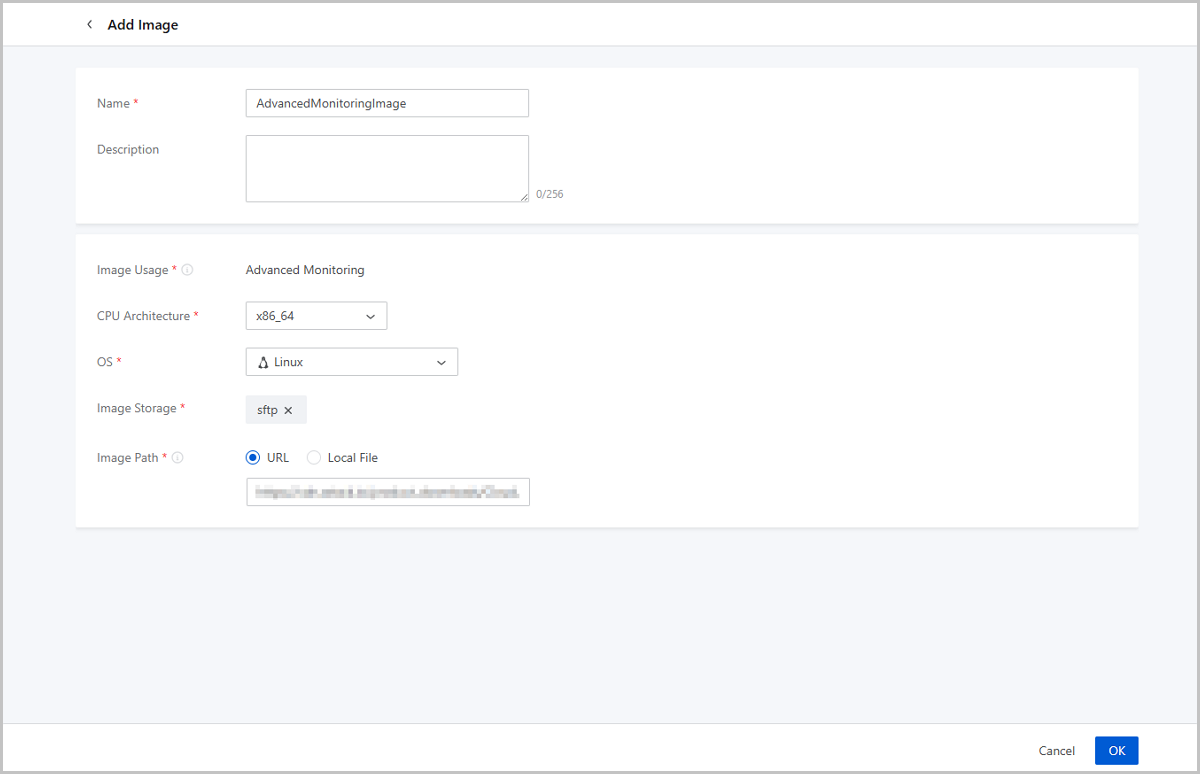
On the main menu of ZStack Cloud, choose . On the Advanced Monitoring Server page, choose Image. On the Image page, click Add Image. Then, the Add Image page is displayed.
- Name: Enter a name for the image.
- Description: Optional. Enter a description for the image.
- Image Usage: Displays Advanced Monitoring.
- CPU Architecture: Select a CPU architecture for the image. Advanced monitoring server created from this image inherit this architecture.
- OS: Select an OS for the image.
- Image Storage: Select an image storage to store the image.
- Image Path: Enter a URL or upload a local file.
- URL: Enter the download URL of the image.
- Local File: Upload an image that can directly be
accessed by the browser.Note:
- A local browser will serve as a transmission relay used for uploading the image. Do not refresh or stop the current browser, nor stop your management node. Otherwise, you will fail to add the image.
- To obtain advanced monitoring server image, contact the official technical support.
Manage an Advanced Monitoring Server Image
On the main menu of ZStack Cloud, choose . On the Advanced Monitoring Server page, click Image. Then, the Image page is displayed.
| Action | Description |
|---|---|
| Add Image | Add an advanced monitoring server image. |
| Edit Name and Description | Modify the name and description of an advanced monitoring server image. |
| Enable Image | Enable an advanced monitoring server image. If enabled, the image is available as a candidate when you create an advanced monitoring server offering. |
| Disable Image | Disable an advanced monitoring server image. If disabled, the image is no longer available as a candidate when you create an advanced monitoring server offering. |
| Export Image | Export an advanced monitoring server image.Note:
|
| Delete Image | Delete an advanced monitoring server image.Note: After the deletion, advanced monitoring server offering using this image may fail to create advanced monitoring servers. |
| Recover Image | Recover a deleted advanced monitoring server image from the recycle bin. |
| Expunge Image | Expunge a deleted advanced monitoring server image.Note: Expunged images cannot be recovered. Please exercise caution. |
| Download Exported Image | Download an exported advanced monitoring server image. The download is implemented by the browser.Note: ImageStore image storage allows you to view the MD5 value of the downloaded image to check whether the downloaded image is the same as the exported image. |
| Delete Exported Image | Deleted an exported advanced monitoring server image.Note:
|
Advanced Monitoring Server Offering
Create an Advanced Monitoring Server Offering
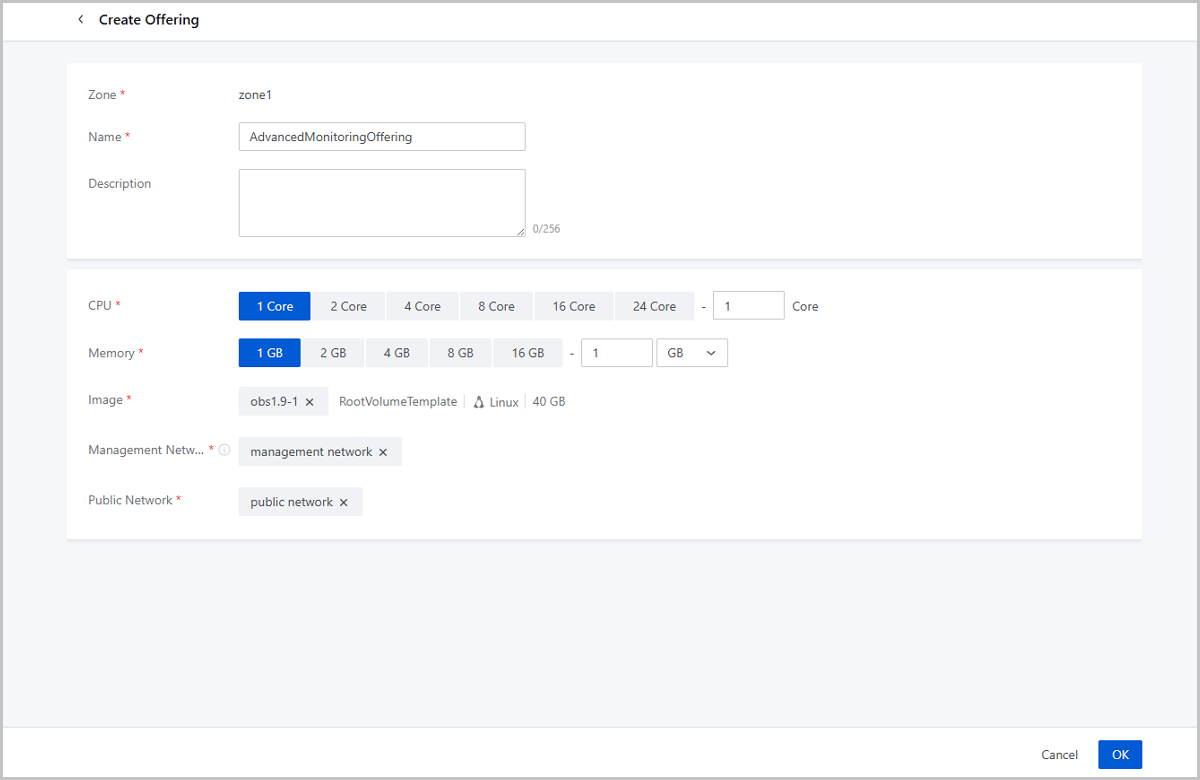
On the main menu of ZStack Cloud, choose . On the Advanced Monitoring Server page, click Offering. On the Offering page, click Create Offering. Then, the Create Offering page is displayed.
- Zone: Displays the current zone.
- Name: Enter a name for the offering.
- Description: Optional. Enter a description for the offering.
- CPU: Set the number of CPU cores for advanced monitoring servers created from this offering.
- Memory: Set the memory size for advanced monitoring servers created from this offering. Unit: MB, GB, and TB.
- Image: Select an advanced monitoring server image.
- Management Network: Select an existing management network.
- A management network is used by the management node to deploy and configure resources such as hosts, VPC vRouters, and advanced monitoring servers.
- If a system network is used to manage physical resources, select the system network as the management network.
- If you use a public network to manage physical resources, select the public network as the management network.
- Public Network: Select a public network.
Manage an Advanced Monitoring Server Offering
On the main menu of ZStack Cloud, choose . On the Advanced Monitoring Server page, click Offering. Then, the Offering page is displayed.
| Action | Description |
|---|---|
| Create Offering | Create an advanced monitoring server offering. |
| Edit Offering | Edit the name and description of an advanced monitoring server offering. |
| Enable Offering | Enable an advanced monitoring server offering. If enabled, the offering is available as a candidate when you create an advanced monitoring server. |
| Disable Offering | Disable an advanced monitoring server offering. If disabled, the offering is no longer available as a candidate when you create an advanced monitoring server. |
| Delete Offering | Delete an advanced monitoring server offering. |