
Region Management
What is Region Management?
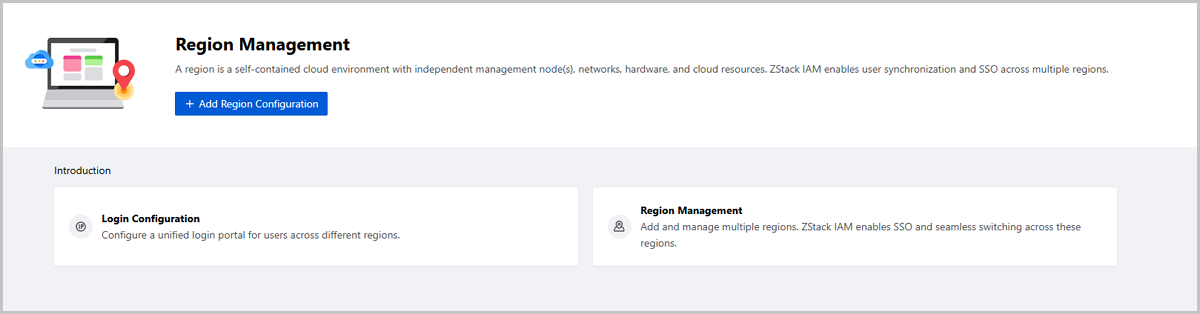
A region is a self-contained cloud environment with independent management node(s), networks, hardware, and cloud resources. ZStack IAM enabled user synchronization and SSO across multiple regions.
Advantages
- Multi-Region Management: Supports adding multiple regions and seamless switching among them. This enables convenient management or resources in these regions and improving operational efficiency.
- SSO: Supports user information synchronization and SSO across multiple regions. Users from different regions can log in through a unified portal and access all regions without passwords.
Notification
By default, the Region Management page is not displayed on ZStack Cloud UI. To make this page displayed, contact the official technical support.
Add Region Configuration
Preparation
Contact the official technical support to finish ZStack IAM deployment and other preparations before you add regions.
Add Region Configuration
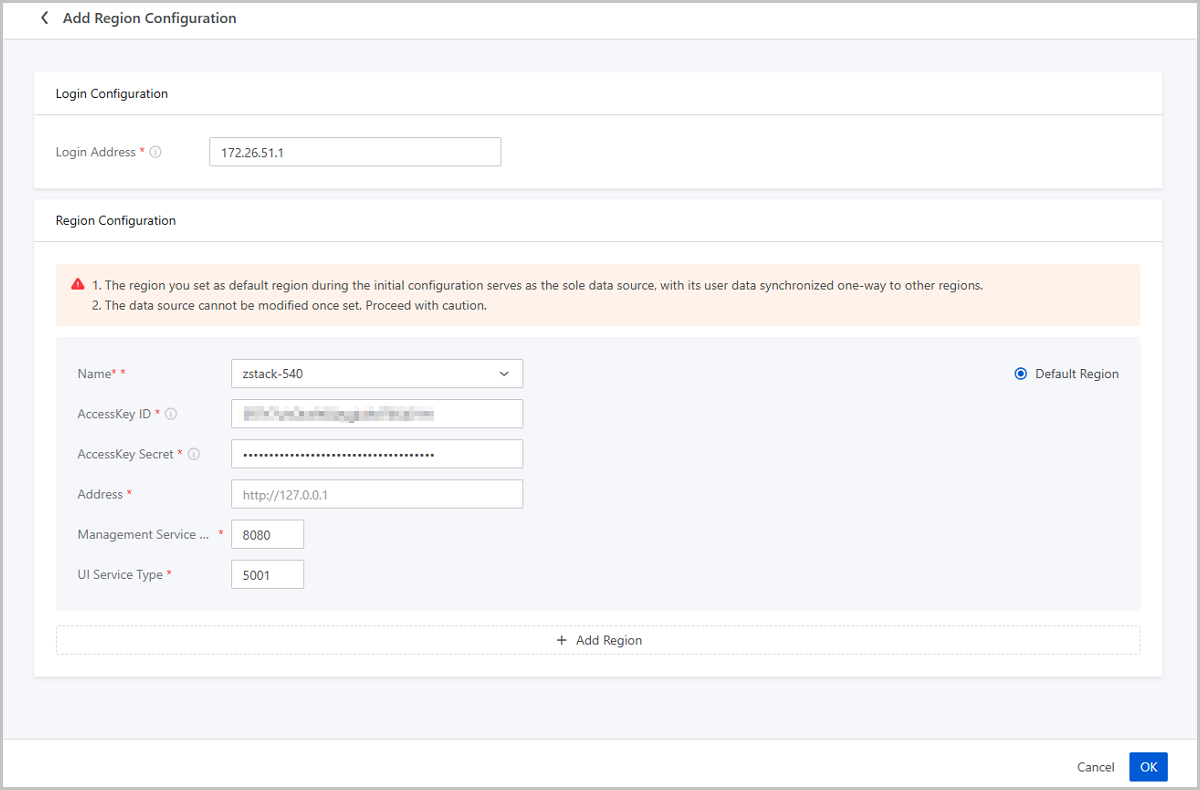
On the main menu of ZStack Cloud, choose . On the Region Management page, click Add Region Configuration.Then, the Add Region Configuration page is displayed.
- Login Address: Set a unified login address for users
across all regions.
 Note: The login address must be the management node
address of one of the regions on the Cloud. You can enter an IP address
or a domain name. If the region has dual management nodes, enter the
management node VIP or the corresponding domain name.
Note: The login address must be the management node
address of one of the regions on the Cloud. You can enter an IP address
or a domain name. If the region has dual management nodes, enter the
management node VIP or the corresponding domain name. - Region Configuration: Click Add
Region to add one or more regions.
- Name: Select a region.
- AccessKey ID: Generate an AccessKey using the admin account and paste the AccessKey ID here.
- AccessKey Secret: Paster the corresponding AccessKey Secret.
- Address: Enter the region address. Format:
http://{MNIP}Note: {MNIP} is the IP address of the
management node of the region. If the region has dual management
nodes, enter the management node VIP.
- Management Service Port: Enter the management service port of the region.
- UI Service Port: Enter the UI service port or the region.
- Default Region: Select whether to set the
current region as the default region.Note:
- You enter the default region first after you log in via the unified login address. You can switch to other regions by click the switching button on the upper right of the UI.
- The region you set as default region during the initial configuration serves as the sole data source, with its user data synchronized one-way to other regions. The data source cannot be modified once set. Select with caution.
- To ensure proper user information synchronization without conflicts, the best practice is to store all user data in the first default region (data source), and other regions remain free of user data.
Manage a Region
On the main menu of ZStack Cloud, choose . Then, the Region Management page is displayed.
| Action | Description |
|---|---|
| Modify Login Configuration | Modify the unified login address. |
| Add Region | Add a new region.Note: To ensure proper user
information synchronization without conflicts, we recommend that
the regions (except for the default region you specified during
the initial configuration) you add are free of user
data. |
| Synchronize Data | Synchronize user information from the data source
to other regions.Note:
|
| Modify Region Configuration | Modify the region information, such as the AccessKey, address, management service port, and UI service port. |
| Set as Default Region | Set a region as the default region.Note: Only a
region whose health status is Healthy and user
synchronization status is Succeeded can be set as the
default region. |
| Remove Region | Remove a region.Note:
|